Most headphone issues stem from connection problems, software settings, or physical damage.
I’ve spent years troubleshooting audio gear for friends, clients, and my own tech stash, so I know the common and sneaky reasons for “why my headphones are not working.” This guide breaks down causes, step-by-step fixes, and preventive tips in plain language. Read on to diagnose and fix your headphones fast, whether they’re wired, Bluetooth, or USB.
Common causes: why my headphones are not working
Headphones fail for a few clear reasons. These include bad cables, poor Bluetooth pairing, wrong audio settings, driver conflicts, or physical damage to the jack or drivers. Environmental factors like dirt, earwax, or moisture can also stop sound.
I’ve seen the same patterns often. A loose plug or a muted setting is usually the culprit. Knowing the likely causes saves time and stress when you ask, “why my headphones are not working.”
Source: youtube.com
Quick troubleshooting checklist (step-by-step)
Follow these short steps to find the problem fast.
- Check volume and mute on the device and the headphones. Keep volume at a moderate level while testing.
- Reboot your phone, laptop, or tablet. A restart clears temporary glitches.
- Try a different app or audio file to rule out app-specific issues.
- Swap headphones with another device to see if the problem follows the headphones or the device.
- Inspect cables, jacks, and connectors for visible damage or dirt.
If those steps fail, continue to the deeper checks below. They target wired, wireless, and software-specific problems.

Source: youtube.com
Wired headphones: what to inspect and fix
Wired headphones fail often from simple issues. Here’s how to troubleshoot.
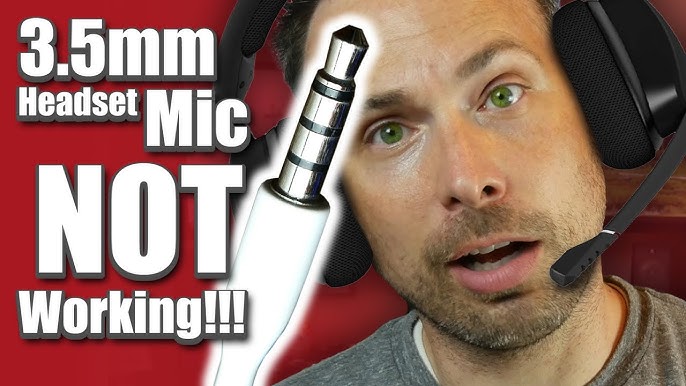
- Check the plug and jack for lint, dust, or corrosion. Clean the jack gently with compressed air or a soft brush.
- Wiggle the cable near the plug and near the earcups. If sound cuts in and out, there may be a broken wire.
- Test the headphones in both ears. If only one side works, the cable or driver may be faulty.
- Confirm the correct plug size or adapter. Using the wrong adapter can stop audio.
- Try the same headphones on another device. If they work, the original device needs attention.
In my own experience, a nearly invisible bend in the cable near the plug caused intermittent audio. Replacing the cable fixed it at low cost.
Source: youtube.com
Wireless and Bluetooth issues: pairing and connection fixes
Bluetooth problems are a frequent answer to “why my headphones are not working.” Try these fixes.
- Make sure Bluetooth is on and the headphones are in pairing mode. Follow the manufacturer’s pairing steps.
- Forget the device in your phone or laptop Bluetooth settings and re-pair from scratch.
- Move closer to the audio source and remove obstacles. Large metal objects or crowded wireless areas can block signals.
- Check battery level. Low battery may reduce performance or stop audio entirely.
- Update the headphone firmware via the manufacturer app if available.
I once fixed a pair by clearing ten old paired devices from my phone. That cleared interference and restored stable audio quickly.
Source: metalsbetter.com
Software, drivers, and settings
Software is often the hidden reason for “why my headphones are not working.” Here’s where to look.
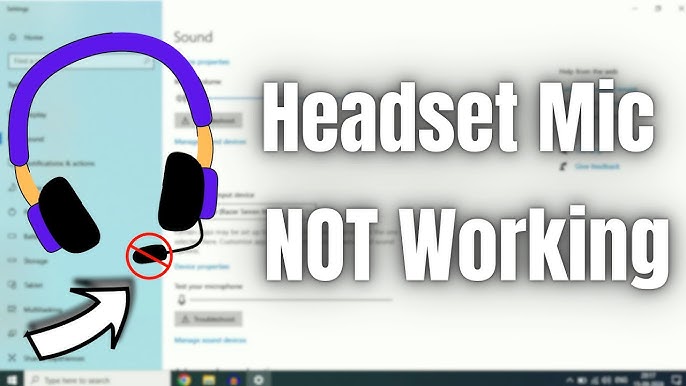
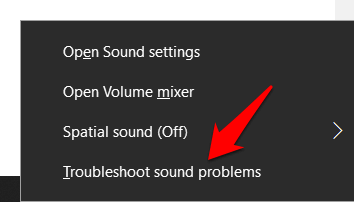
- On Windows, check the sound output device in the taskbar and in Sound Settings. Set the headphones as the default device.
- On macOS, open Sound preferences and select your headphones for output.
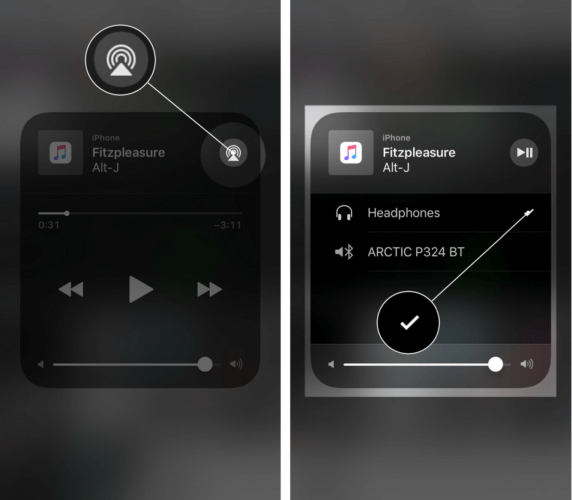
- On phones, verify the audio output in control center or the audio player app.
- Update audio drivers on PCs or install the latest system updates on mobile devices.
- Disable audio enhancements or exclusive mode features that may interfere with playback.
Driver conflicts or outdated firmware cause puzzling audio drops. Keep drivers and firmware updated as routine maintenance.

Source: youtube.com
Hardware damage and when to repair or replace
Sometimes the answer to “why my headphones are not working” is physical failure. Know when to repair and when to replace.
- Broken wires, torn ear pads, or damaged drivers can reduce sound quality or stop audio.
- Moisture or sweat damage often corrodes internal parts and voids warranties in some cases.
- If repairs cost more than about half the headphone value, replacement is usually better.
- For premium headphones, check warranty and authorized repair options first.
I repaired an old pair by replacing ear cushions and a broken jack. It cost less than a new pair and restored full function.
Source: helpdeskgeek.com
Preventive care and maintenance
Good care reduces future “why my headphones are not working” moments. Use simple habits.
- Store headphones in a case to avoid crushing cables and drivers.
- Keep jacks and plugs clean and dry. Use a soft cloth after workouts.
- Avoid winding cables tightly; use loose loops to prevent internal breaks.
- Charge wireless headphones regularly and update firmware when prompted.
- Replace foam pads and cables as they wear to keep sound quality consistent.
Treat headphones like glasses or a phone charger: small care steps avoid big problems.
People also ask
Why do my headphones work on one device but not another?
Different devices use different audio settings, drivers, or output types. Test the headphones on multiple devices to pinpoint whether the problem is the headphones or the device.
Could dirt in the jack stop sound completely?
Yes. Lint or dirt in the headphone jack can block connection or create a poor contact. Cleaning gently with compressed air often restores sound.
Can a software update break headphone audio?
A software or driver update can change audio routing or disable drivers temporarily. Rolling back or updating audio drivers usually fixes this.
Frequently Asked Questions of why my headphones are not working
Why are my headphones producing sound in only one ear?
One-sided audio often means a broken wire, bad plug, or internal driver failure. Test on another device and inspect the cable and plug for damage.
Why do my wireless headphones keep disconnecting?
Interference, low battery, or outdated firmware commonly cause disconnects. Move closer to the source, charge fully, and update firmware.
Why do earbuds sound low even at high volume?
Low volume can be due to dirty speaker mesh, a blocked vent, or wrong audio settings. Clean the mesh gently and check volume limits on your device.
Why is there static or buzzing in my headphones?
Static often comes from loose connections, damaged cables, or nearby interference. Try another cable or device, and remove nearby wireless interference.
Why do my headphones work only after tapping or wiggling them?
That usually indicates a loose internal connection or a broken wire. Wiggling temporarily restores contact, but repair or replacement is the long-term fix.
Why won’t my phone recognize wired headphones?
Modern phones may require adapters or use digital audio via USB-C or Lightning. Ensure compatibility and test with a known working adapter if needed.
Conclusion
You now have a clear plan to answer “why my headphones are not working.” Start with simple checks like volume, cables, and pairing. Move to driver updates and hardware inspection only if needed. Small habits—cleaning, proper storage, and timely updates—prevent most problems and save money.
Try the troubleshooting steps today, and leave a comment about what fixed your headphones. If you want more help, subscribe or ask for device-specific advice.