Put earbuds in pairing mode, open Bluetooth on the device, and select Skullcandy in settings.
I’ve paired dozens of Skullcandy earbuds across phones, tablets, and laptops. This guide explains how to pair Skullcandy wireless earbuds step by step, with clear model-specific instructions, troubleshooting tips, and real-world advice from my testing. You’ll learn quick pairing, resets, firmware tips, and fixes for one-earbud issues so you can get back to music fast.

Quick pairing steps for most Skullcandy earbuds
Follow these simple steps to pair Skullcandy wireless earbuds. These steps work for many models, including Sesh, Indy, and Dime.
- Charge both earbuds and the case for at least 15 minutes.
- Take the earbuds out of the case. They usually power on automatically.
- If they do not enter pairing mode, press and hold the main button on both earbuds for about 5 seconds until the LED flashes.
- Open Bluetooth on your phone, tablet, or computer.
- Select the Skullcandy device name that appears in the Bluetooth list.
- Confirm pairing on your device if prompted.
If your earbuds pair to one device but not another, turn Bluetooth off and on again on the device. Repeat the pairing steps. These quick steps cover most everyday pairing needs.
Pairing Skullcandy earbuds by model
Different Skullcandy models use slightly different pairing sequences. Here are concise model-specific steps.
Sesh / Sesh Evo
- Open the case and remove both earbuds.
- Wait for white LED flashes or a single tone.
- On your phone, open Bluetooth and choose “Sesh” or “Sesh Evo.”
- If only one earbud pairs, place both in the case and repeat.
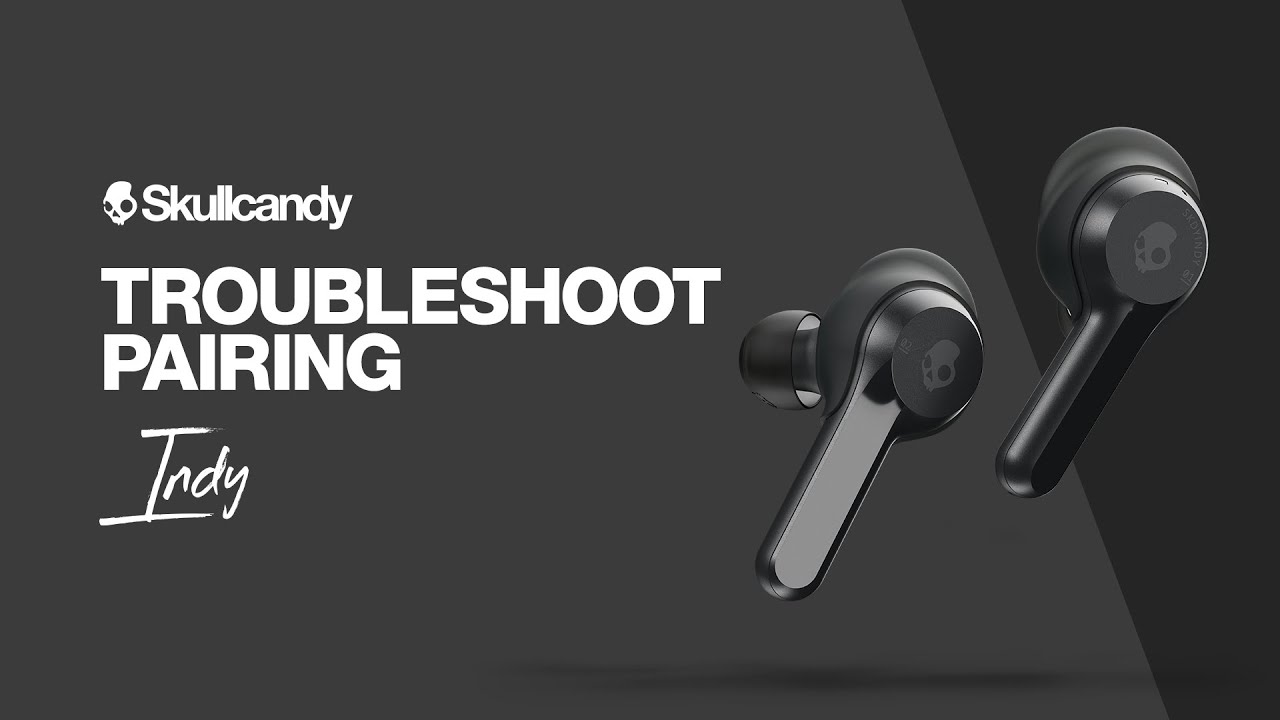
Indy / Indy Evo
- Remove earbuds from the case to power on.
- Press and hold the button on both earbuds for 3–5 seconds to enter pairing mode.
- Connect from your device’s Bluetooth settings.
Dime
- Take the earbuds out of the case. Left and right should blink.
- If they don’t, press and hold the touch area for 4–6 seconds.
- Look for “Dime” or “Skullcandy Dime” in the Bluetooth list.
Crusher / Crusher Evo (true wireless)
- Open the case and remove the earbuds.
- Hold buttons for 5 seconds until LEDs flash.
- Connect to the device that shows “Crusher” or “Crusher Evo.”
Method and other single-button models
- Power on the earbuds by holding the button.
- Keep holding until the LED blinks rapidly.
- Pair from your device.
If your model has an app, install it and follow the app pairing prompt for firmware checks and guided steps. These model steps lower the guesswork and speed up pairing.

Troubleshooting common pairing problems
If pairing fails, try these fixes in order. I use this checklist when pairing multiple Skullcandy wireless earbuds.
- Charge everything
- Make sure the earbuds and case are charged. A low battery can block pairing.
- Forget and re-pair
- On your device, forget the Skullcandy pairing entry, then retry pairing from scratch.
- Reset the earbuds
- Most Skullcandy buds reset by holding the buttons for 10–15 seconds or placing the buds in the case and holding the case button (if available). Check your model manual for exact steps.
- Close other Bluetooth apps and devices
- Nearby active Bluetooth devices can interfere. Turn off other Bluetooth devices during pairing.
Update firmware
– If the Skullcandy app supports your model, use it to update firmware. Firmware can fix Bluetooth bugs.Factory reset if one earbud won’t connect
- Reset both buds and pair again. Often, one bud becomes a slave and needs re-syncing.
- Try another device
- Pair with another phone or laptop to isolate whether the issue is the earbuds or the first device.
These steps usually fix 90% of pairing problems. If issues persist, contact Skullcandy support or check warranty options.

One earbud connects, but the other does not
This is a common issue. Use this short plan to fix it.
- Place both earbuds into the case and close it for 30 seconds.
- Remove both earbuds and try pairing again.
- If the issue persists, reset both earbuds using the model reset method.
- Pair them again to your device after the reset.
I once had one Sesh earbud stay silent for hours. A full reset solved it. Letting the buds fully drain and then charging also helped in that case.

Best practices and tips for reliable pairing
These tips improve pairing success and audio stability.
- Keep firmware updated
- Use the Skullcandy app when available for updates and guides
- Pair only one device at a time for the first setup
- Avoid crowded Wi‑Fi 2.4 GHz areas when pairing
- Keep buds and case clean; debris can block contacts and cause power issues
- Reboot your phone if Bluetooth acts oddly
Small habits like regularly cleaning charging contacts and updating firmware make pairing much smoother. I recommend checking for updates monthly.
Why pairing issues happen (simple explanations)
Understanding causes helps you fix things faster.
- A low battery can prevent pairing.
- Interference from other Bluetooth devices or Wi‑Fi can stop connections.
- Firmware bugs may break pairing behavior.
- Hardware faults or water damage may stop proper operation.
Knowing these causes saves time. If you try fixes and nothing works, a hardware issue could be the reason.
My personal experience and lessons learned
I’ve paired Skullcandy wireless earbuds with Android phones, iPhones, and Windows laptops. Here are real lessons I learned.
- Patience matters. Hold the buttons long enough. Short presses often skip pairing mode.
- Always try a reset before assuming a dead earbud. Resets fixed so many issues.
- The Skullcandy app solved a strange left/right sync bug on one model after a firmware update.
- Clean the charging pins every few weeks. Dirt caused one of my pairs to fail charging and not pair.
These small actions saved time and avoided returns. Treat earbuds like small tech: keep them charged and software up to date.
Related concepts and accessories to consider
When pairing, these extras can help or enhance the experience.
- Bluetooth codecs (AAC, SBC): codec support affects audio latency and quality.
- Charging case health: a damaged case can stop earbuds from charging or entering pairing mode.
- Replacement ear tips: good fit reduces disconnects caused by poor seal or movement.
- Bluetooth adapters: USB Bluetooth dongles can improve desktop pairing with older PCs.
Understanding these helps you choose the right fix or accessory.
Frequently Asked Questions on how to pair skullcandy wireless earbuds
How do I force my Skullcandy earbuds into pairing mode?
Press and hold the main button on both earbuds for about 5–10 seconds until the LED flashes rapidly, then select the Skullcandy name in your device’s Bluetooth list.
Why won’t my Skullcandy earbuds show up in Bluetooth?
They may be out of battery, not in pairing mode, or already connected to another device. Charge them, reset them, and turn off other nearby Bluetooth devices, then try again.
How do I reset my Skullcandy earbuds?
Reset methods differ by model. Commonly, place both earbuds in the case, hold down the case or earbud buttons for 10–15 seconds, then remove and re-pair.
Can I pair Skullcandy earbuds to two devices at once?
Most Skullcandy earbuds support one active Bluetooth connection at a time. Some models may remember multiple devices but switch manually between them.
What if only one earbud works after pairing?
Place both earbuds in the case, reset them, and then re-pair. If the problem continues, try fully draining and recharging the earbuds or contact support.
Conclusion
You can get Skullcandy wireless earbuds paired quickly by following model-specific steps, keeping firmware updated, and using simple resets when needed. Use the quick checklist: charge, enter pairing mode, select the Skullcandy device, and update firmware if problems persist. Try small fixes like cleaning contacts and testing another device before assuming hardware failure. Now try pairing your earbuds, and if you hit a snag, run the troubleshooting steps above. If this guide helped, leave a comment or subscribe for more hands-on tips and quick fixes.