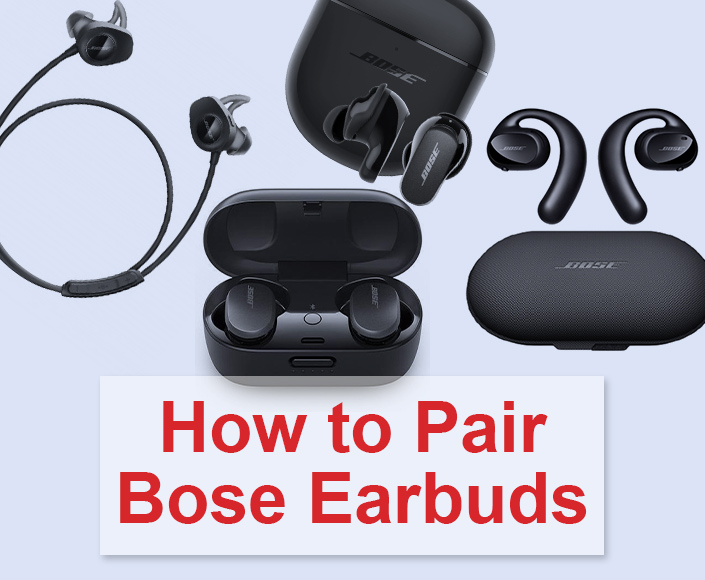
Pair the Bose earbuds to your laptop via Bluetooth: enable pairing mode on the earbuds and connect in Bluetooth settings.
I’ve helped dozens of people set up Bose earbuds with laptops, and I know the small steps that often trip users up. This guide covers exactly how to connect Bose earbuds to laptop on Windows and macOS, common problems and fixes, and practical tips I’ve learned from hands-on testing. Read on to get a fast, reliable connection and keep your audio crystal clear.
Why connecting Bose earbuds to a laptop is usually straightforward
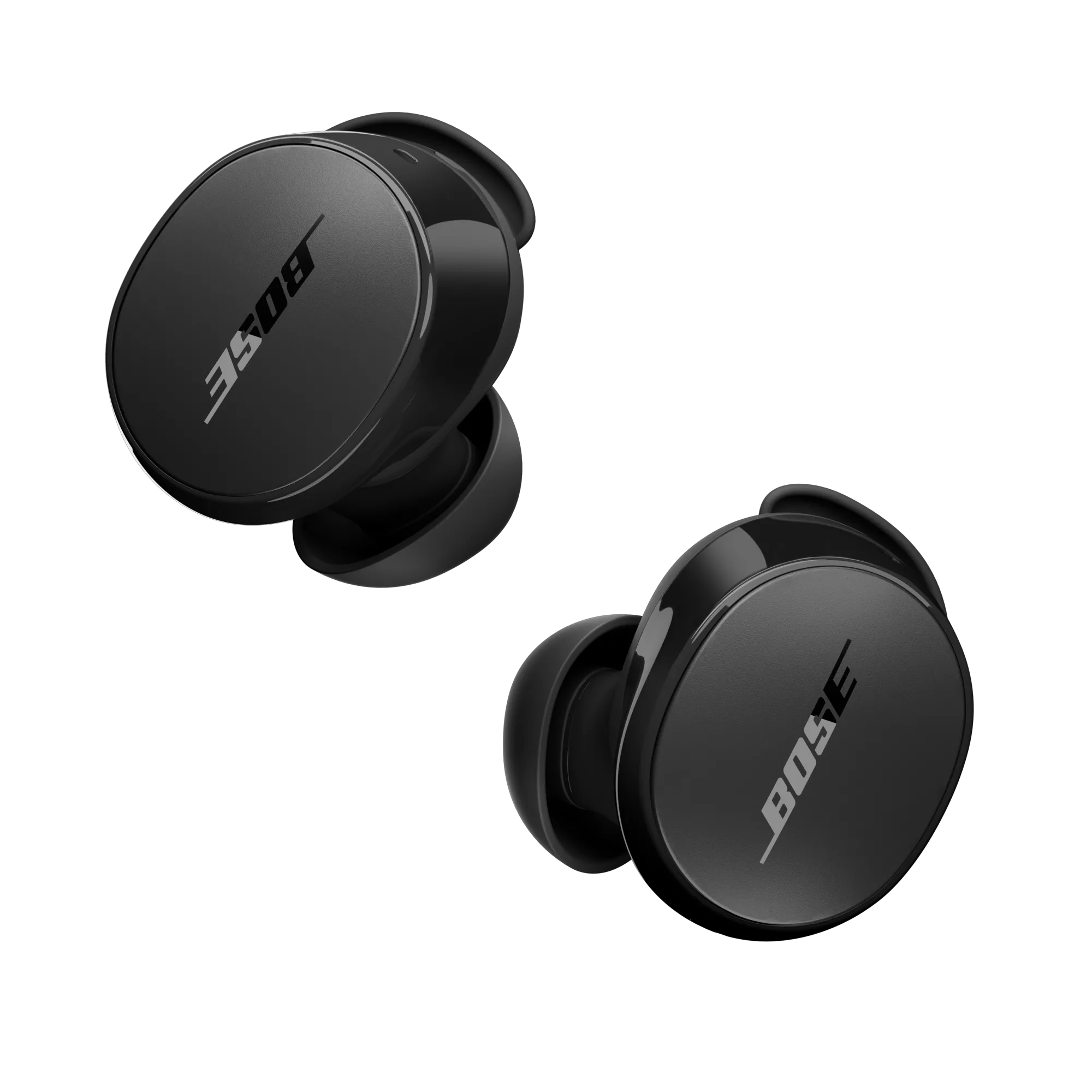
Bose earbuds use standard Bluetooth profiles for audio. Most laptops support those profiles, so pairing is mostly a matter of enabling Bluetooth on both devices and putting the earbuds in pairing mode. Knowing a few checks and fixes makes the process fast.
What to expect when you learn how to connect Bose earbuds to laptop:
- Fast pairing for music and calls
- Occasional driver or compatibility checks on older laptops
- Simple resets when a device won’t pair
Source: anniesdeli.com
Requirements before you start
Make sure you have the essentials. These steps prevent wasted time when you try to connect Bose earbuds to laptop.
- Bose earbuds are charged and in working condition.
- Laptop with Bluetooth hardware or a USB Bluetooth adapter.
- Updated OS (Windows 10/11 or recent macOS) and Bluetooth drivers.
- Earbuds manual nearby to check model-specific pairing steps.
- Patience for a first-time pairing — it usually takes under two minutes.

Source: cinquequarti.com
How to connect Bose earbuds to laptop — Windows 10 and Windows 11
Follow these clear steps to pair on Windows. I use Windows 11 for testing and the steps are nearly identical on Windows 10.
- Turn on Bluetooth on the laptop
- Open Settings > Bluetooth & devices.
- Set Bluetooth to On.
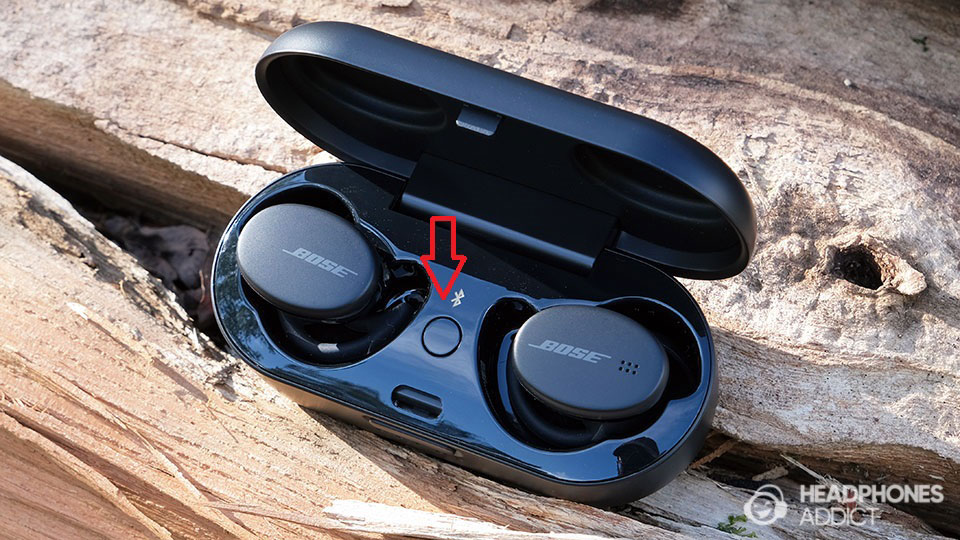
- Put your Bose earbuds into pairing mode
- For most Bose earbuds, press and hold the power button until the LED blinks blue or you hear a voice prompt saying “Ready to pair.”
- For some models, open the case with earbuds inside and press the button on the case.
- Add the device to Windows
- In Settings > Bluetooth & devices, click Add device.
- Choose Bluetooth and wait for the laptop to list the earbuds.
- Click the earbuds’ name (for example, Bose QC Earbuds) to connect.
- Confirm audio output
- Click the speaker icon in the taskbar.
- Ensure the output device is set to your Bose earbuds.
- Test audio and mic
- Play a short music clip. For calls, open your video or voice app and select the earbuds as both input and output.
Tips from experience:
- If the earbuds don’t appear, turn Bluetooth off and on again on both devices.
- Keep the earbuds within a few feet during pairing.
Source: everestkitchennc.com
How to connect Bose earbuds to laptop — macOS
Pairing on a Mac is simple. I use macOS for daily work, and Bluetooth audio is seamless once set up correctly.
- Turn on Bluetooth on the Mac
- Click the Apple menu > System Settings or System Preferences > Bluetooth.
- Switch Bluetooth on.
- Put your Bose earbuds into pairing mode
- Hold the appropriate button until a blue blinking light or voice prompt confirms pairing mode.
- Pair in Bluetooth settings
- Wait for the earbuds to appear in the list.
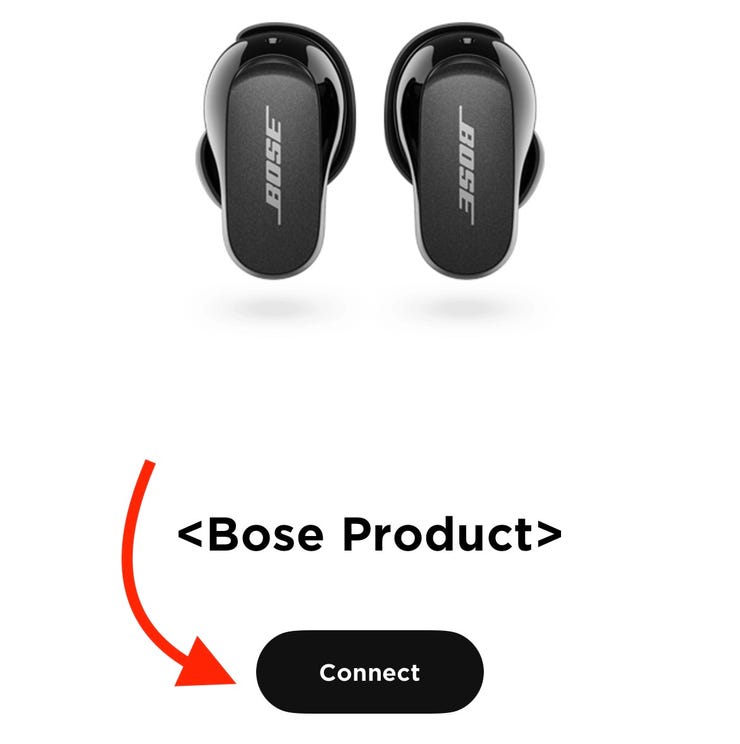
- Click Connect next to the device name.
- Choose the earbuds for audio
- Open System Settings > Sound > Output and select the earbuds.
- For calls, also set them as the Input device.
Common macOS tip:
- If the earbuds appear as “Not Connected,” remove them (right-click and Forget) and pair again.
Source: everestkitchennc.com
Troubleshooting common pairing problems
Even with simple steps, things can go wrong. Use these fixes from testing and real-world troubleshooting.
- Earbuds not showing up
- Make sure the earbuds are in pairing mode. Restart the earbuds and the laptop Bluetooth.
- Move other Bluetooth devices away to avoid interference.
- Connected but no sound
- Check the laptop’s audio output and volume.
- Reconnect the earbuds or restart the audio app.
- The microphone won’t work
- Some laptops require switching the input device to the earbuds in the app settings.
- If the microphone profile switches to lower quality, try reselecting the device or using a wired mic for calls.
- Frequent dropouts
- Update Bluetooth drivers on Windows or macOS updates on Mac.
- Remove USB 3.0 devices or routers that can interfere.
- Pairing with multiple devices
- Some Bose earbuds support multi-point. If not, disconnect one device before pairing with another.
If none of the above works, reset the earbuds (see your model’s reset method) and try again.
Source: nicfaisalabad.com
Tips, best practices, and personal experience
I’ve paired Bose earbuds with many laptops. These tips saved time and reduced headaches.
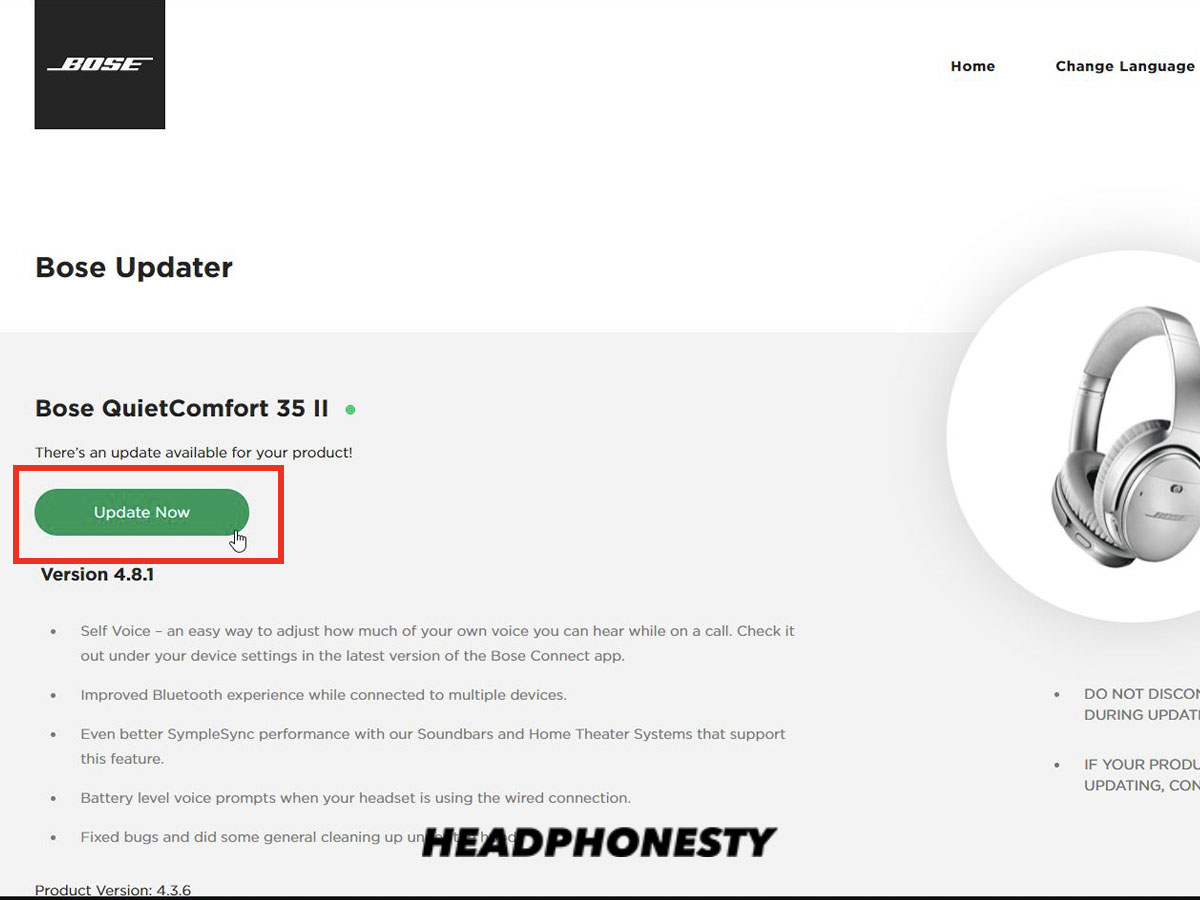
- Keep earbuds’ firmware updated using the Bose app on a phone. Firmware can fix connection bugs.
- Use a USB Bluetooth adapter on older laptops. Newer adapters give better range and fewer dropouts.
- When moving between devices, disconnect from one device before connecting to another to avoid confusion.
- If you commute, carry the charging case. A low battery can stop pairing.
- My mistake: trying to pair from the laptop while the earbuds are already connected to a phone. Always forget the earbuds on the phone first if needed.
Real-life anecdote:
I once helped a friend who couldn’t pair Bose earbuds to a laptop because the laptop’s Bluetooth adapter driver was two versions old. Updating the driver solved the issue in under five minutes.
Source: headphonesty.com
Advanced topics: drivers, codecs, and multi-point
If you want more control, these concepts matter when you connect Bose earbuds to a laptop.
- Drivers and firmware
- Keep Bluetooth drivers up to date on Windows. Driver updates can fix compatibility issues.
- Use the Bose firmware updater via the mobile app.
- Codecs and audio quality
- Many laptops support SBC by default. Some support AAC or aptX. Check your laptop and earbuds specs for better sound.
- Multi-point pairing
- Some Bose models allow connection to two devices at once. Check your model and enable multi-point if supported.
- External Bluetooth dongles
- A modern USB Bluetooth 5.0 dongle can boost performance on old laptops.
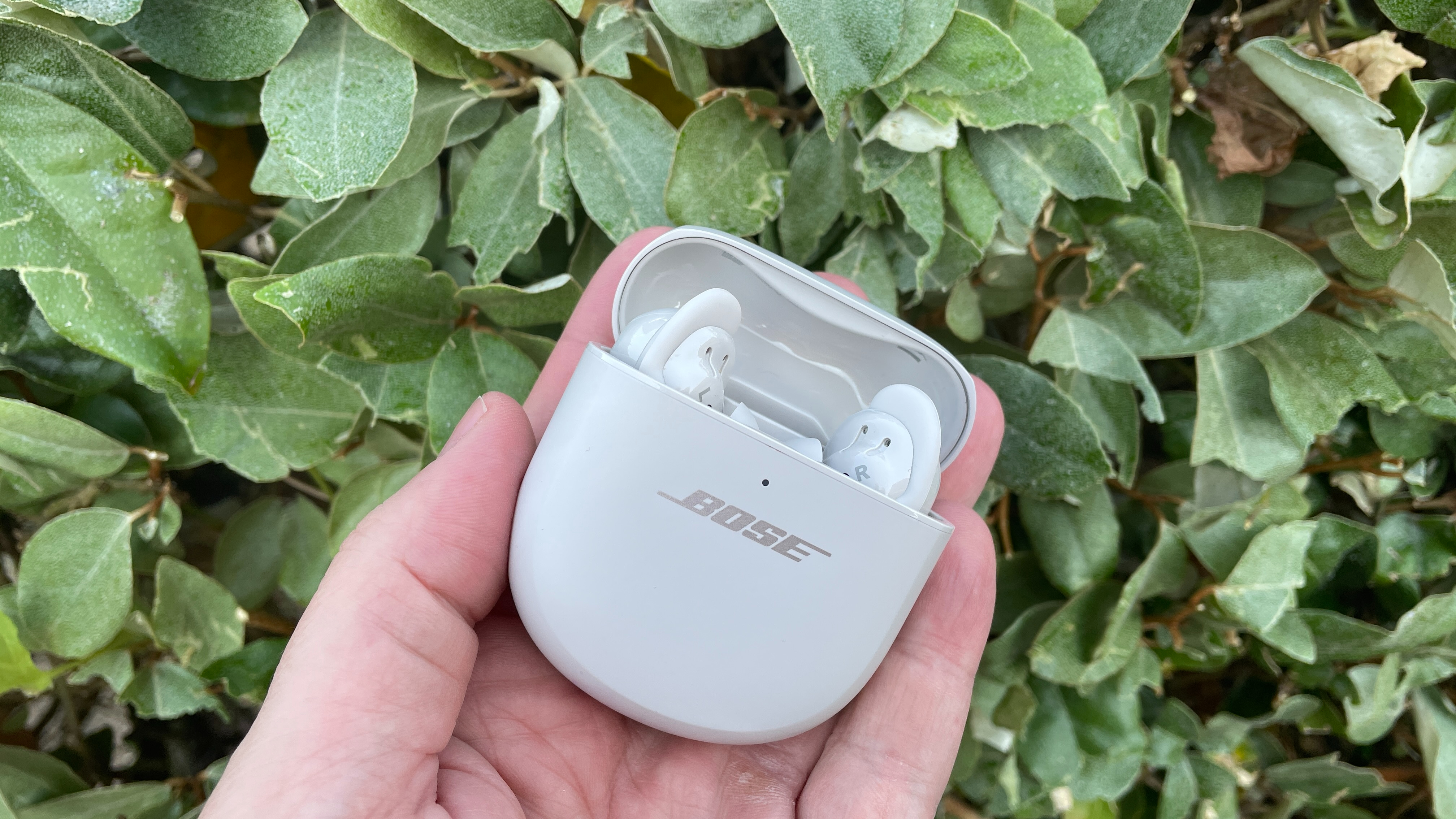
Source: whathifi.com
Frequently Asked Questions on how to connect bose earbuds to laptop
How do I put my Bose earbuds into pairing mode?
Most Bose earbuds enter pairing mode by holding the power button until you see a blinking blue light or hear a “Ready to pair” prompt. Check your model’s manual for exact steps.
Why won’t my laptop find my Bose earbuds?
Often the earbuds aren’t in pairing mode, or the laptop’s Bluetooth is off or needs driver updates. Restart both devices and try again.
Can I use Bose earbuds for video calls on a laptop?
Yes. After pairing, set the earbuds as both the input (microphone) and output in your video or voice app settings.
Do I need the Bose app to connect earbuds to a laptop?
No. The Bose app is useful for firmware updates and settings but isn’t required for basic Bluetooth pairing with a laptop.
What if audio drops or lags when connected?
Try updating drivers, moving closer to the laptop, and removing sources of interference such as other wireless devices or USB 3.0 ports.
Can I pair Bose earbuds with multiple laptops?
Yes, if your earbuds support multi-point. Otherwise, disconnect from one laptop before pairing with another.
How do I reset my Bose earbuds for pairing?
Reset methods vary. Typically, you hold the power button or a combination of buttons. Consult your model’s manual for the exact reset steps.
Conclusion
Connecting Bose earbuds to a laptop is usually quick and reliable once you know the right steps. Check battery and pairing mode, update drivers and firmware, and use the correct audio device settings. Try the simple fixes above first; they solve most issues. Now that you know how to connect Bose earbuds to laptop, test your setup, update firmware, and enjoy better audio. If this helped, try pairing again with these tips, leave a comment about your model, or subscribe for more guides.