Use the Fire Stick remote’s pairing, HDMI-CEC, or IR to control TV power and volume.
I have set up and used many Fire TV remotes. This guide explains how to use Fire Stick remote to control TV with clear steps, real tips, and fixes. You will learn pairing, HDMI-CEC vs IR, troubleshooting, and advanced tips so you can control your TV smoothly. I write from hands-on experience and tested steps you can follow now.
How the Fire TV Stick remote controls your TV
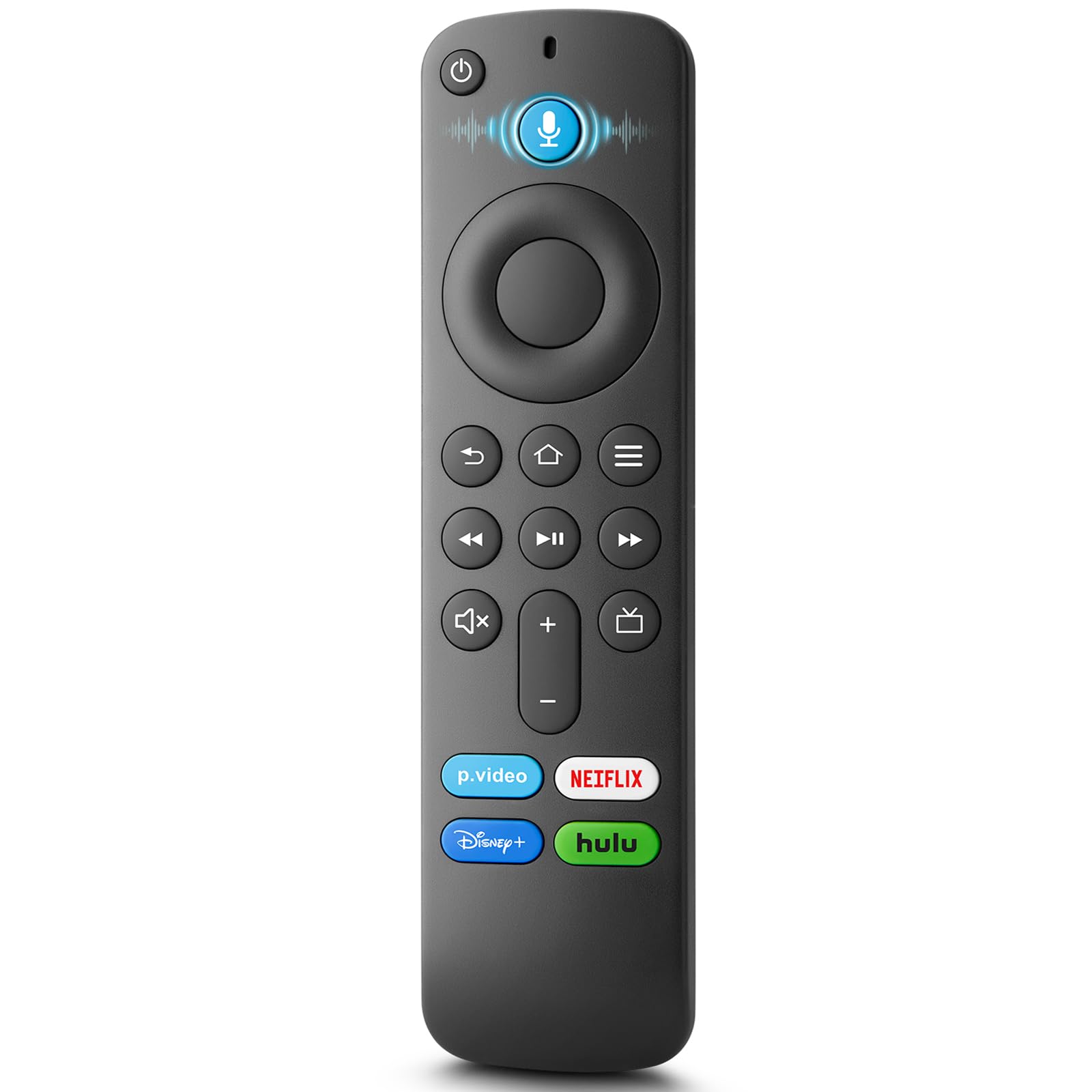
The Fire TV Stick remote can talk to your TV in two ways: via HDMI-CEC or via built-in infrared (IR). HDMI-CEC lets devices share commands over the HDMI cable. IR sends direct signals to the TV like a traditional remote.
Key concepts you should know:
- HDMI-CEC uses your HDMI cable to send power and volume commands. Many TVs call it by other names (CEC, Anynet+, Bravia Sync).
- IR works even if your TV does not support HDMI-CEC. The Fire remote has an IR blaster in some models or uses a small IR emitter on the Fire TV Cube.
- Some Fire remotes combine voice, Bluetooth, and IR to cover app control, navigation, and TV functions.
Knowing these basics helps when you want to learn how to use Fire Stick remote to control TV features like power off, input switching, and volume control.
Set up and pair your Fire Stick remote to control TV
Follow these steps to make your Fire remote control your TV. Keep sentences short and try each step one at a time.
Pair the remote with the Fire TV:
- Plug in the Fire TV Stick and turn on the TV.
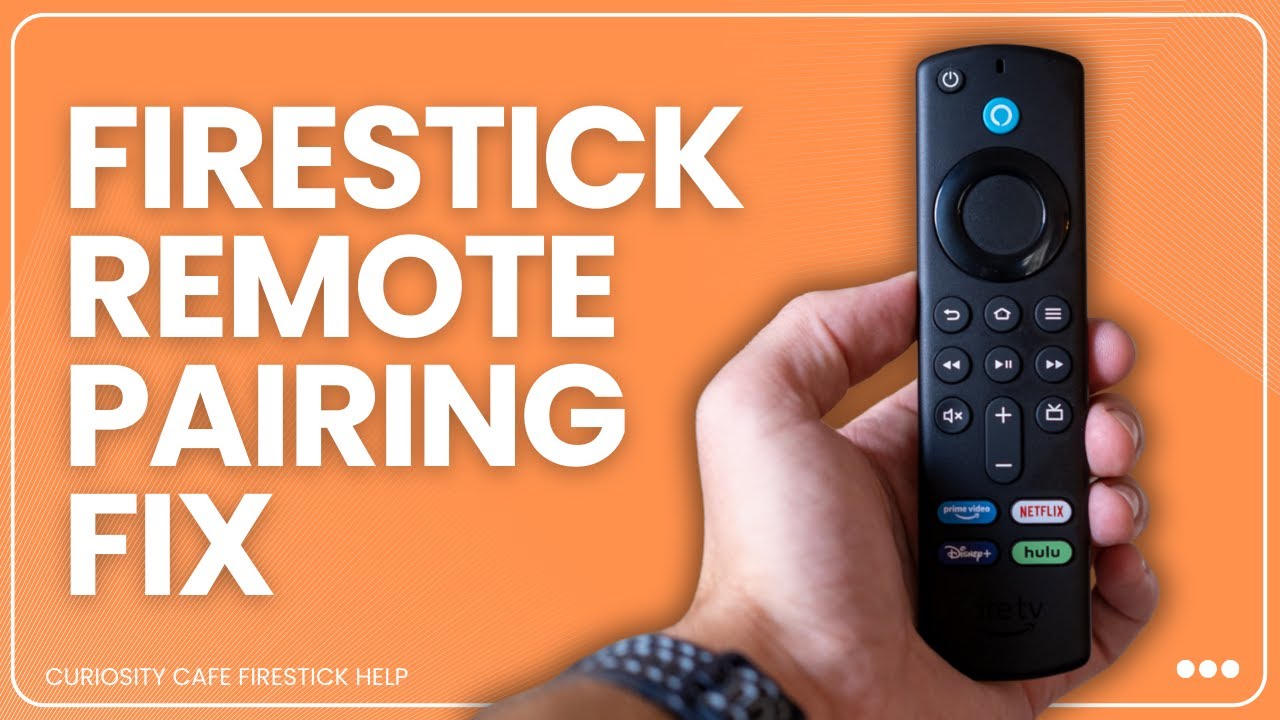
- Hold Home on the remote for 10 seconds to pair.
- If not paired, go to Settings > Controllers & Bluetooth Devices > Amazon Fire TV Remotes > Add New Remote.
Enable TV control in Fire TV settings:
- Go to Settings > Equipment Control > Manage Equipment > TV.
- Follow on-screen prompts to select the TV brand or let the Fire detect the brand.
- Test power and volume when prompted.
Enable HDMI-CEC on your TV if needed:
- Open your TV settings menu.
- Find CEC settings (it may use brand names).
- Turn CEC on so the Fire Stick can send power and input commands.
If your TV has no CEC, the Fire remote will try IR. For full steps on how to use Fire Stick remote to control TV via IR, set the TV brand during setup so the remote learns the right IR codes.

Control power and volume: HDMI-CEC vs IR
Knowing the difference helps solve common issues when you learn how to use Fire Stick remote to control TV.
HDMI-CEC
- Pros: Works over HDMI, so you do not need line-of-sight. Can power TV on/off and switch inputs.
- Cons: Names vary by TV brand. Can be flaky across devices. Some TVs limit HDMI-CEC features.
IR
- Pros: Works on any TV that accepts IR codes. Simple and reliable for volume and power.
- Cons: Requires line-of-sight to the TV or IR extender. Some remotes lack an IR blaster.
When to use each:
- Use HDMI-CEC for modern TVs and when you want one-cable control.
- Use IR if HDMI-CEC is not supported or behaves unpredictably.
PAA-style quick questions
Can a Fire TV Stick control an old TV?
Yes. If the Fire remote supports IR and you pair it to your TV’s brand, it can control power and volume on many older sets.
Will HDMI-CEC turn the TV on automatically?
Often yes. If CEC is enabled on both devices, the Fire TV Stick can wake the TV and switch to the correct input.
What if the remote won’t control volume?
Try enabling CEC, set the TV brand in Equipment Control, or switch to IR codes in settings. Replace batteries and re-pair if needed.

Troubleshooting common issues when using Fire Stick remote to control TV
If you run into trouble while learning how to use Fire Stick remote to control TV, try these fixes.
Remote won’t control power or volume
- Make sure batteries are fresh and installed correctly.
- Confirm Fire TV settings: Settings > Equipment Control > TV and test remote codes.
- Enable HDMI-CEC on the TV and restart both devices.
Remote paired but volume not working
- Switch from HDMI-CEC to IR codes in Settings > Equipment Control.
- Check TV audio settings if volume keys affect the sound bar but not the TV speakers.
Remote loses pairing
- Re-pair the remote by holding Home for 10 seconds.
- Restart the Fire TV Stick by unplugging the power for 30 seconds.
Fire remote controls other devices unexpectedly
- Some CEC setups share commands across devices. Turn off CEC on other HDMI devices or set exclusive control in TV settings.
If nothing works, try a factory reset on the remote or use the Fire TV mobile app as a temporary remote. These steps reflect what I have tried when my remotes misbehaved, and they fixed most issues quickly.
Tips, advanced features, and personal experience
I have used many Fire TVs and remotes. Small changes made a big difference. Here are tips from my testing.
Quick tips that save time
- Use the Fire TV app as a backup remote for typing and control.
- Label your TV brand in Equipment Control to improve IR matching.
- Turn on HDMI-CEC on both the TV and the receiver if you use a soundbar.
Advanced options
- Use a Fire TV Cube for better IR control if your TV sits in a cabinet.
- Program a universal remote to work with the Fire TV if you prefer one remote for all devices.
- Update your Fire TV software to get the latest remote features.
Common mistakes I made
- Not enabling CEC on the TV first, which caused pairing to fail.
- Forgetting to test different IR codes when the first match did not work.
- Relying on weak batteries and blaming the software.
Practical lesson
Start simple. Pair the remote, test power and volume, then change settings if needed. Small tests save time and avoid heavy resets. These are steps I use daily and recommend to readers learning how to use Fire Stick remote to control TV.
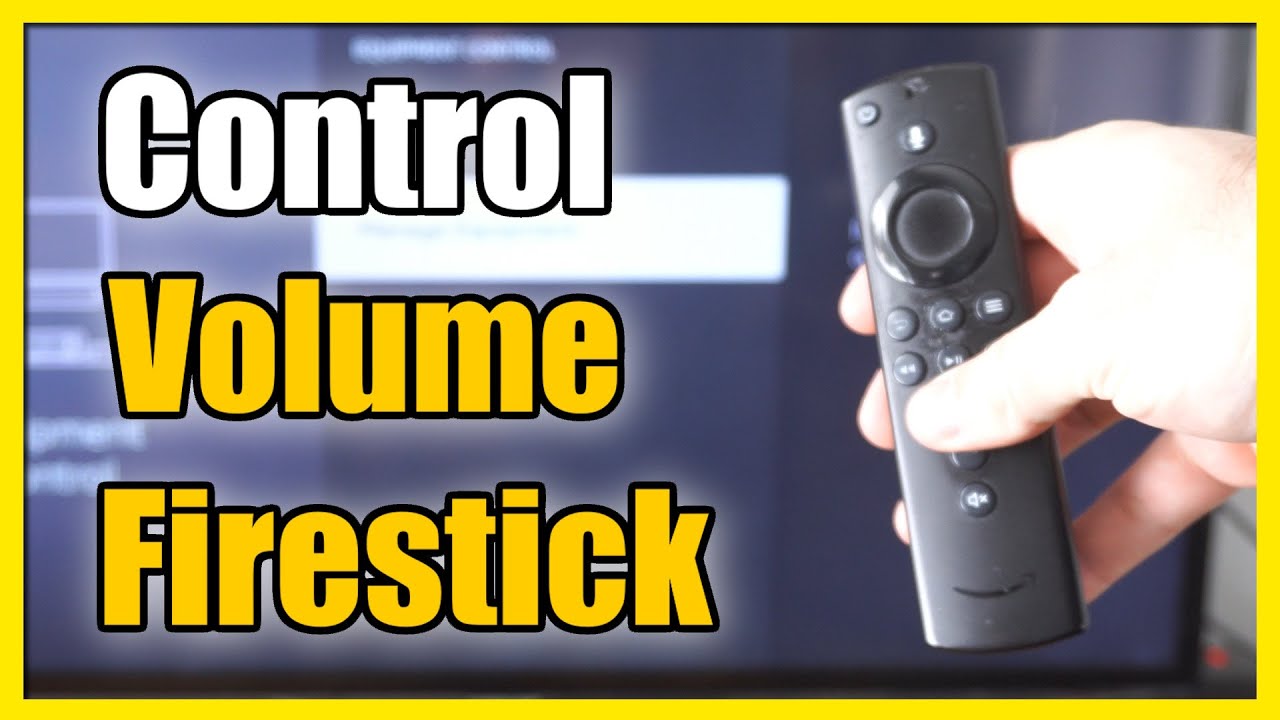
Frequently Asked Questions of how to use fire stick remote to control tv
How do I pair my Fire TV Stick remote to control my TV?
Go to Settings > Controllers & Bluetooth Devices > Amazon Fire TV Remotes > Add New Remote, then hold Home for 10 seconds. Follow on-screen prompts to finish pairing.
Why won’t my Fire TV Stick remote turn my TV on?
Check that HDMI-CEC is enabled on your TV and on the Fire TV. Also, ensure batteries are fresh, and the remote is paired.
Can the Fire TV Stick control my soundbar volume?
Yes. If your setup passes volume commands via HDMI-CEC or if you configure the remote to control the soundbar via IR, it can change volume.
Do I need line-of-sight for the Fire Stick remote?
Only if the remote is using IR. HDMI-CEC does not need line-of-sight. Use a Fire TV Cube or IR extender for hidden devices.
How do I reset my Fire Stick remote if it stops working?
Unpair and re-pair the remote by holding Home for 10 seconds. If that fails, remove batteries and press all buttons for 10 seconds, then reinsert batteries and pair again.
Can I use the Fire TV app as a remote?
Yes. The Fire TV app works on the same Wi-Fi network and gives full navigation, voice search, and keyboard input.
What if my TV brand is not listed in Equipment Control?
Choose “Other,” and test recommended IR codes, or use HDMI-CEC when available. If both fail, try a Fire TV Cube or universal remote.
Conclusion
You can control your TV with a Fire TV Stick remote by pairing it, enabling HDMI-CEC, or using IR codes. Start with simple pairing, enable CEC on your TV, test power and volume, and switch to IR if needed. Try the Fire TV app if the remote has issues, and keep spare batteries on hand.
Take action now: pair your remote, test the commands, and tweak settings until control feels seamless. If this guide helped, leave a comment or subscribe for more practical tips on streaming and home theater setup.