Use either a wired adapter (HDMI/USB‑C/Lightning) or wireless casting (AirPlay/Chromecast/Miracast).
I’ve helped dozens of colleagues and friends set up projectors for meetings, movie nights, and classes, so I know the common traps and easy wins when learning how to connect phone to projector. This guide explains clear, tested steps for wired and wireless setups, troubleshooting tips, and practical advice so you can mirror or extend your phone’s screen reliably.
:max_bytes(150000):strip_icc()/2-5b7b73f3f24549cc8bc0ef8580863c4a.jpg)
Common ways to connect a phone to a projector
There are three main approaches to how to connect phone to projector:
- Wired HDMI or USB-C adapters for direct, low-latency video.
- Wireless casting using AirPlay, Chromecast, or Miracast for cable-free display.
- USB or app-based methods for basic image or file playback.
Wired connections are best for presentations and video with low lag. Wireless is more convenient for casual viewing and when cables are not practical. I often recommend wired for work and wireless for home movie nights because each suits different needs.

Source: youtube.com
Wired connections: step-by-step guide
Wired methods work for most phones. They give stable video and audio.
- Check your phone port
- USB-C: Many Android phones use USB-C with DisplayPort Alternate Mode.
- Lightning: iPhones use a Lightning to HDMI adapter (Digital AV Adapter).
- Micro-USB: Older phones may need MHL or SlimPort adapters.
- Get the right adapter or cable
- Use a USB-C to HDMI cable or a USB-C adapter with HDMI output.
- For iPhone, use the official Lightning to HDMI adapter or a certified third-party one.
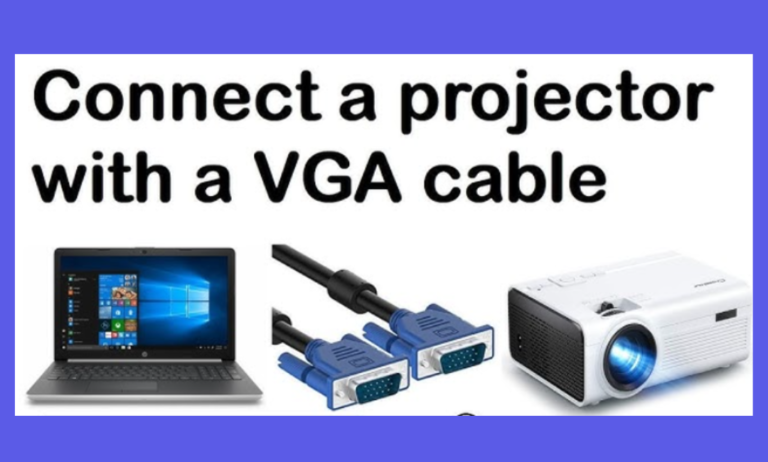
- If the projector has VGA only, use an HDMI-to-VGA adapter with external power.
- Connect and set input
- Plug adapter into the phone.
- Connect the HDMI cable from the adapter to the projector.
- Turn on the projector and pick the HDMI input.
- Unlock the phone and accept any “allow screen access” prompts.
- Adjust image settings
- Set resolution and aspect ratio on the projector if options appear.
- Mute or route audio to the projector if needed.
Practical tip from experience: carry a small adapter kit with HDMI, VGA, and a USB power cable. It saved me when a conference room had only VGA. Wired setups are usually plug-and-play, but cheap adapters can cause flicker—buy quality cables.

Source: openaircinema.us
Wireless options: AirPlay, Chromecast, Miracast, and apps
Wireless methods let you mirror the screen without cables. They trade convenience for possible lag.
AirPlay (iPhone and some apps)
- Use AirPlay to connect an iPhone to an Apple TV, an AirPlay 2-enabled smart TV, or a compatible projector.
- Open Control Center, tap Screen Mirroring, and select the device.
Chromecast (Android and iPhone)
- Plug the Chromecast into the projector’s HDMI port and power it.
- Use the Google Home app to cast a tab, supported apps, or mirror your phone.
- Chromecast works well for streaming apps and casual video.
Miracast (many Androids and Windows)
- Miracast allows direct Wi‑Fi display from phone to projector.
- Enable screen mirroring on both devices and pair them.
- Miracast varies by phone maker and projector model.
App-based and DLNA options
- Some projectors have built-in apps or a companion app to stream files.
- DLNA can stream photos or video files across your local Wi‑Fi.
From my tests, Chromecast and AirPlay gave the smoothest streaming in home networks. Miracast worked for simple slides but felt inconsistent across brands. Wireless methods are great for convenience, but if you need perfect sync for video or gaming, you prefer wired.

Source: youtube.com
How to connect Android phone to projector (detailed)
For Android phones, you have wired and wireless paths.
Wired method
- If your Android supports DisplayPort Alt Mode over USB-C, use a USB-C to HDMI cable.
- Plug in and choose the correct HDMI input on the projector.
Wireless method
- Use Chromecast for most Android devices. Open Google Home and cast the screen.
- For phones with built-in Cast or Screen Mirroring, enable Miracast or cast to a compatible projector.
Common pitfalls
- Not all USB-C ports support video. Check your phone specs.
- Cheap adapters can fail to pass audio or charge simultaneously.
I once brought a USB-C adapter that worked with my phone but not with a colleague’s older model. Always test gear before an important meeting.

Source: amazon.com
How to connect iPhone to projector (detailed)
iPhone options focus on Lightning and AirPlay.
Wired method
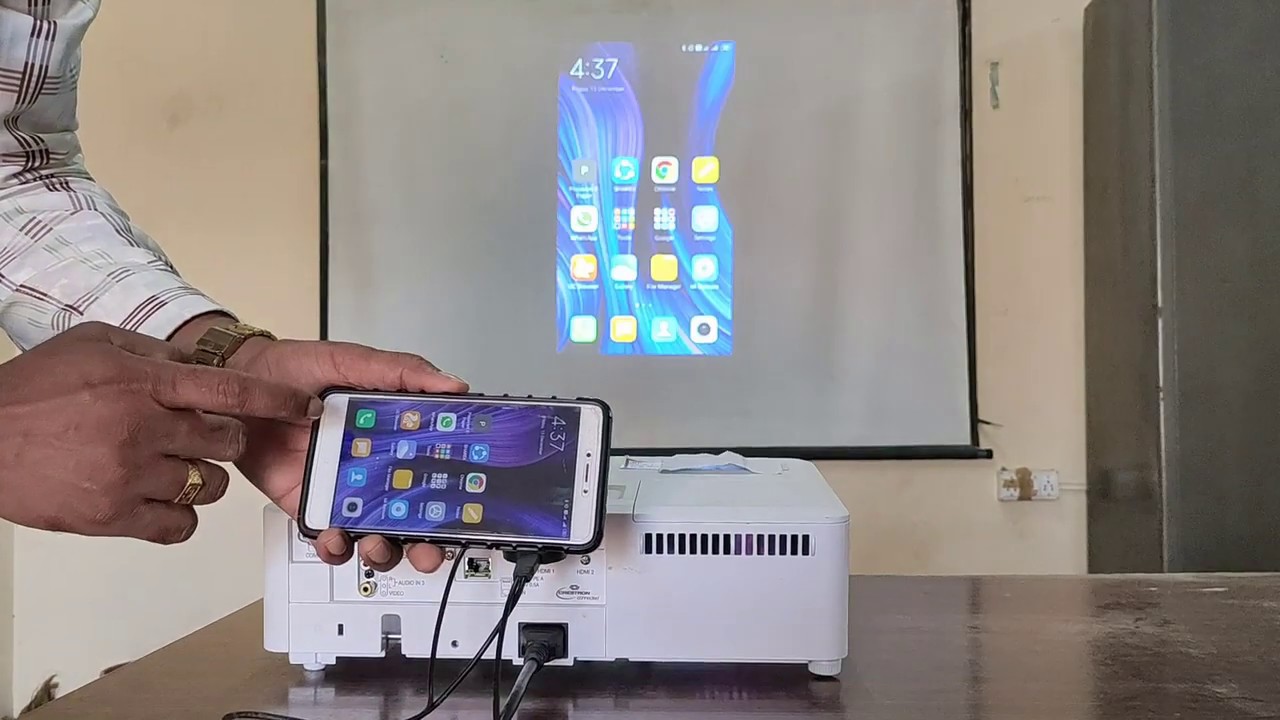
- Use a Lightning to HDMI Digital AV Adapter and an HDMI cable to the projector.
- Plug in an auxiliary power cable if needed for long sessions.
Wireless method
- Use AirPlay to an Apple TV or compatible projector.
- Open Control Center, tap Screen Mirroring, and pick the device.
Notes
- Some apps block mirroring for DRM-protected content.
- For the best video quality, match the projector resolution settings to the source.
I once relied on AirPlay for a classroom demo. It worked well until the Wi‑Fi crowded the room. That day, I learned to carry the Lightning adapter as a backup.
Source: youtube.com
Troubleshooting common problems
If things go wrong, try these quick fixes.
No image after connecting
- Ensure the projector input matches the cable port.
- Try a different HDMI cable or adapter to rule out a bad part.
Phone won’t mirror or cast
- Reboot your phone and the projector or casting device.
- For wireless, check that the phone and projector are on the same Wi‑Fi network.
Poor image quality or wrong aspect ratio
- Adjust projector resolution and aspect ratio settings.
- Some adapters limit output to 720p; check adapter specs.
Audio missing
- Check phone’s output settings and the projector’s audio source.
- Use HDMI for audio or a separate audio cable if projector lacks sound.
Lag or stutter on wireless
- Move devices closer to the router.
- Reduce network traffic or use wired connection for better sync.
Real-life lesson: In one meeting, my laptop and phone fought the Wi‑Fi. Switching to a short HDMI cable solved the problem instantly. Don’t rely solely on wireless for critical events.

Source: aurzen.com
Practical tips, best practices, and accessories
Use these tips to make setups smooth and repeatable.
Essential accessories
- Small adapter kit with USB-C to HDMI, Lightning to HDMI, and HDMI-to-VGA.
- Quality HDMI cable for stable signal.
- Portable HDMI switch or splitter if the projector has limited inputs.
Presentation best practices
- Test your setup at least 15 minutes before the event.
- Turn off phone notifications or enable Do Not Disturb.
- Keep charging cables handy; mirroring can drain battery fast.
Image and sound optimization
- Match the projector’s color and sharpness settings to the room lighting.
- Use external speakers if you need louder, clearer audio.
Security and privacy
- Use password-protected Wi‑Fi and require device authorization for casting.
- Be mindful of notifications when mirroring your phone.
From many setups, I learned to label adapter cables and store them in a small pouch. That prevents frantic searching just before a presentation.

Source: youtube.com
Frequently Asked Questions of how to connect phone to projector
How do I mirror my phone screen to a projector?
Most phones can mirror using a wired HDMI adapter or wirelessly through AirPlay, Chromecast, or Miracast. Choose the method that your phone and projector support and follow the pairing or plug‑in steps.
Can I connect my phone to any projector?
Not every projector supports wireless casting or direct USB video. You can usually connect any phone with the right adapter (HDMI or VGA) or a casting device like Chromecast. Check ports and supported protocols first.
Why is my phone not recognized by the projector?
Common causes are incompatible adapters, incorrect input selection, or limited phone video output support. Try a different cable, change the projector input, and verify your phone supports video output.
Will casting cause lag during video playback?
Wireless casting can introduce lag, especially over congested Wi‑Fi. For smooth video and low latency, use a wired HDMI or USB‑C connection. Optimize your network if you must cast wirelessly.
Do I need special apps to connect my phone to a projector?
Not usually. Wired connections use system-level output. Wireless may use built-in cast features or companion apps from the projector maker. Some streaming apps may require their own cast button.
Conclusion
You can reliably learn how to connect phone to projector by picking the right method for your phone and needs. Wired adapters give stable, low-latency results, while AirPlay, Chromecast, and Miracast offer convenience with some trade-offs. Test your gear in advance, carry a small adapter kit, and choose wired connections for critical events.
Try one setup today: test a wired connection and a wireless cast in your space. Share your experience or questions below, subscribe for more guides, or leave a comment about the setup you want to master.