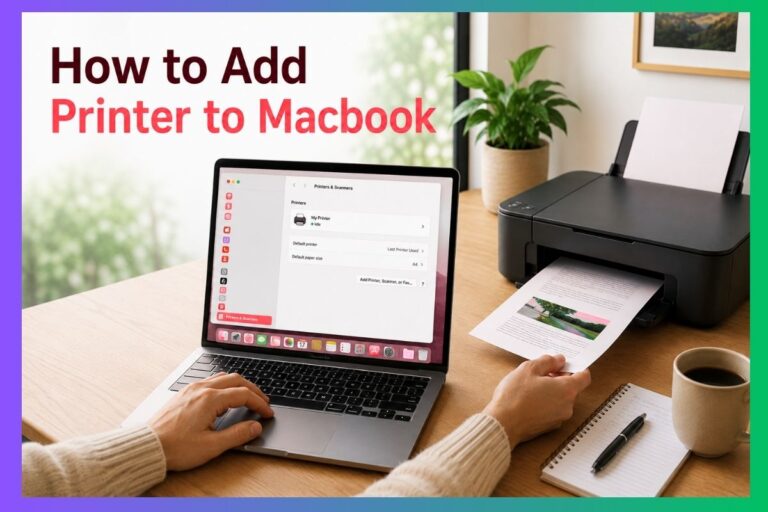
Learn how to update your browser on MacBook using System Settings or the App Store. Improve security, speed, and performance in minutes.
I have updated browsers on many MacBooks and helped dozens of friends fix slow pages and security warnings. This guide shows exactly how to update browser MacBook users rely on. Read on for clear steps, quick fixes, and tips so your browser stays fast and safe.
Why updating your browser on a MacBook matters
Keeping a browser current protects your MacBook from threats. Updates fix bugs, close security holes, and add speed improvements. Many sites require the newest browser features to work well. Knowing how to update browser MacBook correctly saves time and keeps data safe.
Source: businessinsider.com
How to update Safari on MacBook (built-in browser)
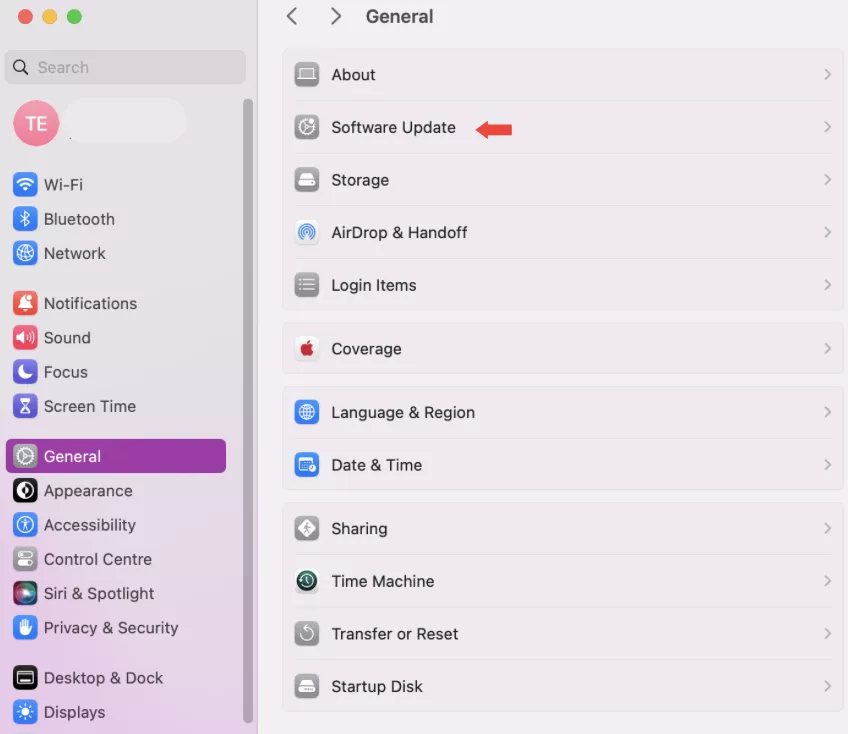
- Open System Settings or System Preferences.
- Click General, then Software Update.
- If a macOS update is shown, install it. Safari updates often come with macOS patches.
- If you use Safari Technology Preview, open that app and choose About to check updates.
Notes and tips:
- Safari updates are bundled with macOS updates. You rarely update Safari alone.
- Back up your MacBook before major macOS updates.
- If you need Safari 15+ features, update to the compatible macOS version.
This section covers how to update browser MacBook owners use when they rely on Safari. Updating macOS regularly ensures Safari stays current and secure.

Source: youtube.com
How to update Google Chrome on MacBook
- Open Chrome.
- Click the three-dot menu at the top right.
- Choose Help, then About Google Chrome.
- Chrome will check for updates and install automatically.
- Click Relaunch to finish the update.
Quick notes:
- Chrome updates independently of macOS. That means you can update Chrome without updating the OS.
- If Chrome won’t update, quit and reopen the app, or restart your MacBook.
- To update many Macs, use managed device tools in business settings.
This shows how to update browser MacBook users have when they prefer Chrome. Doing this keeps extensions and web apps working well.

Source: hungerford.tech
How to update Mozilla Firefox on MacBook
- Open Firefox.
- Click the three-line menu at the top right.
- Choose Help, then About Firefox.
- Firefox will download updates automatically and prompt you to Restart to complete.
Extra tips:
- You can set Firefox to install updates in the background.
- If an update fails, download the latest installer from the official site and reinstall.
Here you learn how to update browser MacBook users run when they use Firefox. Regular updates help with privacy and performance.
:max_bytes(150000):strip_icc()/006-browser-and-security-updates-for-safari-446556-5f9133263c5949838365627dab916289.jpg)
Source: lifewire.com
How to update Microsoft Edge, Opera, and other browsers on MacBook
Microsoft Edge:
- Open Edge, go to the three-dot menu.
- Choose Help and feedback, then About Microsoft Edge.
- Edge checks and installs updates; relaunch when done.
Opera:
- Open Opera, go to Opera menu > Update & Recovery.
- Click Check for updates and follow on-screen steps.
General tips:
- Most modern browsers follow an About page that checks for updates.
- Use the browser’s built-in update path for safety.
This section explains how to update browser MacBook users choose beyond Safari, Chrome, and Firefox.

Source: reddit.com
Troubleshooting common update problems
Problem: Update button not responding.
- Quit the browser and reopen it.
- Restart your MacBook if the update still stalls.
Problem: Not enough disk space.
- Free space by deleting large files or emptying Trash.
- Try updating again after cleanup.
Problem: Corporate or managed Macs block updates.
- Contact IT or use the company update method.
- For unmanaged Macs, check Profiles in System Settings to see restrictions.
Problem: Update fails repeatedly.
- Download the official installer from the browser maker and reinstall.
- Check network settings or try a different Wi-Fi network.
These fixes help when how to update browser MacBook steps hit roadblocks. I used many of these when fixing browsers for friends and clients.
Source: udmercy.edu
Tips, best practices, and security advice
- Turn on automatic updates when possible. This removes manual steps.
- Back up important files before major macOS updates.
- Use a strong password manager and update it alongside your browser.
- Review extensions and remove unused ones before updating.
- Test a browser after updating to confirm site compatibility.
From my experience, letting updates install automatically saved me time and prevented malware alerts. Regular updates help your MacBook run smoothly and keep personal data safe.

Source: reddit.com
Frequently Asked Questions of how to update browser macbook
How do I update Safari on an older MacBook?
Open System Settings or Software Update and install any available macOS updates. If the OS is too old, consider upgrading macOS if your MacBook supports it.
Can I update Chrome without admin rights on MacBook?
You usually need user install permissions. For managed devices, IT can push updates. Home users should use an admin account for smooth updates.
Why won’t my browser update on my MacBook?
Common causes include low disk space, network issues, or blocked permissions. Restart the MacBook, free space, and try again.
Will updating the browser remove my bookmarks and passwords?
No. Updates generally keep bookmarks, history, and passwords. Still, back up or sync data before major updates.
How often should I check for browser updates on my MacBook?
Enable automatic updates. If you check manually, once a week is a good habit.
Conclusion
Keeping your browser up to date is a small task with big rewards. Follow the clear steps above to update Safari, Chrome, Firefox, and other browsers on your MacBook. Make updates automatic when possible, back up before big changes, and use the troubleshooting tips when something fails. Start updating now to boost speed, security, and compatibility—then come back and share what worked or ask a question.