Want to turn your Smart TV into the ultimate entertainment hub? Streaming your favorite shows, movies, and videos directly on your big screen is easier than you think.
Whether you’re new to streaming or just want to get the most out of your TV, this guide will walk you through simple steps to start streaming like a pro. Stick with me, and you’ll be enjoying endless entertainment in no time.
Ready to unlock the full potential of your Smart TV? Let’s dive in!

Credit: www.youtube.com
Choosing The Right Smart TV
Choosing the right How to Stream on Smart TV is crucial for an enjoyable streaming experience. With so many options on the market, you want a TV that matches your streaming habits and fits your space perfectly. Let’s break down what to look for to make an informed choice.
Smart TVs: Breaking Down the Big Brands and What Actually Matters
Samsung, LG, Sony, and TCL pretty much own the smart TV space right now. Each one takes a different approach, and honestly, the software experience matters just as much as the screen itself. Samsung runs on Tizen OS — it’s clean, quick, and has a solid app library. LG goes with webOS, which has a reputation for being dead simple to navigate. Sony uses Android TV, so you get the full Google Play store and Google Assistant baked right in. That makes it genuinely flexible if you’re already deep in the Google ecosystem. TCL sits in a slightly different lane. It bundles Roku TV into most of its sets, which is one of the easiest interfaces out there. I made the switch from a generic brand to a TCL Roku TV a while back, and the difference was real — apps opened faster, random crashes basically stopped. For the price point, it’s hard to argue with.
So what should you actually look for?
Built-in Wi-Fi is a given, but don’t sleep on the Ethernet port. A wired connection stays more stable, especially if your router is across the house. Processor speed matters too — a sluggish chip makes even simple apps feel painful to use. Voice control through Alexa or Google Assistant is one of those features that sounds gimmicky until you actually use it. Searching for shows without typing on a tiny remote controller? Genuinely useful. HDR support is worth paying attention to if you watch a lot of movies or premium streaming content. It punches up contrast and color in a way that’s hard to unsee once you’ve experienced it. Not every title supports it, but the ones that do look noticeably better. At the end of the day, the right TV depends on what you value. Some people want all the bells and whistles. Others just want something that works without thinking about it. Neither is wrong.
Screen Size And Resolution Options
Choosing the right screen size depends on your room and viewing distance. For smaller rooms, a 43-55-inch TV usually works well, while larger living rooms might benefit from 65 inches or more. Check your seating distance—sitting too close to a giant screen can strain your eyes.
Resolution matters, too. Most new smart TVs come in 4K Ultra HD, which provides crisp and clear images. If you want the best picture, consider a 4K TV with HDR. However, if you mainly watch older or standard HD content, a 1080p TV might be sufficient and more budget-friendly.
Preparing Your Smart TV for Streaming
Preparing your Smart TV for streaming is the first step to enjoying your favorite shows and movies. This process helps your TV connect to the internet, stay updated, and be ready for various apps. Follow these simple steps to get started quickly.
Taking time to set up your TV properly makes streaming smooth and enjoyable. Each step is important for a good viewing experience.
Connecting To Wi-fi
Your Smart TV needs a strong internet connection to stream content. Go to the Settings menu and select Network or Wi-Fi. Find your home Wi-Fi network and enter the password carefully. Wait for the TV to confirm the connection. A stable Wi-Fi connection reduces buffering and improves video quality.
Updating TV Software
Software updates keep your Smart TV running well and add new features. Check for updates in the Settings under System or About. Download and install any available updates. Updates fix bugs and improve app compatibility. Regular updates help avoid streaming problems.
Setting Up User Accounts
Many streaming apps require user accounts. Create or sign in to accounts on apps like Netflix, Hulu, or Amazon Prime. Use simple usernames and passwords you can remember. Setting up accounts saves your preferences and watch history. It also allows personalized content recommendations.
Selecting Streaming Apps
Selecting the right streaming apps is key to enjoying content on your smart TV. Apps let you watch movies, shows, sports, and more. Choosing apps depends on what you want to watch and your budget.
Some apps offer free content with ads. Others require a subscription for more shows and no ads. Knowing the difference helps you pick apps that suit your needs.
Top Free Streaming Services
Free streaming apps provide movies and shows at no cost. They often include ads during playback. Examples include Pluto TV, Tubi, and Crackle. These apps cover many genres like news, comedy, and documentaries. Great for casual viewers or those on a budget.
Subscription-based Platforms
Subscription apps offer large libraries with fewer or no ads. Popular options are Netflix, Hulu, and Disney+. These services charge monthly fees. They provide original series, movies, and exclusive content. Ideal for users who want high-quality shows and movies.
Installing And Managing Apps
Most smart TVs have an app store or marketplace. Use the remote to open it and browse apps. Search by name or category to find streaming apps. Select the app and click install to add it to your TV. After installation, open the app and sign in if needed.
Manage your apps by updating or uninstalling them in the TV settings. Keep your apps updated for new features and security. Remove apps you no longer use to save space and keep your TV organized.

Credit: www.youtube.com
Configuring Streaming Settings
Configuring streaming settings on your smart TV helps improve your viewing experience. It allows you to customize video quality, subtitles, and parental controls. Adjusting these settings ensures smooth streaming and better control over content.
Adjusting Video Quality
Set the video quality based on your internet speed. Higher quality uses more data and may cause buffering. Lower quality saves data and loads faster. Find the setting in the streaming app’s menu. Choose between options like 720p, 1080p, or 4K. Pick the best balance between clarity and smooth playback.
Enabling Subtitles And Audio Options
Subtitles help understand dialogue better, especially in noisy rooms. Turn on subtitles in the app’s settings. Choose your preferred language if available. Audio options may include different languages or sound modes. Select the audio track that suits your hearing or language needs. These features make watching easier and more enjoyable.
Managing Parental Controls
Parental controls restrict access to inappropriate content. Access the control settings in the streaming app or TV menu. Set a PIN to prevent unauthorized changes. Choose age limits or block specific shows and movies. This keeps kids safe while watching TV. Regularly update the controls as needed.
Using External Devices For Streaming
Using external devices is a simple way to stream content on your smart TV. These gadgets add more apps and features to your TV. They can also improve the streaming speed and quality. Many options fit different needs and budgets. Here are some popular choices and how they work.
Streaming Sticks And Boxes
Streaming sticks and boxes plug into your TV’s HDMI port. They connect to the internet and offer many apps. Devices like Roku, Amazon Fire TV, and Chromecast are common. They let you watch shows, movies, and live channels. Setup is easy and fast. Just plug in, connect to Wi-Fi, and start streaming.
Casting From Mobile Devices
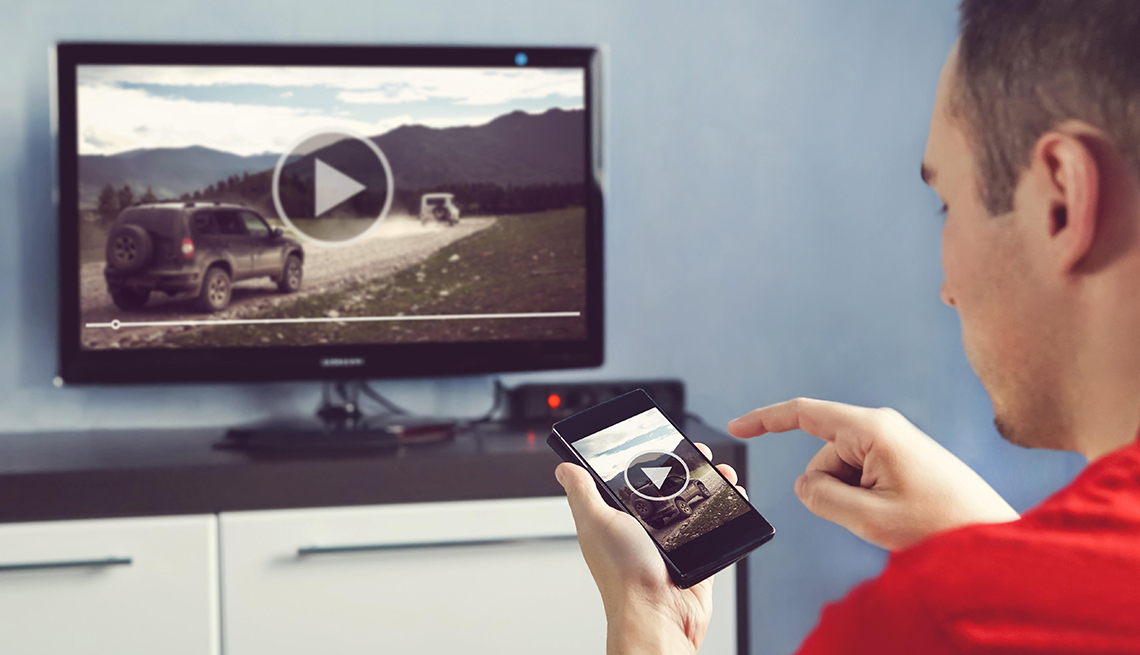
Casting lets you send videos from your phone or tablet to your TV. Use apps like YouTube or Netflix that support casting. Both devices need to be on the same Wi-Fi network. Tap the cast icon and choose your TV. The video plays on the big screen. It’s great for sharing clips or photos with friends.
Connecting Game Consoles
Game consoles like Xbox and PlayStation also stream video. They come with apps for popular services like Hulu and Disney+. Connect the console to your TV with an HDMI cable. Sign in to your streaming accounts on the console. This setup works well if you already own a gaming system. It saves you from buying extra devices.
Troubleshooting Common Issues
Streaming on a smart TV can sometimes face small problems. These issues can stop your video from playing smoothly or cause apps to close unexpectedly. Many problems have simple fixes. This section helps you solve common streaming troubles easily. Follow these tips to enjoy your shows without interruption.
Fixing Buffering And Lag
Buffering happens when the video pauses to load. Lag makes the video slow or jumpy. These issues often come from slow internet or heavy network use. Try closing other apps or devices using the internet. Restart your smart TV to clear temporary glitches. Lower the video quality in the app settings to reduce buffering. Use an Ethernet cable instead of Wi-Fi for a stable connection. These steps improve playback and reduce interruptions.
Resolving App Crashes
Apps may crash due to bugs or outdated versions. Clear the app cache from your smart TV settings. Uninstall and reinstall the app for a fresh start. Check for app updates regularly and install them. Restart your smart TV to refresh its system. If crashes continue, contact the app’s support team. Fixing crashes keeps your streaming apps working smoothly.
Improving Wi-fi Connectivity
Poor Wi-Fi affects streaming quality greatly. Move your smart TV closer to the router. Remove physical obstacles between the TV and router. Use a Wi-Fi extender if the signal is weak. Restart your router and smart TV to refresh connections. Change the Wi-Fi channel in your router settings to reduce interference. Strong Wi-Fi helps keep your streaming fast and steady.
Credit: www.aarp.org
Frequently Asked Questions
What Devices Are Needed To Stream On A Smart TV?
You only need a Smart TV with internet access to stream. Some apps may require a subscription or login. A stable Wi-Fi connection enhances streaming quality and reduces buffering.
How Do I Connect My Smart TV to Wi-Fi?
Go to your TV’s settings menu and find the Network option. Select Wi-Fi and choose your home network. Enter your Wi-Fi password to connect the Smart TV to the internet.
Which Streaming Apps Work Best On Smart TVs?
Popular streaming apps include Netflix, Hulu, Amazon Prime Video, and Disney+. These apps are optimized for Smart TVs and offer a wide content range. Always update apps for the best performance.
Can I Mirror My Phone Screen To A Smart TV?
Yes, most Smart TVs support screen mirroring via Miracast or AirPlay. Enable screen mirroring on both devices and connect them over the same Wi-Fi network. This allows streaming from your phone to the TV.
Conclusion
Streaming on your smart TV is simple and fun. Just connect to the internet and choose your app. Follow the steps to sign in and start watching. Remember, a good internet connection makes streaming smooth. Explore different apps to find shows and movies you like.
Enjoy your favorite content right on the big screen. Now, you are ready to stream anytime you want. Easy, fast, and entertaining.