Learn how to optimize your gaming PC for streaming with the best CPU, GPU, encoder, and network settings for smooth, lag-free performance.
I’ve spent years building, testing, and streaming from multiple rigs, so I know what works. This guide on how to optimize gaming PC for streaming walks you through hardware choices, software settings, network tweaks, and real-world tips. You’ll get clear steps, performance trade-offs, and mistakes I’ve made so you can stream cleaner, with fewer dropped frames and less lag. Read on for practical, tested advice you can apply today.
Why optimizing your gaming PC for streaming matters
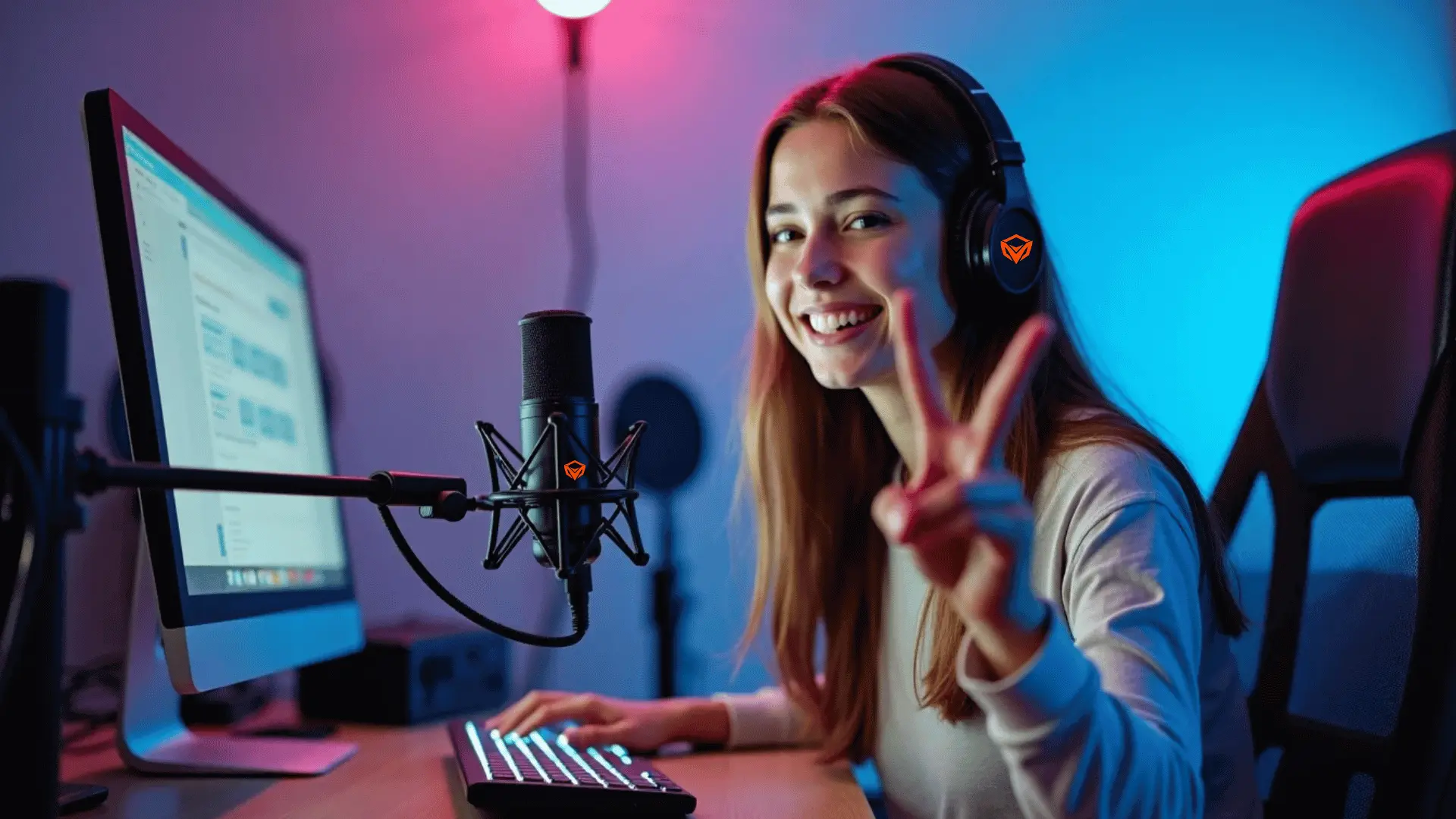
Streaming adds work to your PC. Games, capture, encoding, and chat overlays all use CPU, GPU, memory, and bandwidth. If one part is overloaded, your stream drops frames, lags, or shows poor quality. Learning how to optimize gaming PC for streaming helps you keep game FPS high and stream quality stable at the same time.
Good optimization saves money. It lets you pick settings rather than buy top-tier parts. It also improves viewer experience and reduces stress during long sessions. Expect better reliability and fewer surprises when you tune the system right.
Source: nearstream.us
Hardware upgrades and configurations
Choose parts that match your streaming goals. Focus on balance: a strong CPU, a modern GPU, enough RAM, and fast storage. Here’s a simple checklist.
CPU
- Pick a CPU with strong single-core and multi-core performance.
- Aim for at least 6 cores/12 threads for 1080p60 game + stream on x264.
- If using GPU encoders (NVENC/AMD), you can rely more on the GPU and a mid-range CPU.
GPU
- Modern GPUs offload encoding with hardware encoders.
- Use NVENC on NVIDIA Turing and later for the best quality per use.
- Keep GPU drivers updated for performance and stability.
RAM and Storage
- Use 16 GB minimum; 32 GB if you run many apps or browser tabs.
- Put OS and games on an NVMe or SSD for fast load times.
- Keep 10–20% free space to avoid slowdowns.
Capture cards and peripherals
- Use a capture card for console streaming or dual-PC setups.
- For single-PC streaming, a good USB webcam and mic are enough.
- Choose a reliable USB hub if you need many devices.
Power, cooling, and case airflow
- Stable power prevents crashes; use a quality PSU sized about 30% above load.
- Good airflow keeps thermal throttling away. Use case fans and clean dust.
- Undervolt/optimize fan curves to lower temps and noise.
Personal note: I once tried streaming with a weak CPU and relied only on GPU encoding. The stream looked fine, but my game stuttered under heavy scenes. Balancing both fixed that.
Source: technoidinc.com
Software setup and streaming settings
Proper software setup often matters more than raw hardware. Configure your OS and streaming app to reduce load and prioritize smooth output.
Operating system
- Keep Windows or your OS updated.
- Turn off game DVR features if they interfere with your encoder.
- Use Game Mode sparingly; test if it helps your setup.
Drivers and firmware
– Update GPU drivers and motherboard BIOS regularly.- Update the capture card and webcam firmware sometimes.
Streaming software (OBS Studio / Streamlabs / others)
- Choose the right encoder:
- NVENC: great for offloading to GPU. Use the latest generation for the best quality.
- x264: good quality, heavy on CPU. Use faster presets to reduce CPU load.
- AMD VCE/AVC: use on AMD GPUs; quality improved on recent models.
- Recommended starting OBS settings for 1080p60:
- Encoder: NVENC (if available)
- Rate control: CBR
- Bitrate: 6000 kbps for 1080p60 on platforms that allow it; 4500 kbps for 1080p30
- Keyframe interval: 2 seconds
- Preset: quality or performance, depending on the GPU
- Lower resolution or frame rate if you hit CPU/GPU limits.
- Choose the right encoder:
Scene management and sources
- Avoid too many browser sources or high-res overlays.
- Use hardware-accelerated browser source or capture files locally.
- Preload scenes and test transitions.
Recording while streaming
- Use a second encoder or NVENC for simultaneous recording.
- Separate recording bitrate to avoid interfering with stream bandwidth.

Source: sybergaming.com
Network and bitrate optimization
Your upload speed sets the cap for quality. Optimize your network before raising the stream bitrate.
Check speeds
- Use speed tests during your scheduled stream time.
- Subtract 10–20% of upload speed for headroom.
Bitrate guidelines
- 1080p60: aim 4500–6000 kbps where allowed
- 1080p30: 3000–4500 kbps
- 720p60: 3000–4000 kbps
- Use a lower bitrate for viewers with slow connections.
Connection and router tips
- Always use wired Ethernet over Wi-Fi when streaming.
- Enable QoS on the router to prioritize streaming traffic.
- Disable other heavy uploads during stream (cloud backups, large file syncs).
Troubleshooting packet loss
- Use ping tests to test stability.
- If packet loss occurs, contact the ISP and try an alternate DNS or router firmware.
Personal tip: I schedule large cloud backups to run after streams. That saved many dropped frames in peak hours.
System optimization and background processes
Trim what runs in the background. Small gains here reduce encoder interference.
Startup and services
- Disable unneeded startup apps.
- Stop background apps like sync tools before streaming.
Prioritize resources
- Set OBS process priority to Above Normal in Task Manager.
- Use Game Mode and High Performance power plan if it helps your rig.
Visual effects and overlays
- Turn off unnecessary visual effects and animations.
- Limit overlay apps like Discord overlay and browser overlays if they cause CPU spikes.
Antivirus and scans
- Add exceptions for your game folder and streaming app.
- Schedule scans outside streaming hours.
Clean installs and maintenance
- Reinstall drivers if you have a strange stutter.
- Keep system tidy: defragment HDDs and clean temp files.
Audio and webcam optimization
Good audio and clear webcam improve viewer retention. Tweak both for clarity and low CPU use.
Microphone tips
- Use a USB or XLR mic with an interface for the best quality.
- Add a noise gate and compressor in OBS to control levels.
- Use pop filters and proper mic placement.
Webcam and camera
- Use 720p or 1080p at 30/60 fps, depending on CPU/GPU budget.
- Lower camera resolution if the encoder is stressed.
- Add proper lighting; soft light reduces camera gain and noise.
Monitor audio levels
- Keep mic around -10 dB to -6 dB.
- Use monitoring for real-time checks and adjust on the fly.
Personal story: I once ignored audio optimization, and viewers complained. After adding a noise gate and a basic compressor, viewer retention rose, and chat became more active.
Monitoring, testing, and troubleshooting
Test often. Use tools to watch CPU/GPU usage, temperatures, and dropped frames.
Tools to use
- OBS stats window for dropped frames and encoder lag.
- Task Manager or MSI Afterburner for CPU/GPU use and temps.
- Network monitoring for packet loss and jitter.
Stress tests
- Run a short private stream or record while playing to test settings.
- Use benchmarking tools for CPU/GPU stress checks.
Common problems and fixes
- Dropped frames: check upload speed and CBR bitrate; reduce bitrate.
- Encoder overload: switch to NVENC or a lower x264 preset.
- Game lag: lower in-game settings or prioritize the GPU for the game.
Keep logs
- Note settings that work and those that fail.
- Roll back recent changes if a new problem appears.
Quick questions you might ask (PAA-style)
Q: Can I stream well with a mid-range PC?
A: Yes. Learn how to optimize gaming PC for streaming by using NVENC, lowering in-game settings, and choosing the right bitrate.
Q: Is wired better than Wi-Fi for streaming?
A: Always choose wired. Ethernet gives lower latency, less packet loss, and more stable upload.
Q: Should I record locally while streaming?
A: Recording locally improves your archive quality and gives a backup if the stream drops, but use a separate encoder or adjust bitrates.
Frequently Asked Questions of how to optimize gaming pc for streaming
How much upload speed do I need to stream 1080p60?
You should have at least 8 Mbps upload to reliably stream 1080p60 at 6000 kbps and keep headroom for other tasks. Test during your stream time to verify stability.
Which encoder is best for streaming: x264 or NVENC?
NVENC is best if you want less CPU load and high quality on modern GPUs. x264 can give slightly higher quality at slow presets, but uses much more CPU.
Should I lower in-game graphics to improve stream quality?
Yes. Lowering in-game settings reduces CPU/GPU load and gives more resources to the encoder, resulting in a smoother stream and fewer dropped frames.
Is a capture card necessary for streaming PC games?
Not required for single-PC streaming. Capture cards are useful for dual-PC setups or streaming console gameplay and reduce load on the main machine.
How do I stop audio lag between the game and the microphone?
Ensure audio devices use proper sample rates (e.g., 48 kHz), set OBS audio to match, and avoid large buffer sizes in interfaces. Monitor and adjust latency in your audio interface settings.
Conclusion
You can dramatically improve your stream by balancing CPU, GPU, RAM, and network. Focus on the encoder that fits your hardware, keep drivers and apps lean, and test settings in short runs. Start with small changes: update drivers, switch to NVENC if available, and test your upload speed. Take action today: apply one change, run a private stream, and note the improvements. If this guide helped, try a new tweak and share your results or questions in the comments — I’d love to hear what worked for your setup.