Use your laptop’s SD slot or a USB card reader to view files quickly.
I’ve spent years helping people move photos and files between devices. This guide shows exactly how to read SD card on laptop, step by step. You’ll get clear instructions for Windows and Mac, simple fixes for common problems, and smart tips to protect your data. Read on to learn easy actions you can take right now.

Why reading an SD card on a laptop matters
An SD card holds photos, videos, and backup files. Reading it on a laptop lets you edit, back up, or share those files quickly. Many cameras, phones, and drones use SD or microSD cards. Learning how to read sd card on a laptop saves time and keeps your work flowing.
Benefits include quick transfers, offline access, and easier backups. Knowing how to read sd card on laptop also helps when devices fail or when you need to move data between systems. The steps are simple and worth mastering.
Source: cinquequarti.com
What you need to read an SD card
Most laptops have what you need built in. Other times, you need a small accessory. Here’s what to check:
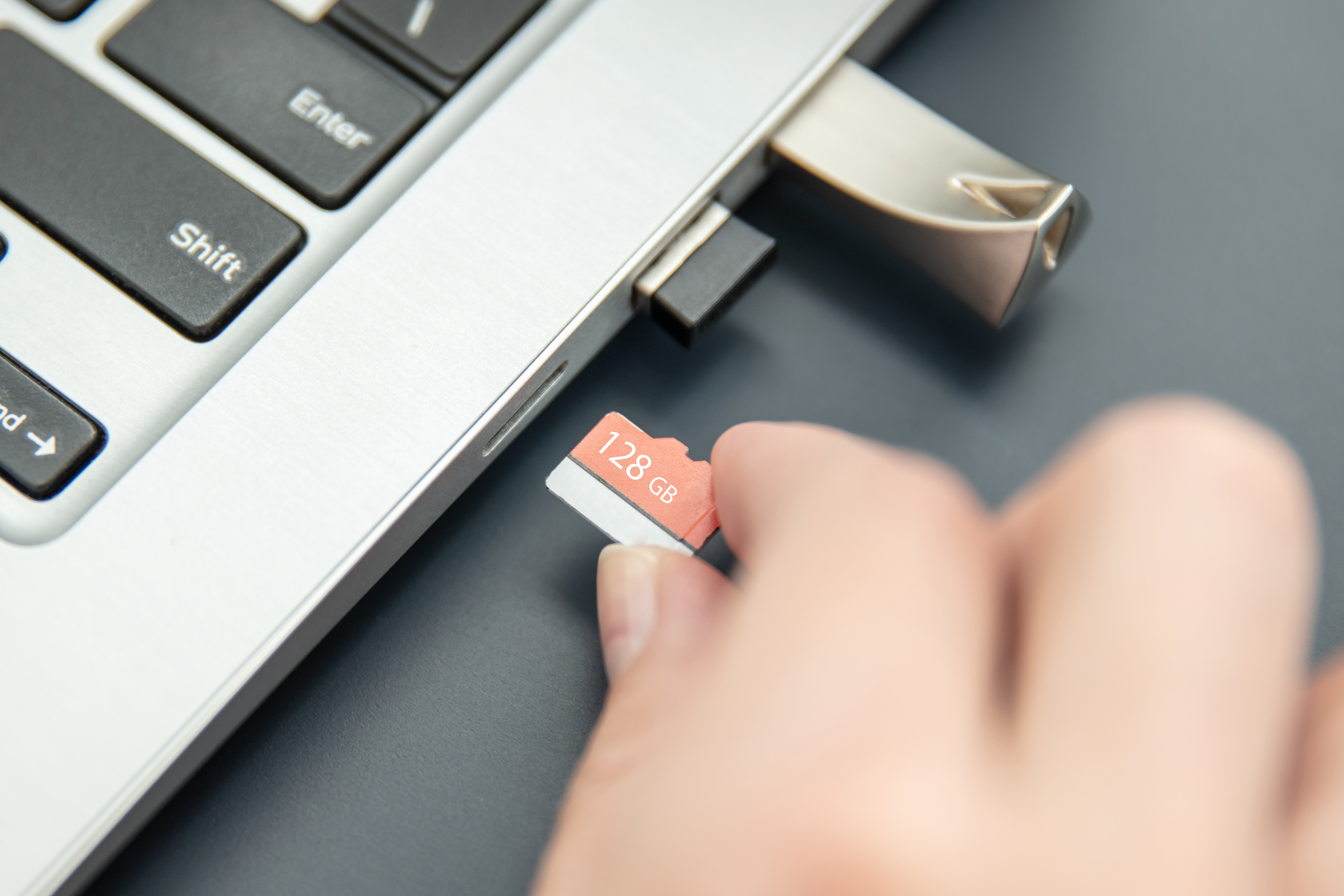
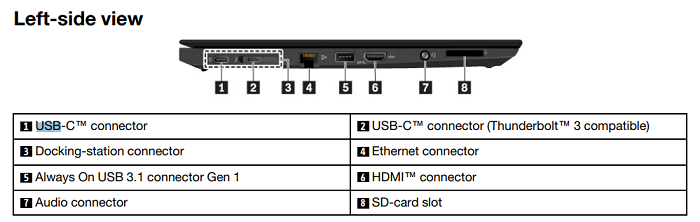
- Built-in SD card slot. Many laptops include a slot for standard SD cards.
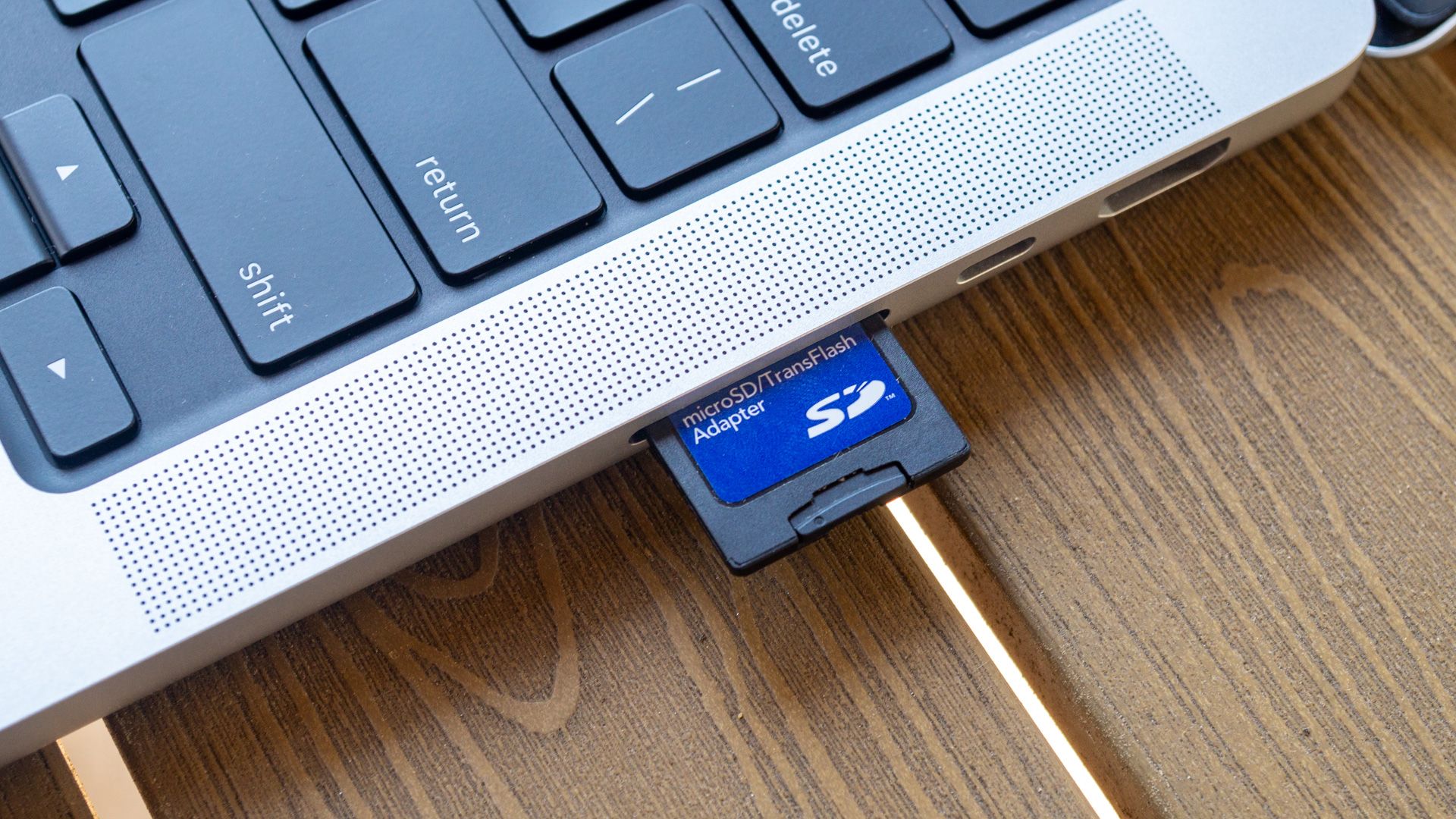
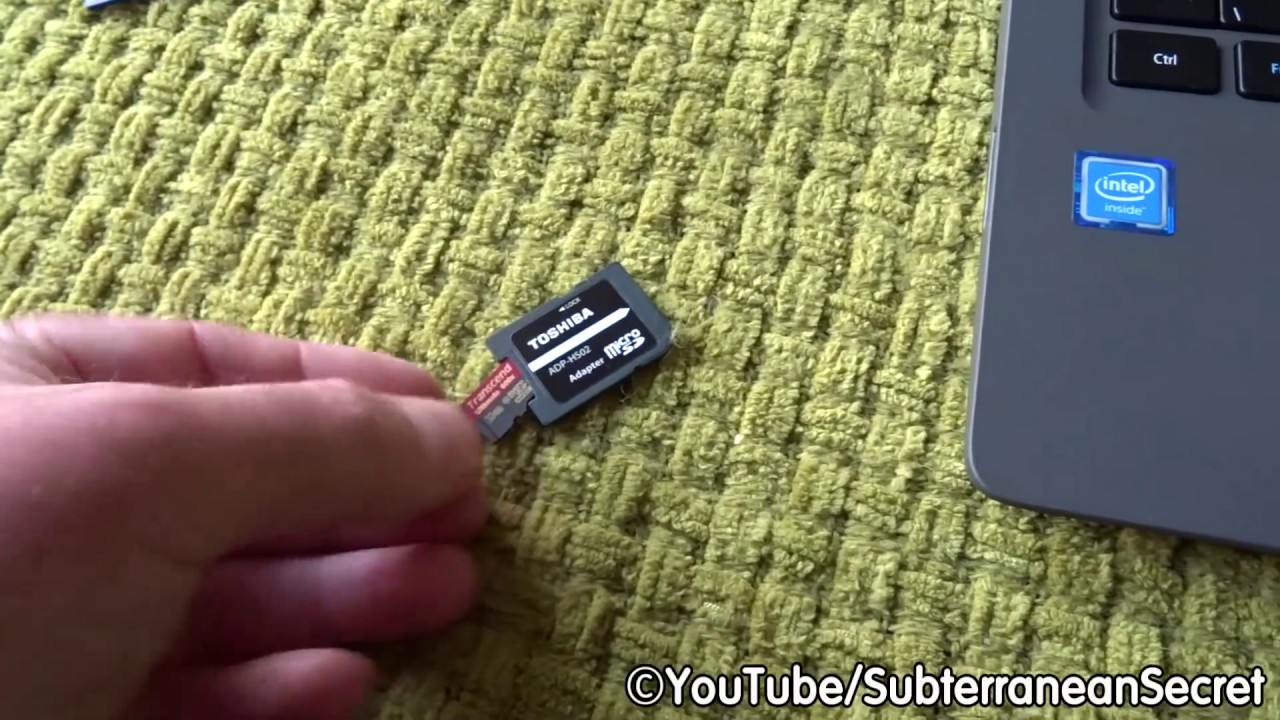
- microSD adapter. Use this to fit a microSD into a full-size SD slot.
- USB card reader. Use this if your laptop lacks an SD slot or for faster speeds.
- USB-A or USB-C adapter. Some readers need a USB-C or USB-A port adapter.
- Updated drivers and OS. Keep Windows or macOS updated so the card mounts correctly.
- Compatible file system. exFAT and FAT32 are commonly supported across devices.
If you wonder how to read sd card on laptop with no slot, a USB card reader is the easiest fix. They are small and inexpensive.
Source: everestkitchennc.com
Step-by-step: How to read an SD card on laptop (Windows)
Follow these steps to access files on Windows. Each step is short and clear.
- Power off your camera or phone and remove the card.
- Insert the SD or microSD (in adapter) into the laptop slot or into a USB card reader.
- Turn on the laptop. Windows should detect the card automatically.
- Open File Explorer. Click This PC and look for a new drive letter.
- Double-click the drive to open and view files. Copy or drag files to your folders.
- When done, right-click the drive and choose Eject before removing the card.
If File Explorer does not show the card, try a different USB port or restart Windows. These steps explain how to read sd card on laptop quickly and safely.
Source: youtube.com
Step-by-step: How to read an SD card on a laptop (Mac)
Mac steps are fast and smooth. Follow them in order.
- Insert the SD card into the Mac’s slot or a USB card reader.
- Wait a few seconds for the Finder to mount the card.
- Open Finder and look under Locations for the card name.
- Click the card to view files. Drag files to your Mac to copy them.
- To remove, drag the drive icon to Trash or click the Eject button next to it in Finder.
If the card doesn’t appear, check System Information > USB or Card Reader to confirm the device is recognized. These steps help you read sd card on a laptop running macOS with minimal fuss.
Source: lenovo.com
Common problems and fixes
Cards sometimes won’t work. Try these fixes.
- Card not detected. Try another USB port, a different reader, or restart your laptop.
- Read-only or write-protected. Slide the small switch on the SD card to unlock it.
- Unsupported file system. If the card uses an uncommon format, reformat after backing up.
- Corrupted files. Run a disk check tool or data recovery software if files are missing.
- Slow transfers. Use a USB 3.0 reader or insert the card into a faster slot to speed up moves.
If a card is physically damaged, data recovery specialists can sometimes retrieve files. These tips show how to read sd card on a laptop and what to do when things go wrong.

Source: youtube.com
Tips for data safety and formatting
Keep your files safe and your cards healthy. Follow these rules.
- Always back up before formatting. Copy files to your laptop or cloud first.
- Use exFAT for large files and cross-platform use. FAT32 limits file size to 4 GB.
- Eject safely every time to avoid file corruption. Use Eject in Finder or Safely Remove in Windows.
- Avoid full capacity. Keep some free space to reduce wear and speed issues.
- Label cards and rotate them for long shoots to avoid single-card failure.
Personal note: I once lost hours of photos by removing a card without ejecting. Now I always double-check the Eject step. That habit has saved me time and stress. These practical rules make learning how to read sd card on a laptop more reliable.
:max_bytes(150000):strip_icc()/samsung-memory-uEm98n9rcDU-unsplash-37f39c81e9dd48eab0b734b3a5af93f5.jpg)
Source: lifewire.com
Frequently Asked Questions on how to read sd card on a laptop
How do I read a microSD card on my laptop?
Use a microSD-to-SD adapter or a USB microSD card reader. Insert the adapter into the laptop slot or plug the reader into a USB port to access files.
My laptop won’t recognize the SD card. What should I try?
Try a different USB port or card reader and restart your laptop. Also, check for driver updates and make sure the card is not locked.
Can I format an SD card on my laptop?
Yes. Back up files first, then use Disk Management on Windows or Disk Utility on Mac to format. Choose exFAT for compatibility across devices.
Is it safe to remove an SD card without ejecting?
It is risky. Always use Eject or Safely Remove to prevent file corruption and data loss. Ejecting tells the computer to finish writes.
Will formatting remove all data from the SD card?
Formatting erases the file table and makes files inaccessible. Use recovery software quickly if you formatted by mistake, but the chances of full recovery vary.
Conclusion
You now know clear ways to read an SD card on a laptop for both Windows and Mac. Use an adapter or USB reader if needed. Back up files, eject safely, and pick the right file system to avoid trouble. Try the steps above on your next transfer and save time. If this helped, leave a comment, subscribe for more tips, or share the article with someone who needs a quick fix.