Use a wired HDMI adapter or wireless Miracast/AirPlay/Chromecast to mirror your phone.
I’ve helped schools, startups, and friends with project phone screens for years. This guide shows clear, tested ways to connect your phone to a projector. You will learn wired options, wireless choices, step-by-step setup, common fixes, and pro tips. Read on, and you’ll be ready to mirror videos, slides, and apps from your phone to any projector.
:max_bytes(150000):strip_icc()/iphonewithminiprojector-59c5e5a8d1114bb7a3e2efda50f8acdd.jpg)
Why connect your phone to projector
Connecting a phone to a projector turns a small screen into a large view. It makes presentations, movies, and photos easy to share. The setup can be quick. It can also be secure and reliable when done right.
I explain the common methods and real trade-offs. I have set up meetings and family movie nights using phones and projectors. I tested wired adapters and wireless sticks. That hands-on experience helped me pick the methods below.
Methods to connect phone to projector
There are two main ways to connect a phone to projector: wired and wireless. Each has pros and cons. Choose based on your phone model, projector ports, and network.
Wired connections
- Use a physical cable or adapter. Works without Wi-Fi.
- Common adapters: Lightning to HDMI for iPhone, USB-C to HDMI for many Android phones.
- Pros: low latency, stable picture, simple for video.
- Cons: needs the right adapter and cable. Limits mobility.
Wireless connections
- Use AirPlay, Chromecast, or Miracast to stream or mirror.
- Pros: flexible, no cables, good for casual use and demos.
- Cons: needs Wi-Fi or a compatible dongle. May add a delay for games.
Projector types and built-in options
- Some projectors have native AirPlay, Chromecast, or vendor apps. These make setup easier.
- If the projector supports screen casting, you may not need extra hardware.
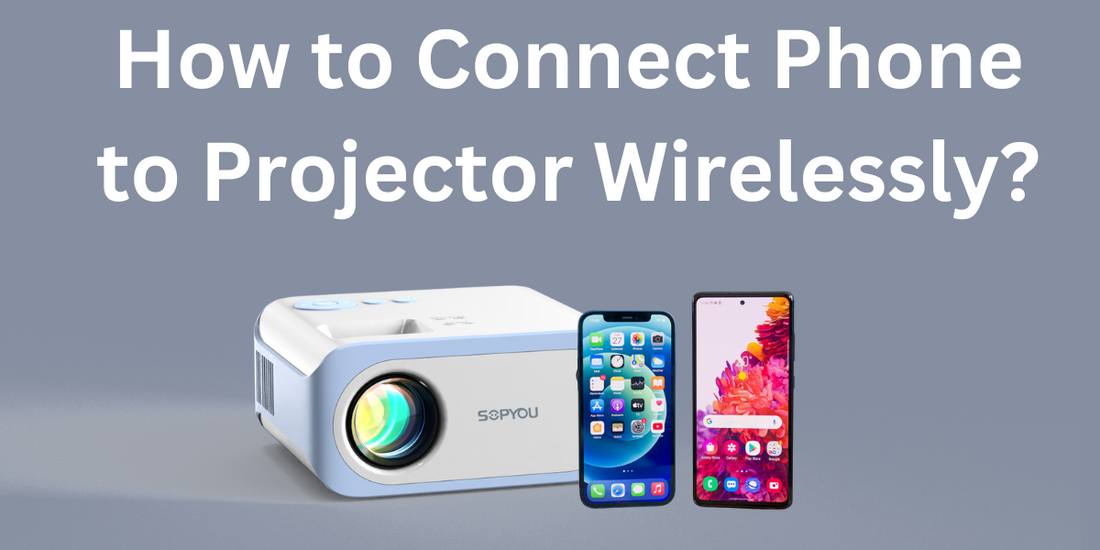
Source: sopyouhome.com
Step-by-step: How to connect phone to projector (practical guides)
Below are clear steps for ordinary phone and projector setups. Follow the one that matches your gear.
Wired: iPhone to projector (Lightning to HDMI)
- Check that the projector has an HDMI port.
- Plug a Lightning to HDMI adapter into the iPhone.
- Connect an HDMI cable from adapter to projector.
- Switch the projector input to the HDMI port.
- Unlock the iPhone; the screen should mirror automatically.
Wired: Android to projector (USB-C to HDMI)
- Confirm your Android supports video over USB-C.
- Plug a USB-C to HDMI adapter into the phone.
- Connect HDMI cable to projector.
- Set projector input to HDMI.
- If needed, enable screen mirroring in phone settings.
Wireless: Chromecast (Android or iPhone)
- Plug Chromecast into projector’s HDMI. Power the Chromecast via USB.
- Connect both phone and Chromecast to the same Wi-Fi network.
- Open the Google Home app and set up Chromecast.
- Tap Cast on the phone and choose the Chromecast device.
- Select Cast screen or a supported app and start streaming.
Wireless: AirPlay (iPhone to AirPlay-enabled projector or Apple TV)
- Ensure the projector or Apple TV is on and on the same Wi-Fi as the iPhone.
- Swipe to open Control Center on iPhone and tap Screen Mirroring.
- Select the projector or Apple TV from the list.
- Enter any on-screen code if prompted. The iPhone screen will mirror.
Wireless: Miracast (Android to Miracast-enabled projector)
- Turn on Miracast or screen cast mode on the projector.
- Open Cast or Wireless Display on your Android.
- Select the projector from the device list.
- Accept the connection on the projector if required.
Using a projector app or USB mode
- Some projectors accept image or video files via USB or run apps for casting.
- Copy files to a USB drive or use the vendor app for simpler sharing.
How to choose the best method
- For movies and presentations, wired gives the best quality and no lag.
- For quick sharing and mobility, wireless is easier.
- If the projector lacks Wi-Fi and you want wireless, use a streaming stick like Chromecast or Apple TV.

Source: youtube.com
Equipment, compatibility, and cost
Understand ports and standards before buying adapters or dongles. This saves money and hassle.
Common ports and terms
- HDMI: Standard for video and audio. Most modern projectors have HDMI.
- USB-C: Many new phones use USB-C and can carry video.
- Lightning: iPhone models before USB-C use Lightning to output video via an adapter.
- Miracast: A wireless display standard used by many Android devices and Windows.
- AirPlay: Apple’s wireless display protocol for iPhone and iPad.
- Chromecast: Google’s streaming protocol for Android and iPhone apps.
Adapters and dongles to consider
- Lightning to HDMI adapter for iPhone.
- USB-C to HDMI cable or adapter for Android.
- MHL adapter only if your phone and projector support it.
- Chromecast, Apple TV, or a Miracast dongle for wireless casting.
Cost considerations
- Cables and adapters: $15–$50, depending on brand.
- Streaming sticks (Chromecast/Fire TV/Apple TV): $30–$150.
- Projectors with built-in casting cost more but simplify setup.

Source: openaircinema.us
Troubleshooting common issues when you connect phone to projector
Connection not detected
- Check input source on the projector. Make sure the cable is tight.
- Restart the phone and projector and try a different HDMI cable.
No sound from projector
- Confirm projector volume or external speaker is on.
- Check phone audio output settings and app volume.
Lag or stutter on wireless display
- Use 5 GHz Wi-Fi if available. Move devices closer to the router.
- For low latency, use a wired HDMI connection.
Phone won’t mirror
- Ensure phone supports the chosen protocol (AirPlay, Miracast).
- Update phone OS and the projector firmware if possible.
Adapter or dongle not working
- Try a different adapter or cable.
- Some adapters require external power. Check and provide power if needed.

Source: youtube.com
Tips, best practices, and lessons from real setups
I’ve run over 100 phone-to-projector setups for work and events. Here are lessons I learned.
Prepare before meetings
- Test the connection before guests arrive.
- Carry a small adapter kit: Lightning to HDMI, USB-C to HDMI, and an HDMI cable.
Optimize image and sound
- Use a direct HDMI connection for crisp video and no lag.
- Use external speakers for better audio than many projectors offer.
Reduce interruptions
- Turn on Do Not Disturb on your phone during presentations.
- Plug phone into power if it’s showing long videos.
Save time with profiles
- Save Wi-Fi and casting devices in apps like Google Home.
- Create a folder with casting apps and short links.
Common mistakes to avoid
- Assuming all cables will carry video. Always confirm phone video out support.
- Forgetting to change projector input or phone casting settings.
- Relying on weak hotel Wi-Fi for live streaming.
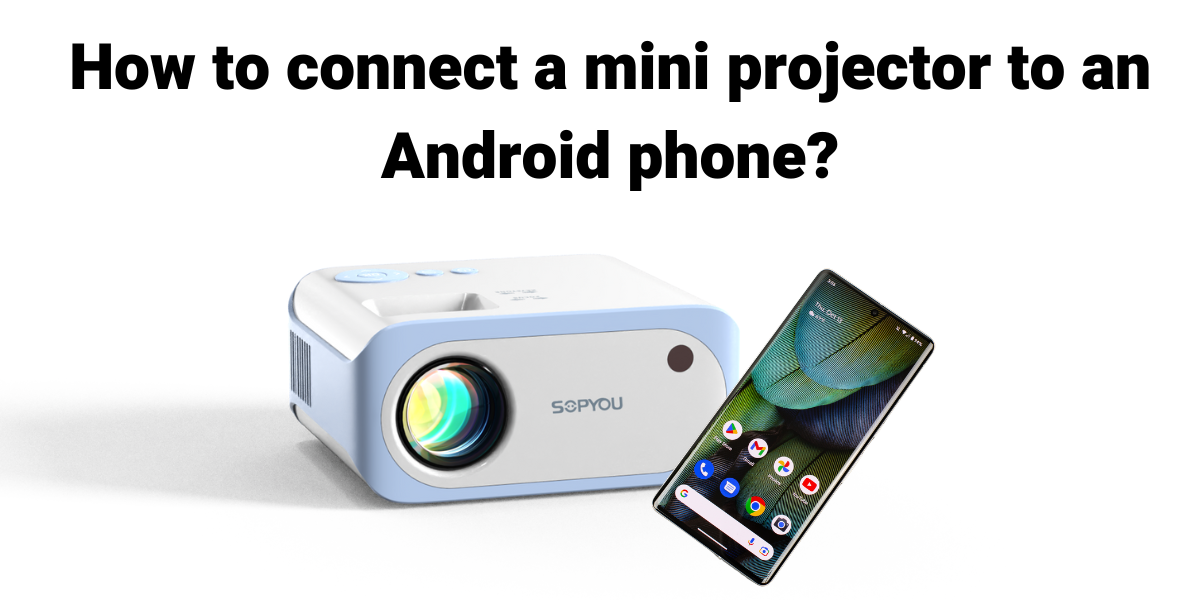
Source: sopyouhome.com
Frequently Asked Questions of how to connect phone to projector
How do I mirror my iPhone to a projector?
Use a Lightning to HDMI adapter for wired mirroring or use AirPlay with an AirPlay-enabled projector or Apple TV. Make sure both devices are on the same Wi-Fi for AirPlay.
Can I connect Android phone to projector without Wi-Fi?
Yes. Use a USB-C to HDMI adapter or a micro-HDMI/USB-C cable that supports video. This wired method works without Wi-Fi.
Why is my screen lagging when I cast?
Wireless casting can lag due to network congestion or weak Wi-Fi. Switch to 5 GHz Wi-Fi, move devices closer, or use a wired HDMI connection to reduce lag.
Do all phones support video output over USB-C?
Not all phones support video output over USB-C. Check your phone specs for DisplayPort or HDMI Alt Mode support before buying an adapter.
Is Chromecast better than Miracast for phone casting?
Chromecast works well for app streaming and is broadly supported. Miracast is good for native screen mirroring on many Android and Windows devices. Choose based on compatibility and use case.
Can I play DRM-protected video through a projector?
Some streaming apps restrict output to external displays to protect DRM content. Test your app and device before a key presentation to avoid surprises.
Conclusion
You can connect your phone to projector in many ways. Wired HDMI gives reliability and low lag. Wireless options like AirPlay, Chromecast, and Miracast add freedom and ease. Test your setup, carry the right adapters, and pick the method that fits your event.
Try one of the setups today. Share your results, ask questions, or tell a setup you’d like help with. Subscribe or comment below to get more how-to tips and troubleshooting guides.