Press Fn + F3 or turn off the touchpad in Windows Settings or Device Manager.
I’ve helped dozens of users and fixed my own Dell laptops, so I know clear, safe ways to disable the touchpad. This guide explains practical options for how to disable touchpad on dell laptop, step-by-step instructions, quick fixes, and tips to avoid common mistakes. Read on to find the method that fits your model and comfort level.

Why disable touchpad on dell laptop?
Many people disable the touchpad to avoid accidental cursor jumps while typing. Gamers and designers often prefer a dedicated mouse for accuracy. Disabling the touchpad can also save a tiny bit of battery and reduce annoying gestures. Knowing how to disable touchpad on dell laptop helps you work faster and reduces interruptions.
Source: appuals.com
Quick methods to disable touchpad on dell laptop
Here are the fastest ways to turn the touchpad off. Each method works in different situations depending on the drivers and Windows version.
- Use the function key (for many Dell models).
- Turn off the touchpad in Windows Settings.
- Disable the device in Device Manager.
- Use the Dell touchpad software or BIOS/UEFI.
- Plug in a USB mouse and set Windows to disable the touchpad when an external mouse is connected.
These methods cover most needs. Pick one that matches your comfort level and system setup. If one method fails, try another—drivers or updates can change how options appear.

Source: youtube.com
Common quick questions
What if my Fn key does nothing? Try the other methods or update drivers.
Will disabling the touchpad affect gestures? Yes, gestures stop until you re-enable the touchpad.
Source: tenforums.com
Step-by-step guides for how to disable touchpad on dell laptop
Below are clear steps for each main method. Follow the sequence for the easiest path.
Method 1: Use the function key
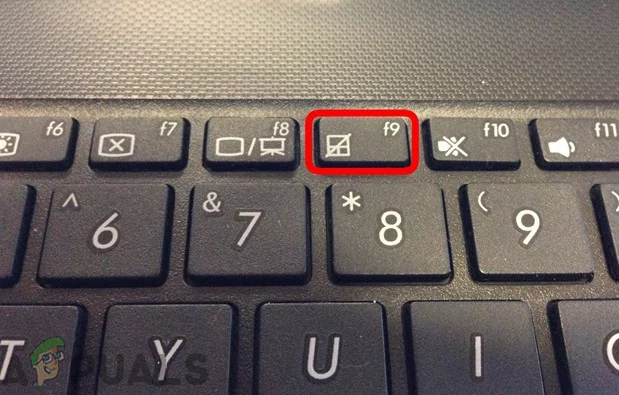
Many Dells have a touchpad toggle on an F-key.
- Look for an F-key with a touchpad icon (often F3, F5, or F7).
- Hold the Fn key and press that F-key once.
- Test the touchpad; press again to re-enable if needed.
This is the fastest way to disable the touchpad on many laptops.
Method 2: Windows Settings (Windows 10 and 11)
- Open Settings. Go to Devices > Touchpad (Windows 10) or Settings > Bluetooth & devices > Touchpad (Windows 11).
- Toggle the touchpad off.
- Optionally enable “Leave touchpad on when a mouse is connected” or disable it to auto-off.
This method is easy and user-friendly for how to disable touchpad on dell laptop using Windows controls.
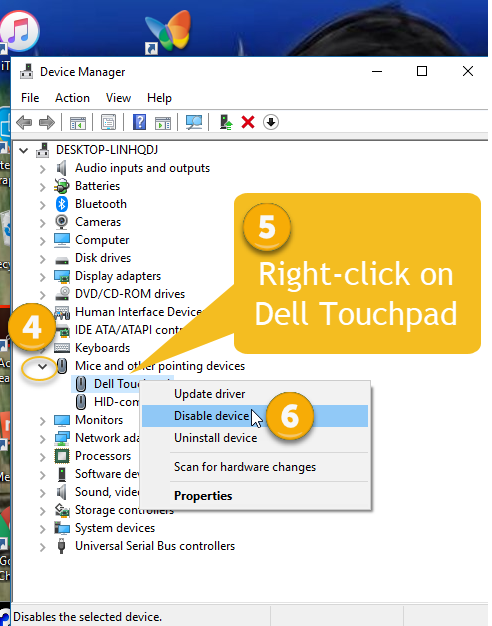
Method 3: Device Manager
- Right-click Start and open Device Manager.
- Expand “Mice and other pointing devices.”
- Right-click the touchpad device (it may be called Dell Touchpad, PS/2 Compatible Mouse, or Synaptics) and choose Disable device.
Use Device Manager if Settings doesn’t show the option.
Method 4: Dell touchpad software or Precision Touchpad settings
- Open Control Panel or the Dell touchpad app (if installed).
- Find touchpad settings and turn the device off or disable gestures.
- Save changes and test.
Some models use OEM software with fine-grained controls.
Method 5: BIOS / UEFI (for persistent disabling)
- Restart the laptop and press F2 (or the key shown) to enter BIOS/UEFI.
- Find Integrated Devices or Advanced > Touchpad.
- Set the touchpad to Disabled or Advanced/Basic as offered, then save and exit.
Use BIOS only if you want the touchpad off before Windows loads.
Source: businessinsider.com
Troubleshooting when disabling the touchpad on dell laptop
If the touchpad won’t disable, try these fixes.
- Fn key not working
- Update keyboard and system drivers. Restart and try again.
- No touchpad option in Settings
- Install or update the Dell or touchpad driver from Windows Update or Dell support.
- Device Manager shows no touchpad device
- Show hidden devices or check the BIOS to ensure the touchpad is enabled at the firmware level.
- The touchpad turns off but still acts intermittently
- Check for third-party mouse software that may re-enable it. Remove duplicates in Device Manager.
I often updated the touchpad driver when a disabled option disappeared. That usually restored the proper controls.
Safety and best practices for disabling the touchpad on dell laptop
Follow these simple rules so you can safely manage the touchpad.
- Back up settings: Note any driver or BIOS changes before editing.
- Use BIOS only when needed: Firmware changes affect all OS sessions.
- Keep drivers current: Updated drivers prevent odd behavior.
- Test after change: Confirm the touchpad is truly disabled to avoid surprises.
- Know how to re-enable: Keep a USB mouse handy when changing settings.
These habits reduce downtime and keep your laptop stable.
Personal experience and practical tips
I once had a Dell XPS where accidental palm taps would ruin long edits. The function key fixed it for a while. After a Windows update, the F-key stopped working. Updating the touchpad driver fixed it. If you disable the touchpad, I recommend keeping a small, cheap USB mouse nearby for quick access. Also, create a restore point before major driver or BIOS changes—this saved me time once when an update misapplied settings.
Frequently Asked Questions on how to disable touchpad on dell laptop
How do I disable the touchpad temporarily?
Use the Fn key with the touchpad icon or turn off the touchpad in Windows Settings for a quick, temporary disable.
Can I disable the touchpad permanently?
Yes. Disable it in BIOS/UEFI or Device Manager for a more persistent, system-level disable.
What if there is no touchpad option in Settings?
Install or update the touchpad driver from Dell support or use Device Manager to disable the device.
Will disabling the touchpad affect gestures or scrolling?
Yes. Disabling the touchpad stops all built-in gestures and scrolling until you re-enable it.
How can I auto-disable the touchpad when I plug in a mouse?
In Windows Settings, enable the option to leave the touchpad off when an external mouse is connected, or use the Dell touchpad app if available.
My Fn key doesn’t work to disable the touchpad. What now?
Try Device Manager, update your keyboard and touchpad drivers, or disable the touchpad in BIOS if needed.
Conclusion
You now have clear, safe options for how to disable touchpad on dell laptop, from a quick Fn press to a BIOS-level disable. Pick the method that fits your comfort and needs, update drivers when things go wrong, and keep a backup mouse nearby. Try one method today and leave a note about what worked for your Dell model — your feedback helps others choose the right approach.