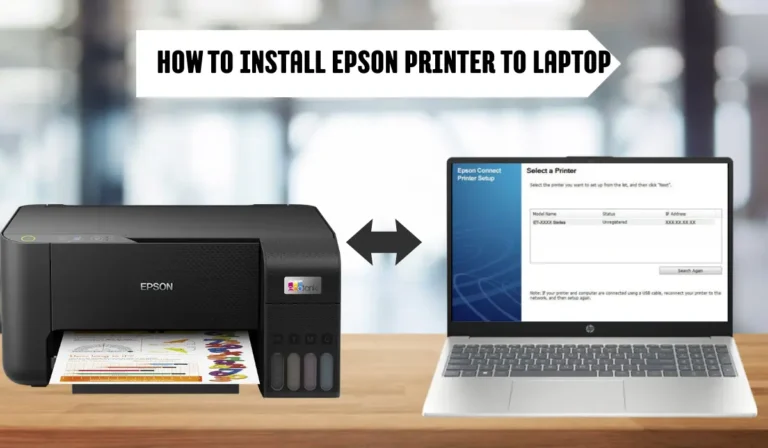
Connect via USB or Wi-Fi by installing the Brother driver and selecting the right network or port.
I’ve set up dozens of Brother printers for friends, family, and clients, so I know the small details that trip people up. This guide shows exactly how to connect Brother printer to laptop with clear steps for USB, Wi‑Fi, WPS, Bluetooth, and both Windows and macOS. You’ll get setup steps, driver tips, troubleshooting, and real-world advice so you can print fast and worry-free.
Quick checklist before you start
Before you try to connect the Brother printer to your laptop, get these basics ready.
- Confirm your laptop OS: Windows 10/11 or macOS.
- Know your model number from the printer label.
- Have a USB cable if you plan a wired setup.
- Have your Wi‑Fi name (SSID) and password for wireless setup.
- Make sure the printer is plugged in and turned on.

Source: youtube.com
How to connect Brother printer to laptop using a USB
USB is the simplest way to get started if you want a direct link.
- Turn on the printer and the laptop.
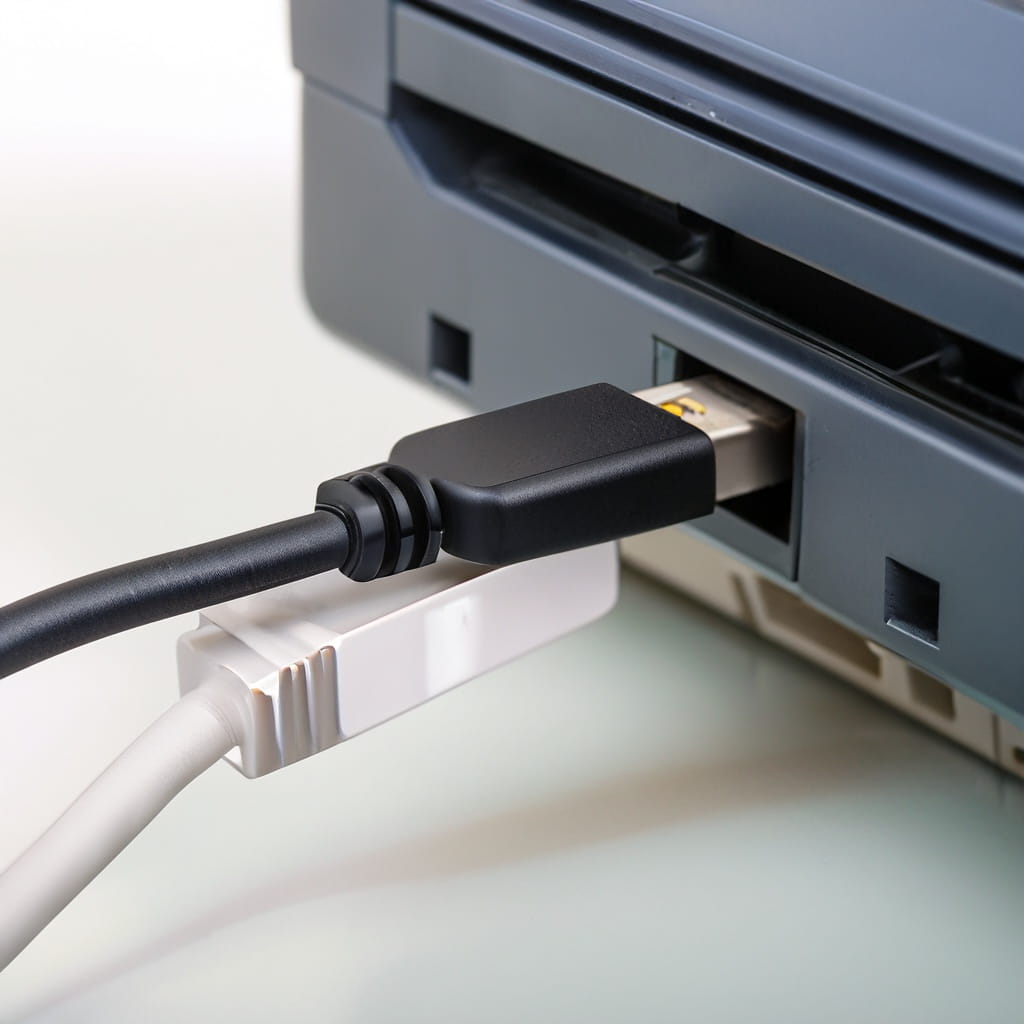
- Plug a standard USB-A to USB-B cable into the printer and laptop.
- Wait: Windows often detects the printer automatically.
- If not detected, download and run the Brother Full Driver & Software Package for your model.
- Open Printers & Scanners (Windows) and add the device if it doesn’t appear.
Tips:
- Use a router-free USB connection for stable printing.
- Avoid USB hubs; connect directly to the laptop.
Source: com.hk
How to connect Brother printer to laptop via Wi‑Fi (Windows)
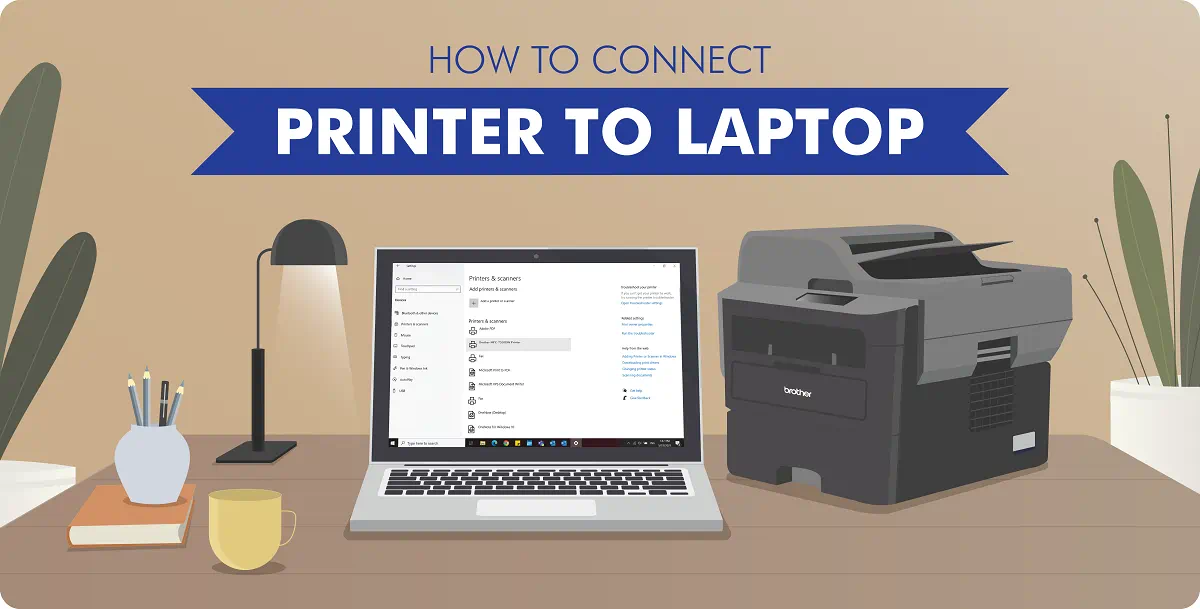
Wireless lets you print from anywhere on your home network. Follow these steps to connect a Brother printer to a Windows laptop.
- On the printer control panel, open Network or Wi‑Fi settings.
- Choose “Setup Wizard” or “Wireless Setup” and select your Wi‑Fi network.
- Enter the Wi‑Fi password and confirm. The printer will show a connected status.
- On the laptop, download the Brother driver package for Windows from Brother’s support site.
- Run the installer and choose “Wireless Network Connection” when prompted.
- The installer detects the printer on the same network and completes setup.
Troubleshooting pointers:
- Make sure the laptop is on the same Wi‑Fi band (2.4 GHz vs 5 GHz) as the printer.
- Temporarily disable VPNs or strict firewalls during install.

Source: youtube.com
How to connect Brother printer to laptop via Wi‑Fi (macOS)
Mac setup is quick if you follow these easy steps.
- Connect the printer to the Wi‑Fi network using the printer’s control panel.
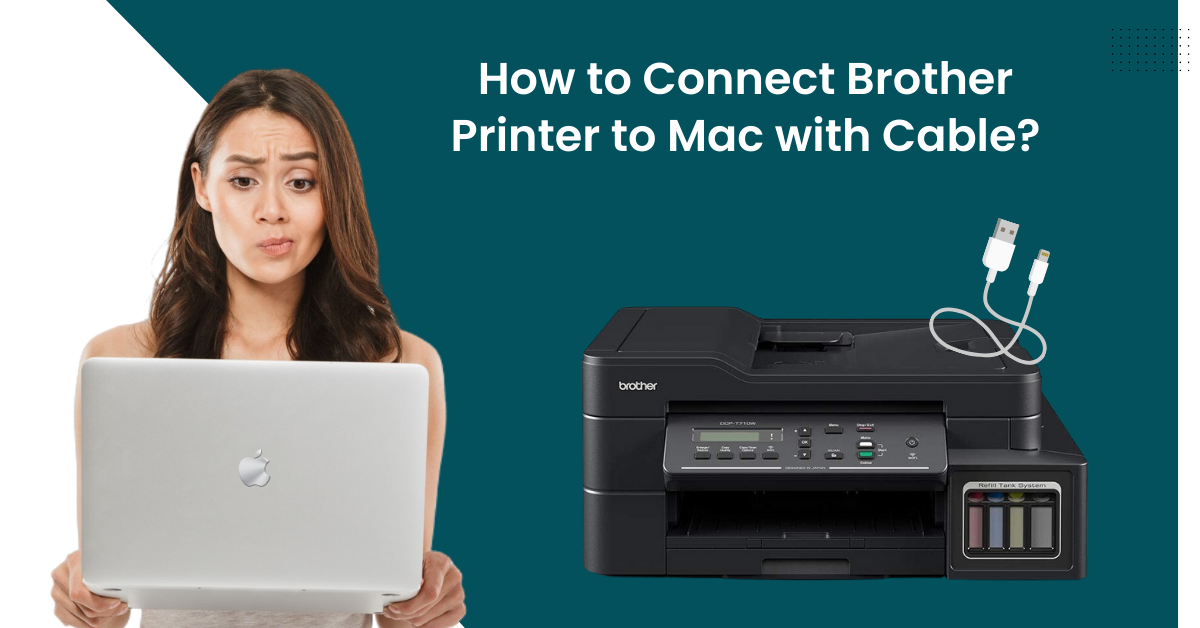
- On the Mac, open System Settings (or System Preferences) > Printers & Scanners.
- Click the plus (+) button and wait for your Brother printer to appear.
- If it doesn’t appear, download the Brother macOS driver and run the installer.
- Select your printer and add it. Print a test page to confirm.
Notes:
- Newer macOS versions may require you to give printer software permission in Security & Privacy.
- Use AirPrint if your Brother model supports it for driver‑free printing.
Source: printertales.com
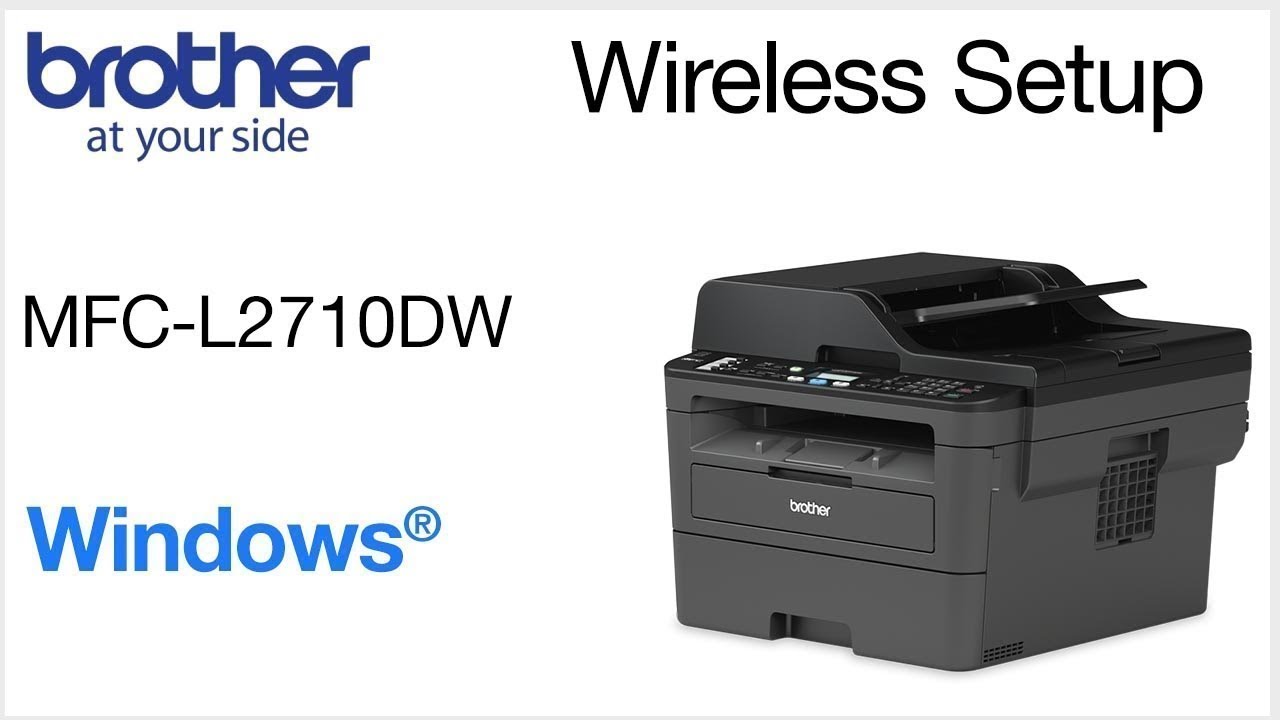
How to connect Brother printer to laptop using WPS
WPS is handy for quick wireless setup without typing a password. Use this when your router supports WPS.
- On the router, press the WPS button.
- Within two minutes, press the WPS button on the Brother printer or select WPS on the printer menu.
- The printer and router exchange info and connect automatically.
- On your laptop, add the printer via network printers or install the Brother driver if needed.
Limitations:
- WPS is less secure than manual setup and is not available on all routers.
- If WPS fails, use the manual Wi‑Fi setup described earlier.
Source: youtube.com
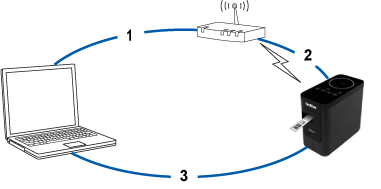
How to connect Brother printer to laptop via Bluetooth
Some Brother models support Bluetooth for quick, short‑range printing. Steps vary by model, but follow this general path.
- Enable Bluetooth on the printer from the network or Bluetooth menu.
- On the laptop, open Bluetooth settings and search for devices.
- Select the Brother printer and pair using the PIN if prompted.
- Install any required Bluetooth drivers from Brother to enable printing.
Practical notes:
- Bluetooth is slower than Wi‑Fi and best for lightweight jobs.
- Use Bluetooth only when USB or Wi‑Fi isn’t available.
Source: brother.com
Troubleshooting: common problems and fixes
If you can’t connect, try these quick fixes when learning how to connect Brother printer to laptop.
- Printer not found on network: Restart the printer and router, then confirm Wi‑Fi credentials.
- Driver installation fails: Run the installer as administrator or use compatibility mode on Windows.
- Printer offline: Right‑click the printer in Printers & Scanners and set it online.
- Slow printing: Check signal strength or switch to a wired USB connection for large jobs.
- Firewall or antivirus blocking: Temporarily disable them during setup and re-enable after.
From experience: restarting devices fixes many issues. It’s the tech equivalent of a deep breath.

Source: youtube.com
Best practices and tips
Use these tips to keep printing smoothly and securely after you connect the Brother printer to your laptop.
- Keep drivers updated from the Brother support site every few months.
- Use a static IP for network printers to avoid re-configuring the laptop.
- Secure your Wi‑Fi with WPA2 or WPA3 to protect printer access.
- Label the printer on your laptop to avoid sending jobs to the wrong device.
- Keep firmware updated, but read release notes before installing.
Personal tip:
I once spent hours troubleshooting a “printer offline” problem, only to find the router had a guest network active; moving the laptop to the main network fixed it instantly.
Source: printertales.com
What to do if nothing works
If you still can’t connect the Brother printer to the laptop, try these final steps.
- Reset network settings on the printer and start the Wi‑Fi setup fresh.
- Try another laptop or phone to isolate if the issue is printer or laptop related.
- Contact Brother support with the model number and a clear description of the steps tried.
- Consider a factory reset as a last resort; save custom settings first.
Frequently Asked Questions on how to connect brother printer to laptop
How do I find my Brother printer model number?
Look on the front or top of the printer, or check the sticker on the back or inside the toner access door. The model usually starts with letters like HL, MFC, DCP, or QL.
Do I need drivers to connect a Brother printer to a laptop?
Yes, most setups require drivers. Windows and macOS sometimes install basic drivers automatically, but the full driver package gives all features and better stability.
Can I connect a Brother printer to laptop without Wi‑Fi?
Yes. Use a USB cable for a direct connection or Bluetooth if the model supports it. USB is fastest and most reliable.
Why won’t my laptop detect the Brother printer on the network?
Common reasons are different Wi‑Fi bands, firewall blocks, or the printer not actually connected to the same network. Restart devices and confirm the SSID and password.
Is AirPrint supported for Brother printers on Mac?
Many Brother models support AirPrint for driver‑free printing from macOS and iOS. Check your model specs and use AirPrint when available for a quick setup.
Conclusion
You now have clear, practical steps to connect a Brother printer to a laptop by USB, Wi‑Fi, WPS, or Bluetooth. Start with the simplest method—USB—then move to wireless once drivers are set. Keep drivers and firmware updated, secure your network, and don’t skip the restart step when things go wrong. Try the steps, and if you hit a snag, retrace the checklist and use the troubleshooting tips above. If this helped, leave a comment with your model and setup experience or subscribe for more printer guides and quick fixes.