Use the correct cable or wireless method, pick the right input, and set the display mode.
I’ve connected laptops to dozens of projectors in classrooms, meeting rooms, and home theaters. This clear guide shows exactly how do i connect laptop to projector with step-by-step wired and wireless methods, easy troubleshooting, and real-world tips so your next presentation or movie plays smoothly.
Why connect a laptop to a projector?
Connecting a laptop to a projector lets you share slides, videos, and demos on a big screen. It makes group work, classes, and home movies easier to see and follow.
I write this from hands-on experience. I will explain how do i connect laptop to projector both with cables and wirelessly. You’ll learn what works best for your gear and how to avoid common problems.
Source: org.uk
Check your laptop and projector ports
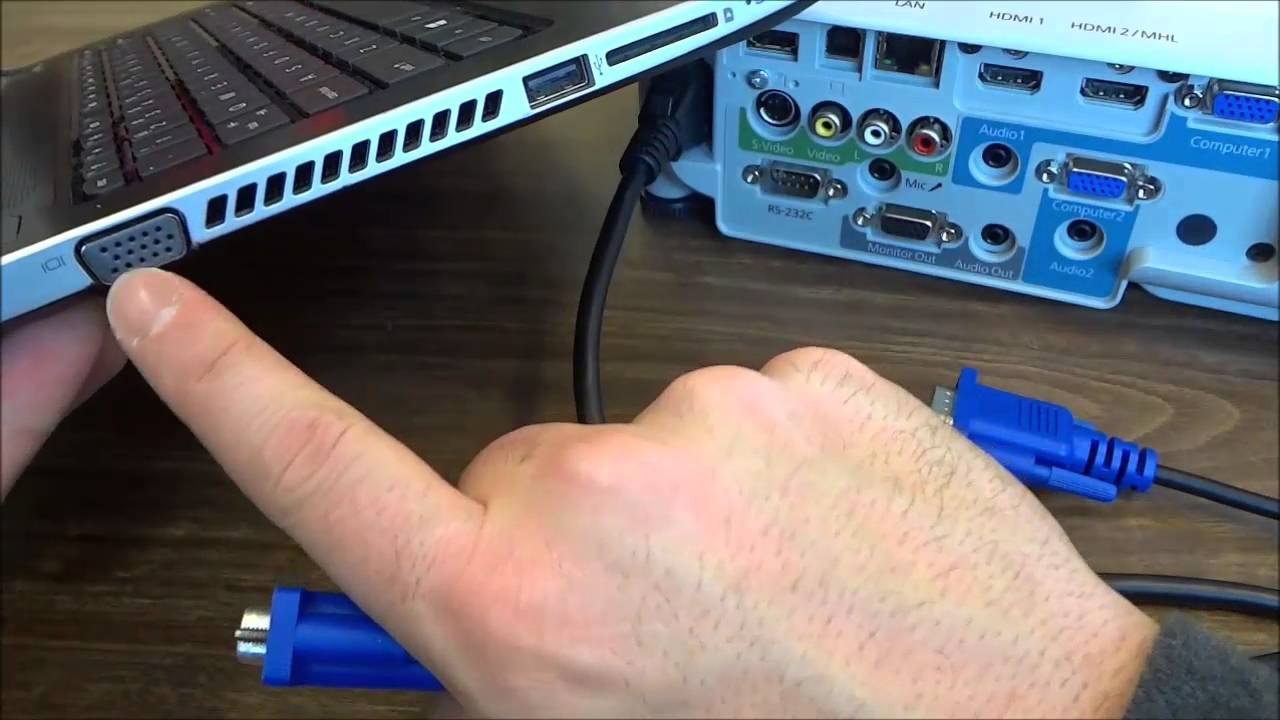
Start by checking ports. Match what your laptop has with the projector’s inputs.
- HDMI: Modern, carries video and audio in one cable.
- VGA: Old standard, video only, needs a separate audio cable.
- USB-C / Thunderbolt 3 or 4: Can carry video with the right cable or adapter.
- DisplayPort / Mini DisplayPort: High-quality video, common on work laptops.
- DVI: Mostly on older gear, video only.
- USB-A or USB (data): Some projectors accept video over USB but require drivers.
Also check for wireless features like AirPlay, Miracast, or built-in Chromecast. Knowing the ports stops guesswork when asking how do i connect laptop to projector.

Source: wikihow.com
Wired connections: step-by-step
Wired links are the simplest and most reliable. Follow these steps.
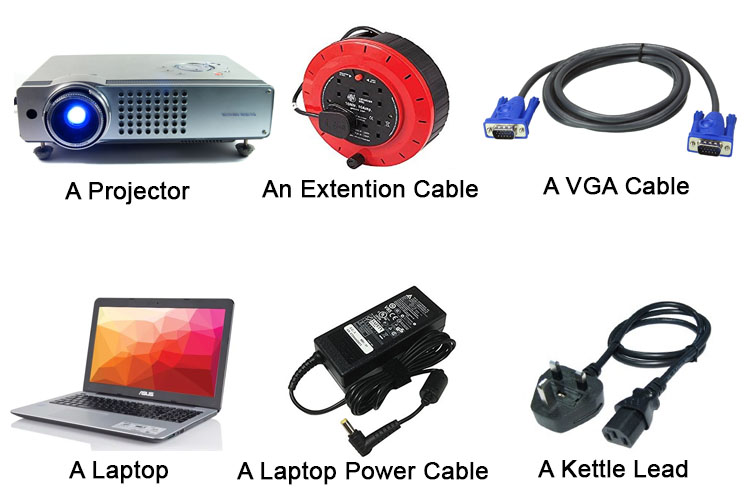
- Identify matching ports on laptop and projector.
- Choose the right cable or adapter.
- Turn on both devices.
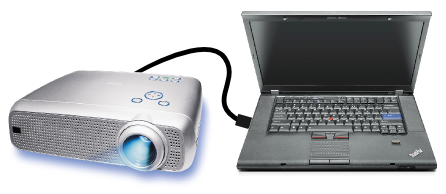
- Plug the cable into the laptop and the projector.
- Select the projector’s input using its remote or onboard menu.
- Configure display settings on the laptop (duplicate or extend).
Common wired setups
- HDMI to HDMI: Plug and play on most devices. Best for audio and video.
- USB-C to HDMI or USB-C to DisplayPort: Use if your laptop has USB-C with video output.
- Mini DisplayPort to HDMI: Common on older MacBooks with adapters.
- VGA to VGA: Use for legacy projectors. You will also need a 3.5mm cable for sound.
If an adapter is needed, buy an active adapter for conversions like USB-C to VGA or DisplayPort to HDMI. Active adapters handle signal conversion reliably.

Source: franklincollege.edu
Wireless options and how to use them
Wireless saves cables and works well in flexible spaces. Here are common methods and how to use them.
AirPlay (Mac and Apple devices)
- Ensure the projector or a connected Apple TV supports AirPlay.
- Connect both devices to the same Wi-Fi network.
- Use the Mac’s Screen Mirroring menu to connect.
AirPlay is great for Apple users when you want a cable-free setup.
Miracast (Windows and Android)
- Many Windows laptops support Miracast.
- Open the Project or Connect settings and select the wireless display.
- Ensure the projector supports Miracast or use a Miracast dongle.
Miracast is useful when you already have a Miracast-capable projector.
Chromecast and Google Cast
- Plug a Chromecast into the projector’s HDMI port.
- Use Chrome or cast-enabled apps to send video to the Chromecast.
Chromecast works across platforms and is easy for streaming video.
Wireless HDMI kits
- These kits plug into HDMI ports on both devices.
- They create a direct wireless link with low latency.
Use these for video that needs higher stability than Wi-Fi can offer.
Remember: wireless setups can add lag. If your presentation needs exact timing or low latency, wired is safer. This is a key factor when you ask how do i connect laptop to projector for live demos.
Source: fixyourdlp.com
Display settings and troubleshooting
Once connected, set up displays and fix common issues quickly.
Set display mode
- Duplicate: Shows the same screen on laptop and projector. Good for presentations.
- Extend: Adds a second screen for notes or extra content.
- Second screen only: Use the projector as the only display.
Basic troubleshooting steps
- Check cables and adapters for damage.
- Confirm the projector input matches the cable.
- Restart both devices after connecting.
- Update graphics drivers on your laptop.
- Lower resolution if the projector can’t display the laptop’s output.
Common problems and fixes
- No signal: Re-check the input source and cable seating.
- Black screen but audio plays: Try different display modes or update drivers.
- Image stretched or cropped: Match laptop resolution to the projector’s native resolution.
These steps answer many practical questions about how do i connect laptop to projector and keep things simple.

Source: youtube.com
People also ask
How do I switch the display mode on Windows?
Open Settings > System > Display or press Windows + P and choose Duplicate, Extend, or Second screen only.
How do I mirror my Mac screen to a projector?
Use AirPlay if available, or connect with an HDMI or USB-C cable and choose Mirror Displays in Display preferences.
Why is my projector image fuzzy?
Check the cable, lens focus, projector resolution, and input scaling. Clean the lens and match the output resolution.

Source: acer.com
Audio tips when connecting to a projector
Projectors may not always play audio well. Plan ahead.
If you use HDMI
- HDMI carries sound. Check the audio output on your laptop and set it to the HDMI device.
If you use VGA or adapters
- Use a 3.5mm audio cable from the laptop headphone jack to the projector or external speakers.
- Or use Bluetooth speakers paired to the laptop for better sound.
External speakers
- For large rooms, connect powered speakers to the projector or laptop for louder, clearer audio.
Good audio complements the visual setup and answers the full need when people ask how do i connect laptop to projector for movies or talks.

Source: soundcore.com
Common mistakes and how to avoid them
Avoid these frequent errors to save time and stress.
- Buying the wrong adapter: Check if you need an active adapter for signal conversion.
- Forgetting to select the projector input: Always use the projector menu to pick the right input.
- Not testing beforehand: Do a dry run to confirm resolution, sound, and remote control.
- Ignoring driver updates: Old drivers can block video output or cause flicker.
Learning from these mistakes makes future setups smoother when you wonder again how do i connect laptop to projector.
Personal experience and practical tips
I once had a meeting where the HDMI port on the venue projector was dusty. The image flickered until I reseated the cable. Now I always carry a small kit.
What I pack
- HDMI and VGA cables.
- USB-C to HDMI and Mini DisplayPort to HDMI adapters.
- 3.5mm audio cable and a compact Bluetooth speaker.
- A small flashlight or phone light.
Quick tips from the field
- Test in the room 15 minutes early to fix surprises.
- Keep the laptop charged or bring the charger; some projectors draw power from USB, but not enough.
- Label cables if you manage multiple devices.
These real tips answer everyday questions about how do i connect laptop to projector with hands-on solutions.
Frequently Asked Questions of how do i connect laptop to projector
How do i connect laptop to projector using HDMI?
Plug an HDMI cable from the laptop to the projector, set the projector input to HDMI, and choose Duplicate or Extend in display settings. Most laptops detect the projector automatically.
Can I connect my laptop to a projector wirelessly?
Yes. Use AirPlay, Miracast, Chromecast, or a wireless HDMI kit, depending on your laptop and projector. Both devices usually need to be on the same network or paired.
What if my laptop only has USB-C, and the projector has VGA?
Use a USB-C to VGA active adapter to convert the signal. You will also need a 3.5mm cable for audio because VGA does not carry sound.
Why is my projector showing “No Signal”?
Check that the correct input is selected on the projector, the cable is fully seated, and the laptop’s display mode is set to output. Restarting both devices often helps.
How do I fix low or no sound when connected to a projector?
Ensure the laptop audio output is set to the HDMI device if using HDMI. If using VGA, connect a 3.5mm audio cable or use external speakers.
Conclusion
You can connect a laptop to a projector reliably by matching ports, using the right cable or adapter, and choosing wired or wireless paths based on need. Test your setup, carry a small cable kit, and learn simple display settings to avoid last-minute stress. Try these steps at your next presentation and leave a comment with your setup questions or success stories.