A smartwatch pairs with your phone, tracks health, and responds to taps, swipes, and voice.
I’ve spent years testing wearables and helping people learn how to work a smart watch. This guide explains, step by step, how to work a smart watch from unboxing to daily use, with clear examples, common mistakes, and tips that actually save time. Read on to confidently set up, navigate, customize, and troubleshoot your watch so it feels like a natural part of your day.

Smartwatch basics: what it is and how to work a smart watch
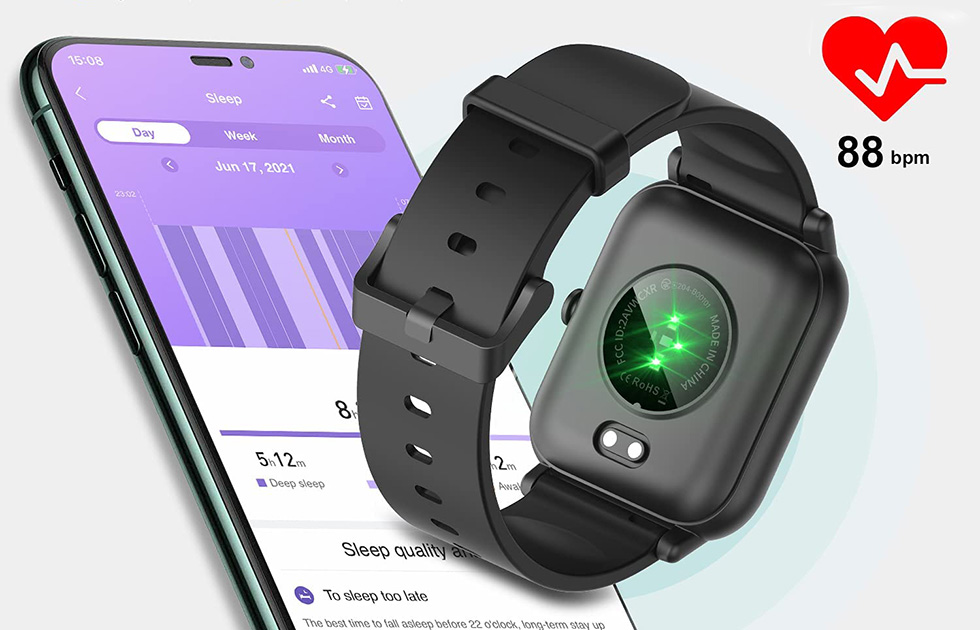
A smartwatch is a small computer on your wrist. It shows time, messages, health data, and runs apps. Learning how to work a smart watch starts with understanding its parts: display, crown or button, touch screen, sensors, microphone, speaker, and straps. Knowing these helps you navigate settings and control features without frustration.
Setting up and pairing your watch: first steps to learn how to work a smart watch
Unbox carefully and charge the watch first. Most new watches need an initial charge before setup. Download the manufacturer’s companion app on your phone and follow the on-screen pairing steps. Grant recommended permissions for notifications, location, and health data so the watch can fully function.
Steps to pair and set up
- Charge the watch until it reaches a stable battery level.
- Install the companion app on your phone and enable Bluetooth.
- Select the watch model in the app and follow pairing prompts.
- Allow permissions for notifications, contacts, and health data.
- Create or sign into an account if required and sync initial data.
Common pairing tips
- Keep devices close during pairing to avoid dropouts.
- Update both phone and watch OS for compatibility.
- If pairing fails, reboot both devices and try again.
Practical note: when I paired my first watch, I skipped the software update. That led to missing features until I updated. Always check for updates during setup.

Daily navigation and controls — core skills for how to work a smart watch
Most watches use touch, a rotating crown, and one or two buttons. Learn basic gestures: tap, swipe left/right/up/down, long press, and force touch on supported devices. Use the crown or side button to open apps, return home, or zoom content.
Common interactions
- Tap to select items.
- Swipe down for quick settings and swipe up for notifications.
- Press and hold to customize watch faces or bring up power options.
- Rotate the crown to scroll lists or zoom maps.
Example: to respond to a text quickly, swipe down the message, tap reply, then choose voice, emoji, or a canned reply. Practice these steps until they feel natural.

Health, fitness, and sensors: practical use cases for how to work a smart watch
Smartwatches track steps, heart rate, sleep, and workouts. To use these features well, wear the watch snugly above the wrist bone for accurate heart-rate readings. Start a workout manually or enable automatic detection to log runs, cycles, or swims.
Using health features
- Open the health app to view daily metrics and trends.
- Start and stop workouts for accurate distance and calorie counts.
- Enable continuous heart-rate monitoring if the battery allows.
- Review sleep stages on the morning summary.
Limitations and accuracy
- Readings are estimates and not a substitute for medical devices.
- Motion, fit, and skin tone can affect sensor accuracy.
- For critical measurements, consult a healthcare professional.
Personal tip: I keep workout auto-pause on. It saved several runs that would have shown an inflated distance because of traffic lights.

Notifications, apps, and calls: managing interruptions while learning how to work a smart watch
Smartwatches shine at notifications, but can become noisy. Control what appears on your wrist from the phone app. Use Do Not Disturb or focus modes during meetings. Install only useful apps to avoid clutter.
Managing notifications
- Choose which apps can send alerts to your watch.
- Use vibration patterns to know the alert type without looking.
- Reply with voice, quick replies, or keyboard if supported.
Calling and messaging
- Pair Bluetooth headphones for hands-free calls.
- Use a voice assistant to make calls or send messages.
- Set privacy options so message previews show only when unlocked.
Tip: I silence social apps during work hours and enable calendar alerts only for priority events. This keeps the watch helpful, not distracting.
Battery, maintenance, and troubleshooting: how to work a smart watch problems
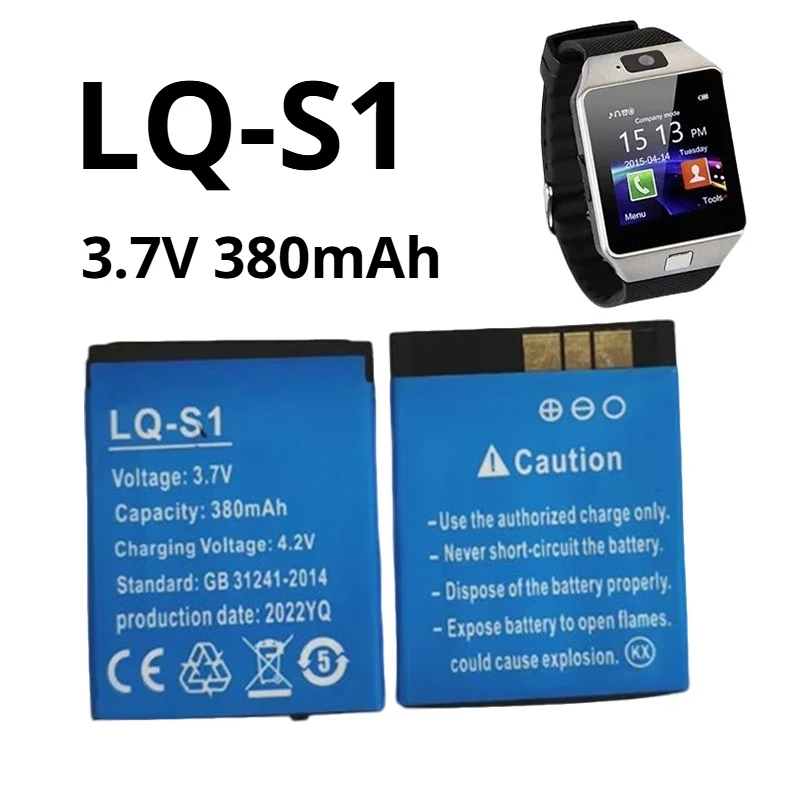
Battery life varies by model and use. To extend battery life, reduce screen brightness, limit always-on display, and disable unused sensors. Regular maintenance includes cleaning the band and charging contacts.
Quick battery tips
- Use power-saving modes for long days.
- Turn off always-on display or background apps.
- Update software; patches often improve battery efficiency.
Troubleshooting steps
- Restart the watch.
- Check for software updates on both devices.
- Re-pair the watch if connectivity fails.
- Reset to factory settings as a last resort.
Safety note: avoid exposing the watch to extreme heat and saltwater unless specified as water-resistant.
Advanced tips, customization, and privacy when learning how to work a smart watch
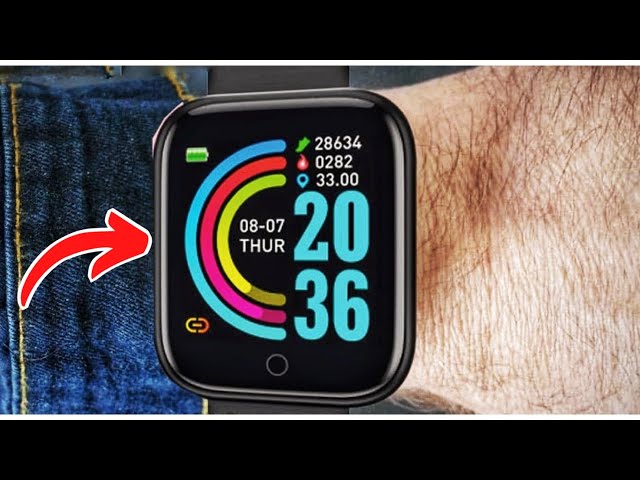
Make your watch yours with custom watch faces, complications, and key apps. Prioritize privacy by limiting sensitive notifications and securing the device with a passcode or biometric lock.
Customization ideas
- Use a minimal face to conserve battery.
- Add complications like step count, weather, or calendar.
- Create routines or shortcuts for one-touch actions.
Privacy and security
- Enable screen lock after removing the watch.
- Review app permissions regularly.
- Use an encrypted backup if available.
Pro tip: I create two faces—one for workouts and one for work. Switching faces feels like switching modes and keeps the watch focused on the task.
Real-life examples and common mistakes when learning how to work a smart watch
Example scenarios
- Commuting: Use offline music and turn on Do Not Disturb for focused rides.
- Meetings: Use silent haptic alerts and quick-reply templates.
- Workouts: Pair heart-rate chest straps for precise training metrics if needed.
Mistakes to avoid
- Overloading with apps, causing slowdowns.
- Wearing the watch loosely, which harms sensor accuracy.
- Ignoring software updates that fix bugs and add features.
From experience, simple setups feel more reliable. I’ve seen people regain battery life and speed by removing unused watch apps.
Related concepts and next steps for mastering how to work a smart watch
As you get comfortable, explore integrations like smart home controls, contactless payments, and offline maps. Learn voice assistant commands specific to your platform. Track progress weekly to see how the watch improves habits.
Next steps
- Try a 7-day challenge to use only the watch for key tasks.
- Review weekly health summaries to spot trends.
- Join community forums to learn quick automations and tips.
If you want deeper control, explore developer options or third-party complications for advanced customization.
Frequently Asked Questions on how to work a smart watch
How do I pair a smartwatch to my phone?
Open the companion app on your phone, enable Bluetooth, and follow the on-screen pairing instructions. Keep both devices close and accept permission prompts for notifications and health data.
How accurate are smartwatch health readings?
They provide good estimates for steps, heart rate, and sleep, but are not medical-grade. Use them for trends and general fitness, and consult a doctor for health concerns.
What should I do if my smartwatch battery drains fast?
Lower screen brightness, disable always-on display, close unused apps, and enable power-saving mode. Check for software updates and reduce background sensor sampling.
Can I make calls from my smartwatch?
Many watches support calls via Bluetooth when paired to a phone, and some have LTE versions for independent calling. Pair headphones for better audio during calls.
How do I secure my smartwatch and protect my data?
Enable a passcode or biometric lock, limit notification previews, and review app permissions. Use encrypted backups and keep software up to date for security fixes.
Will my smartwatch work with any phone?
Compatibility depends on the watch’s ecosystem; some watches work best with certain phone platforms. Check the manufacturer’s compatibility list and required OS versions.
(End of FAQs)
Conclusion
Learning how to work a smart watch is a step-by-step process: understand the hardware, pair and update, master basic gestures, and tailor settings for health, notifications, and battery life. Start small, practice core interactions, and customize only what you need to keep the watch simple and useful. Try a week of focused use, adjust settings based on what you learn, and share your best tips in the comments or subscribe for more wearable guides.