Set your smartwatch time automatically with your phone or manually in the watch settings within minutes.
I’ve set the time on dozens of smart watches across brands. I know which settings work and which fail. This guide shows clear steps for how to set the time on a smart watch, why it matters, and how to fix sync problems fast. Read on to get confident and keep your watch showing the right time every day.
Why correct time matter on a smart watch
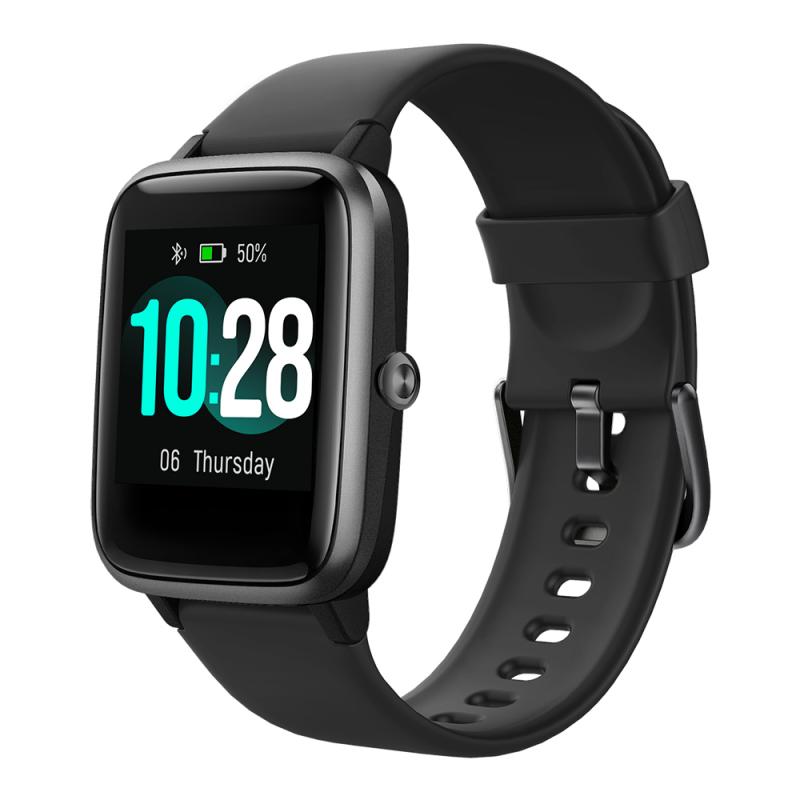
A wrong time on your watch breaks more than convenience. Alarms, calendar alerts, workout logs, and sleep tracking all rely on the correct time. If the time is off, data will misalign with your phone and cloud services.
Smart watches often sync with phones, networks, or GPS. Knowing how to set the time on a smart watch helps you pick the right sync method. This keeps health and notification records accurate and saves you from missed meetings.
Most devices will auto-sync when set up correctly. When auto-sync fails, a manual setting is a simple fix. Below, I explain both approaches clearly.
Source: youtube.com
Common ways to set the time on a smart watch
There are four common ways to set the time on a smart watch. I list them with short notes so you can choose the best method.
- Set time via smartphone app
- Most watches take time from the paired phone. Open the companion app and check sync or time settings.
- Enable network or GPS time
- Watches with cellular or GPS can use network time. This is accurate and automatic.
- Manually set the time on the watch
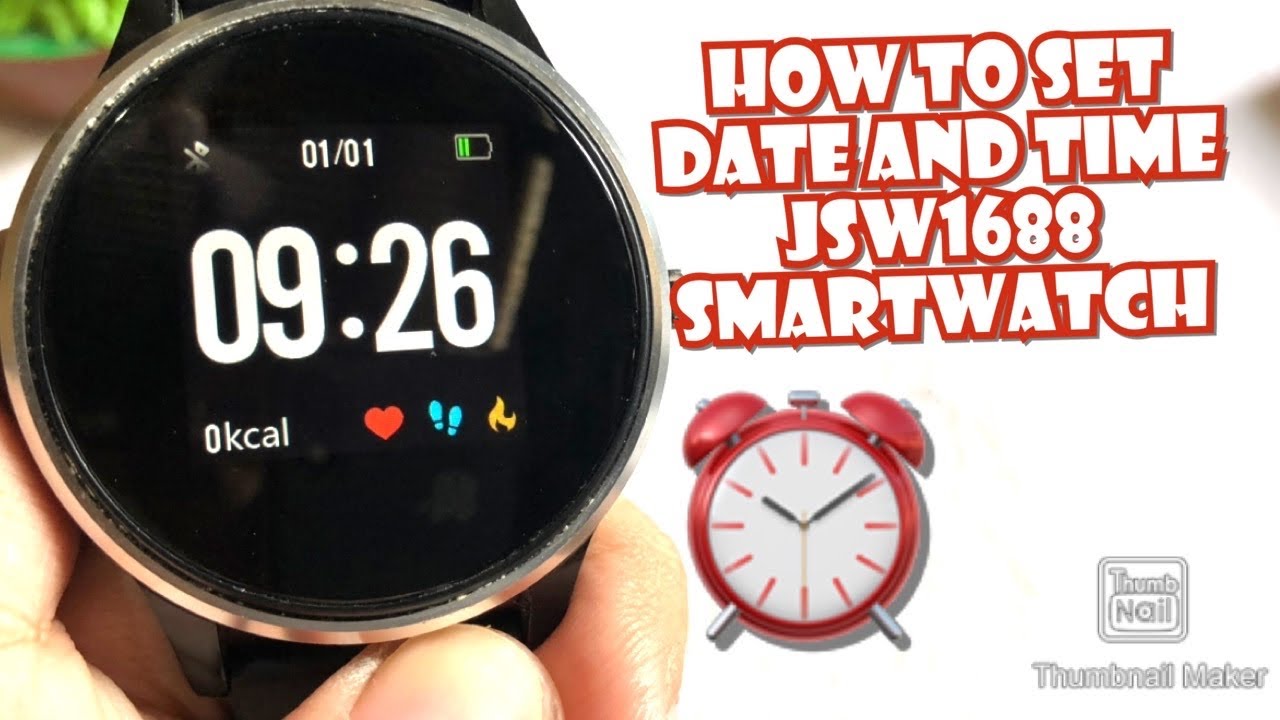
- Use watch Settings > System or General > Date & Time to enter time manually.
- Use the watch’s web or desktop app
- Some brands allow web or PC configuration. This helps for advanced settings.
Understanding these options helps you decide how to set the time on a smart watch for your use case. If you travel, choose automatic time zone switching. If privacy is a concern, manual time may be better.
Source: kentfaith.com
Step-by-step: popular platforms
Below are clear steps for how to set the time on a smart watch for major platforms. Follow the short steps for your device.
Apple Watch (watchOS)
- Make sure your iPhone is updated and paired.
- On iPhone, go to Settings > General > Date & Time and enable Set Automatically.
- On the Apple Watch, the time follows the iPhone automatically.
- To set a time offset on Apple Watch, open Settings > Clock > +0 min and add minutes if needed.
Wear OS (Google)
- Open the Wear OS app on your phone.
- Ensure Bluetooth is on and the watch is connected.
- On watch: Settings > System > Date & Time. Enable Automatic date & time.
- If needed, turn off Automatic and set the time manually.
Samsung Galaxy Watch (Tizen or Wear)
- Open the Galaxy Wearable app on your phone and ensure pairing.
- On watch: Settings > General > Date and time. Toggle Automatic date and time.
- For manual changes, disable Automatic and set the date or time.
Fitbit (smartwatches with a clock)
- Open the Fitbit app on your phone and sync your device.
- Fitbit watches get time from the phone during sync.
- To change time zone manually, open the Fitbit app > Profile > Advanced Settings > Time Zone and uncheck Set Automatically, then choose a zone.
I’ve used these exact steps on several models. They work reliably if the watch and phone are connected and both have up-to-date software.

Source: youtube.com
Troubleshooting time sync issues
If your watch shows the wrong time, try these fixes in order. Each step is quick and often resolves the issue.
- Restart both devices
- Turn off the watch and phone. Wait 30 seconds and restart. This often restores sync.
- Re-pair the watch
- Remove the watch from the phone’s Bluetooth list. Re-pair via the companion app and complete setup.
- Check phone time settings
- Ensure the phone uses network time or the correct manual time zone. The watch usually inherits phone settings.
- Update software
- Update watchOS, Wear OS, Tizen, or Fitbit firmware and phone OS. Patches fix sync bugs.
- Reset network settings
- On the phone, reset network settings to clear stubborn Bluetooth issues. Reconnect the watch after reset.
- Manual time is set as a last resort
- If auto-sync fails repeatedly, set the time manually on the watch and keep an eye on drift.
From my experience, re-pairing fixes most problems. If issues persist, contact manufacturer support for deeper diagnostics.

Source: youtube.com
Advanced tips and best practices
These tips come from years of testing smart watches and fixing real-world sync headaches.
- Keep the companion app open when troubleshooting
- Many watches require the app to be active for a full sync.
- Use the automatic time zone while traveling
- This prevents missed alarms when you cross zones.
- Avoid manual time unless necessary
- Manual time can break sync with phone calendars and logging.
- Monitor battery-saving modes
- Some power modes disable network time sync. Check settings after enabling battery saver.
- Back up important data before resets
- Factory resets remove local data. Sync to the cloud first.
- Check for known issues on official support pages
- Vendors document firmware bugs and fixes. This saves time.
I once fixed a week-long sync issue by updating a companion app that had a hidden bug. Small updates can matter.
Source: androidpolice.com
PAA-style quick questions
How do I set the time on my smartwatch without a phone?
Set the time manually on the watch via Settings > Date & Time and disable automatic sync. This works for basic watches, but can cause a data mismatch with apps.
Will GPS set the time on my smartwatch?
Yes, GPS and network time both provide accurate time on many watches. Enable Automatic Date & Time in system settings to use GPS or network sources.
Can I change the time zone automatically on a smartwatch?
Most smart watches can change time zones automatically when they pair to a phone with roaming enabled or use GPS. Enable Automatic time zone in the watch or phone settings to allow this.

Source: youtube.com
Frequently Asked Questions on how to set the time on a smart watch
How do I set the time on a smart watch manually?
Open the watch Settings app, go to System or General, then Date & Time, and turn off Automatic. Enter the correct time and date using the watch controls. Save your changes and exit.
Why won’t my smartwatch sync time with my phone?
Most sync issues come from Bluetooth or app connection errors. Restart both devices, ensure the companion app is updated, and re-pair the watch if needed.
Does my smartwatch use internet time?
Many smart watches use network or GPS time when Automatic Date & Time is enabled. This provides accurate time without manual input.
What if my watch shows the wrong time after traveling?
Enable Automatic time zone or restart the watch and phone to force a fresh sync. If problems persist, re-pair the device or update the software.
Can I set different alarms if the time is wrong?
You can set alarms, but they will follow the watch’s displayed time. Fix the time first to ensure alarms trigger at the correct moments.
Will a factory reset fix time issues?
A factory reset can fix deep software issues that block time sync. Back up data before resetting, as this removes local settings and stored data.
Conclusion
Setting the time on a smart watch is usually quick and painless. Use automatic sync with your phone or GPS for the best accuracy, and switch to manual only when needed. Follow the platform-specific steps here, and use the troubleshooting tips if sync fails. Try the steps now, update your device if needed, and leave a comment about which watch you use or any issues you solved.