Text from a computer to a mobile phone using web apps, email gateways, or SMS APIs in minutes.
I’ve spent years helping people and small teams send messages from desktops and laptops. This guide explains how to text to a mobile phone from computer in clear, tested steps. You’ll get practical options, step-by-step instructions, pros and cons, security notes, and real tips I learned the hard way. Read on to pick the best method for your needs and get texting fast.
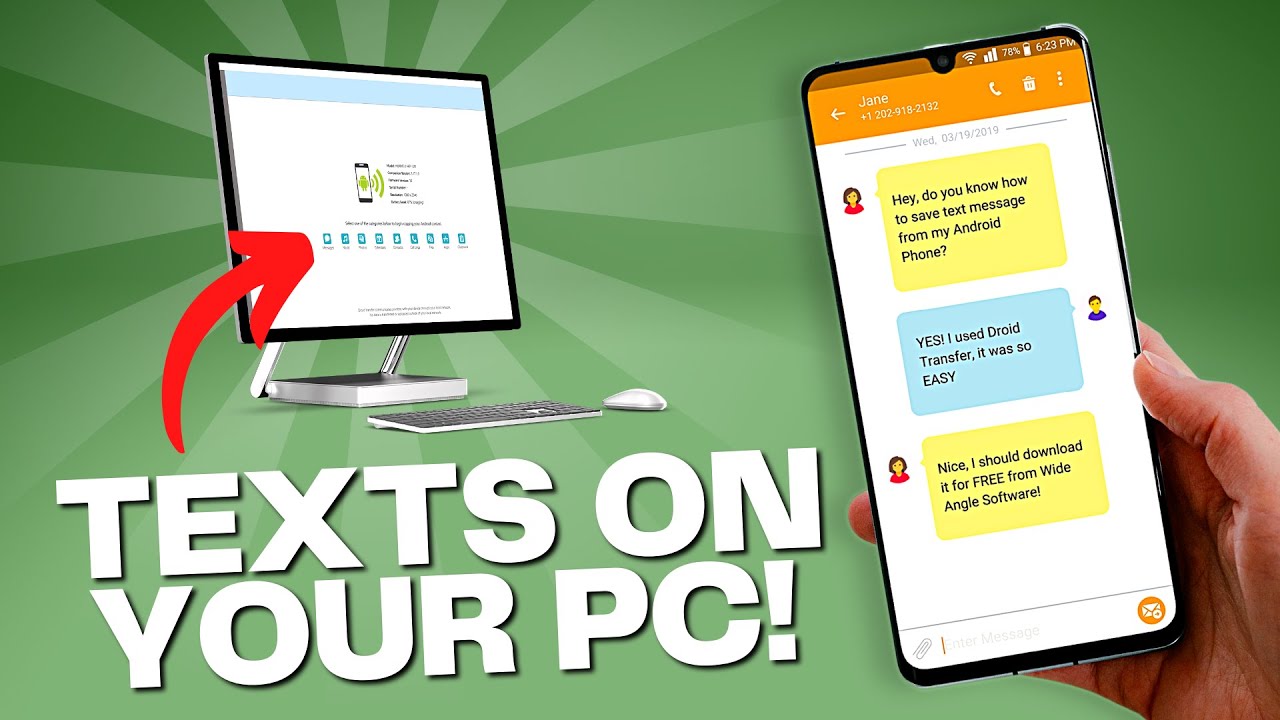
Common ways to text a mobile phone from a computer
There are several easy methods to send SMS from a computer. Each fits different needs: one-off chats, business alerts, or developer integrations. I use at least three of these regularly for work and personal use. Below are the practical options and when to choose each.
- Web messaging apps: Use a browser-based interface paired to your phone or account. Great for casual, two-way chat and media.
- Desktop apps that sync with phone: Install an app on your computer that links to your mobile device. Works offline and for long threads.
- Email-to-SMS gateways: Send an email to a special carrier address, which becomes an SMS on the recipient’s phone. Good for short, simple alerts.
- SMS gateway APIs: Use a service to send SMS programmatically or in bulk. Best for businesses, automation, and notifications.
- Carrier web portals: Some carriers offer web tools to send messages through a user account. This can be free or tied to your plan.
How you pick depends on cost, volume, privacy, and whether the recipient uses specific apps. I prefer web messaging for casual use and an API for work alerts because each method fits different goals.
.png)
Source: curogram.com
Step-by-step: web messaging apps and desktop sync
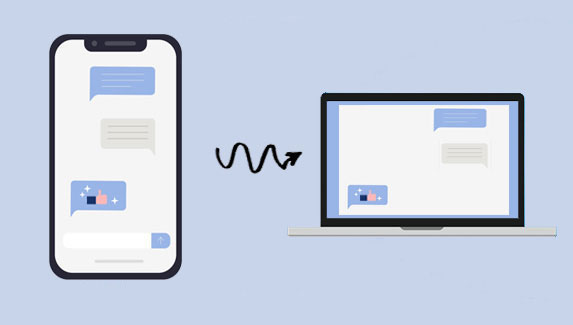
Web messaging apps are the easiest way to text a mobile phone from a computer for everyday chats. They let you type on a full keyboard and see messages in real time.
- Set up the phone app first: Install and sign in on the mobile app that supports web or desktop sync.
- Open the web portal or desktop app: Visit the official web client in your browser or install the desktop app.
- Link your phone: Scan the QR code or enter a code shown on the web page using the phone app.
- Start texting: Select a contact and type. Media and emojis usually work too.
I used this method to handle long group chats while working. It saved me time and reduced typos. The main limit is that both devices must stay connected if the system relies on your phone as a bridge.

Source: messagedesk.com
Step-by-step: email-to-SMS and carrier gateways
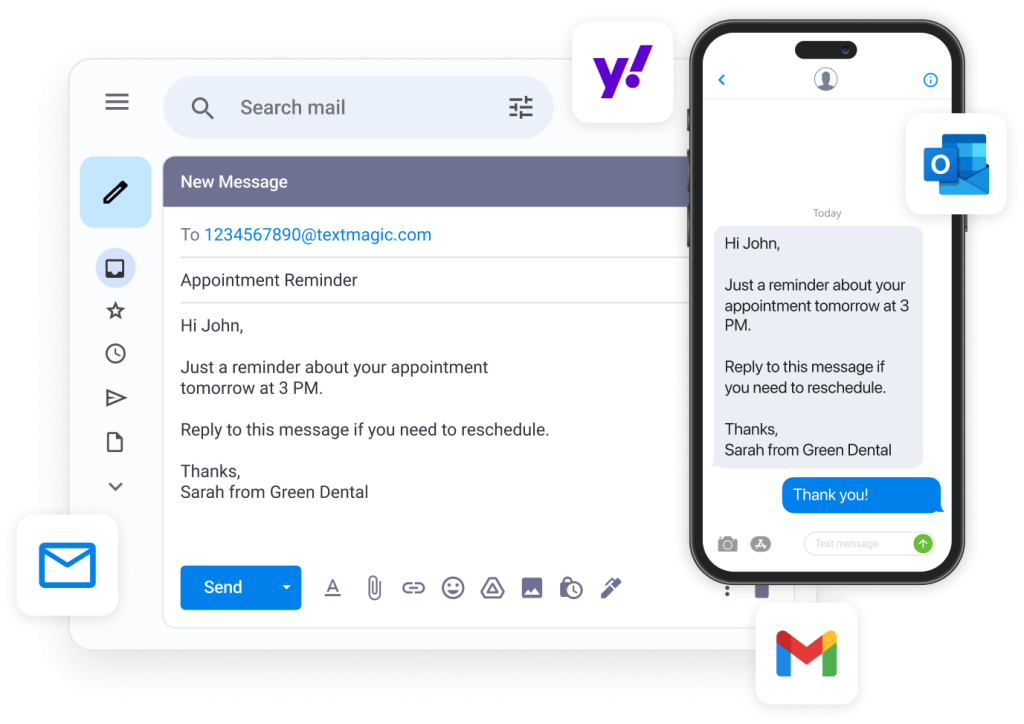
Email-to-SMS turns an email into a text message. It is simple but has limits like length and formatting.
- Find the carrier gateway: Ask the recipient for their carrier or check carrier lookup tools.
- Format the email address: Use the recipient number with the carrier domain (for example, 5551234567@carrier-sms-domain).
- Keep it short: SMS usually truncates long messages. Plain text is safest.
- Send and confirm: The message lands as an SMS. Delivery can vary by carrier.
I once used email-to-SMS to alert a small team about a server issue. It worked well for short alerts. Know that attachments and long emails may not arrive as intended.

Source: amazon.com
Using SMS APIs and bulk messaging for businesses
If you need to send many messages or automate alerts, SMS APIs are the professional choice. They are powerful and reliable when set up correctly.
- Choose a provider: Sign up with an SMS gateway service that supports your region.
- Get an API key and number: Configure sender IDs or phone numbers through the provider console.
- Integrate: Use a simple HTTP request or an SDK to send messages programmatically.
- Monitor delivery: Check status callbacks and logs for failures and retries.
I built a small alert system with an SMS API. It allowed retries and logging, which prevented missed messages. Be aware of cost per message, carrier rules, and opt-in rules when using bulk SMS.
Source: mobikin.com
Costs, limitations, and legal considerations
Sending texts from a computer can be free or cost money, depending on the method and volume. It’s important to know the limits.
- Free options: Web apps and some carrier tools can be free for personal use.
- Paid options: SMS APIs and some gateway services charge per message or subscription.
- Message length limits: SMS uses character limits; long messages may be split or converted to MMS.
- Legal rules: For business texts, follow opt-in rules, local regulations, and anti-spam laws.
I recommend testing a small batch first to see actual costs. For recurring or bulk use, track expenses and permissions to avoid compliance issues.
Source: textmagic.com
Security and privacy when you text from a computer
Security matters when you send messages from a computer. Different methods offer different protections.
- End-to-end encryption: Some messaging apps provide end-to-end encryption, keeping content private between sender and receiver.
- Carrier SMS: Standard SMS is not end-to-end encrypted and can be intercepted more easily.
- Account security: Use strong passwords and two-factor authentication for web clients and APIs.
- Data retention: Check provider policies on message logs and backups.
I once had to switch providers when message logs were kept longer than needed. Always read privacy terms and pick tools that match your privacy needs.

Source: mightytext.net
Troubleshooting common issues
When text fails, simple checks often fix it. These steps helped me dozens of times.
- Check connectivity: Ensure both the computer and phone have internet access if required.
- Confirm numbers and formats: Use the full number and correct the carrier gateway when using email-to-SMS.
- Verify permissions: Desktop apps may need permissions to send notifications or access contacts.
- Look at carrier blocks: Some recipients block unknown senders or short codes.
If messages still fail, contact the provider or carrier support. Keep logs and timestamps to speed up troubleshooting.
Best practices and tips from experience
These practical tips come from real use and testing. They save time and avoid headaches.
- Use plain text for critical alerts: Plain text reduces the risk of truncation or format issues.
- Keep a fallback method: Have an alternate route, like email-to-SMS, if web syncing fails.
- Rate limit bulk sends: Space out bulk messages to avoid carrier throttling.
- Secure API keys: Store credentials in environment variables or a secure vault.
- Test on real devices: Always test messages on phones to confirm appearance and delivery.
A mistake I made early on was sending test alerts to a live customer list. I now always test on a small internal number set first.
Frequently Asked Questions of how to text to a mobile phone from computer
How can I text a mobile phone from my computer for free?
Use web messaging apps that sync with your phone or free carrier portals. Email-to-SMS can be free for short alerts, depending on the carrier.
Can I send SMS from my computer without my phone?
Yes, with SMS API services or carrier web portals, you can send messages without the phone as a bridge. Some web apps may still require your phone for linking.
Is sending texts from a computer secure?
It depends. Encrypted messaging apps are secure, while standard SMS is not end-to-end encrypted. Use secure apps or protect account access for better privacy.
How do I send bulk texts from a computer?
Sign up for an SMS gateway or API, verify numbers and opt-ins, then send messages via the provider’s console or API. Monitor delivery and comply with rules.
What are common issues when texting from a computer?
Common issues include wrong number formats, connectivity problems, carrier blocks, and expired API keys. Check logs and settings to fix them quickly.
Conclusion
You can text a mobile phone from a computer in many ways, from simple web apps to professional SMS APIs. Pick the method that fits your volume, privacy needs, and budget. Try one method, test on a few numbers, and document your setup. If you found this helpful, try a free web client or test a small SMS API plan today, and share your experience or questions below.