Remove a Chromebook admin by powerwashing, signing in as owner, or using the Google Admin console.
I’ve removed admin accounts from many Chromebooks for friends and organizations, and I’ll walk you through clear, reliable options for how to remove admin account from a Chromebook laptop. This guide explains owner vs. managed accounts, step-by-step methods, real-world pitfalls, and safe cleanup so you can remove an admin account with confidence.

Understanding Chromebook admin accounts
Chromebooks use Google accounts differently than Windows or macOS. One account becomes the device owner. Managed Chromebooks tie accounts to an organization via the Google Admin console. The steps for how to remove admin account from a Chromebook laptop depend on whether the device is personally owned or enterprise-managed.
Key terms to know:
- Owner: First account that signed into the device. The owner can remove other local users.
- Managed/Enrolled: Devices tied to a Google Workspace (formerly G Suite) or school account. Management can block removals.
- Powerwash: Chrome OS factory reset that erases local data and resets owner status.

Source: google.com
Before you begin: backups and prerequisites
Backing up data is essential. Removing an admin account or power washing erases local files, downloads, and settings that aren’t synced to Google Drive. Confirm the device’s enrollment status before you try to remove an admin account.
Checklist:
- Backup local files to Google Drive, an external disk, or a USB stick.
- Note account credentials and turn off any device-level encryption if applied.
- If the Chromebook is managed, contact your organization’s admin before attempting changes.
- Charge the Chromebook or keep it plugged in.
This prep reduces the chance of data loss while you learn how to remove admin account from a chromebook laptop.
Source: mkstechnology.com
Method 1: Remove an admin using the owner account
If you are the device owner, you can remove other users from Settings. Removing another admin-level user is straightforward from the owner profile.
Steps:
- Sign in with the owner Google account.
- Open Settings (click the time area, then the gear icon).
- Go to People or Users on the left menu.
- Locate the user you want to remove, then select Remove this user or the trash icon.
- Confirm removal; this deletes local data for that user on the Chromebook.
Notes:
- You cannot remove the device owner from within Chrome OS without a powerwash. If you need to remove the owner, follow the powerwash steps below.
- If the device is managed, some removal options may be disabled.
Following these owner steps is the simplest route to learn how to remove admin account from a Chromebook laptop when you have owner access.

Source: youtube.com
Method 2: Powerwash (factory reset) to remove admin/owner
A Power wash resets the Chromebook and removes the owner designation. This is the usual approach if you can’t access the owner account or you’re preparing the device for sale.
Steps:
- Backup all important data because Powerwash erases local files.
- Sign out of the Chromebook.
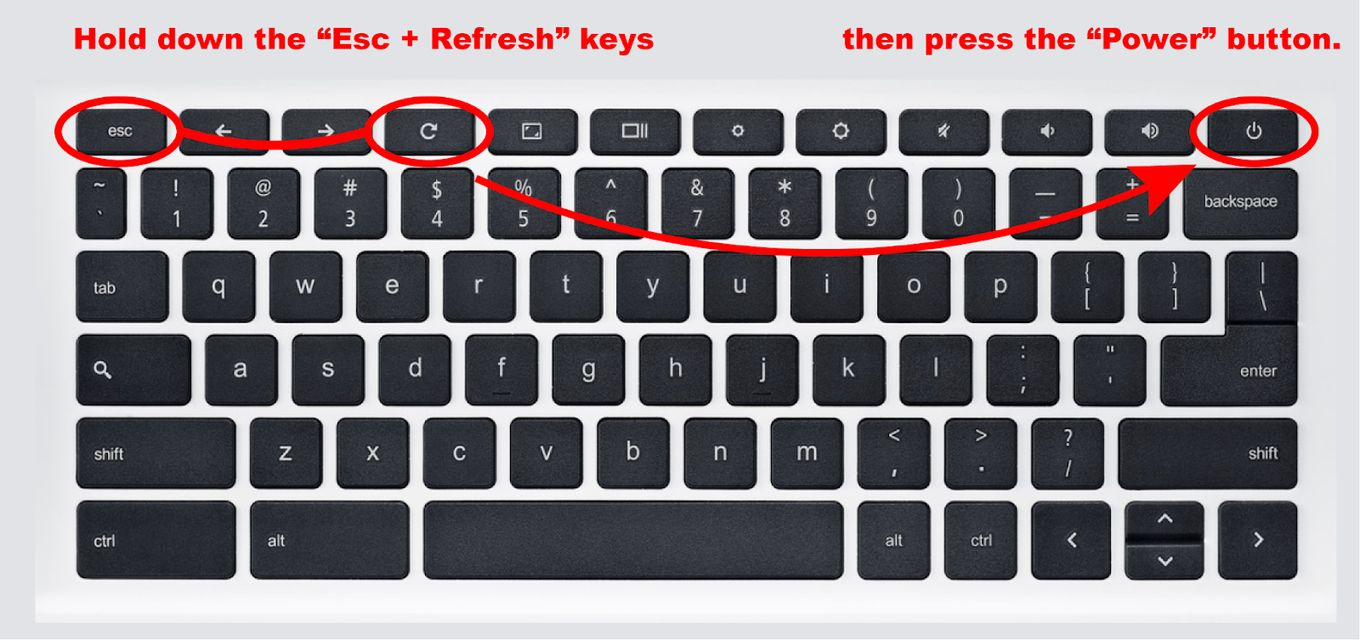
- Press Ctrl + Alt + Shift + R.
- Click Restart in the dialog that appears.
- When the box appears again, select Power wash, then Continue.
- Follow on-screen prompts to reset the device. After restart, the first account to sign in becomes the new owner.
Important caveats:
- Managed devices may be locked to an organization. Powerwash won’t remove management if the device is enterprise enrolled.
- If you can’t power wash because of enrollment, see the Google Admin console method.
Power washing is often the cleanest way to learn how to remove admin account from a Chromebook laptop when owner credentials are missing.

Source: co.uk
Method 3: Remove admin from a managed Chromebook via Google Admin console
If the Chromebook belongs to an organization, the Google Admin console controls account and device enrollment. Only admins with proper privileges can deprovision users or unenroll devices.
For admins who need to remove an admin account:
- Sign into the Google Admin console with administrator privileges.
- Navigate to Devices > Chrome > Chrome devices.
- Find and select the device. Use filters like serial number or user.
- Choose the action to Deprovision or Delete the device from the domain to remove management.
- Optionally perform a Wipe or Power wash from the console to clear local data.
- If removing a user, go to Users, select the user, and either suspend or delete the account.
Notes:
- Deprovisioning a device makes it available for re-enrollment or personal use.
- Deleting a user removes access across services, not just the device.
- If your goal is how to remove admin account from a Chromebook laptop used at work or school, this is usually the correct path.
These admin-console steps are essential when the Chromebook is enrolled and you must follow organizational policies.
Source: ifixit.com
Common issues and troubleshooting
You may run into blocks when trying to remove an admin account. Here are frequent problems and quick fixes.
Problem: Cannot remove the owner account
- Fix: Power wash the device. If it’s enrolled, ask the organization to deprovision it.
Problem: Device is enterprise-managed and Powerwash is blocked
- Fix: Contact the admin to unenroll the device or request a wipe from the Admin console.
Problem: Lost owner credentials
- Fix: Power wash if device isn’t managed. If managed, contact the organization to reset or remove the account.
Problem: Local files lost after removal
- Fix: Recover from Google Drive or a backup if available. Enable Drive sync before making changes next time.
These tips help you resolve errors when you try to remove admin account from a Chromebook laptop.

Source: reddit.com
Personal experience and tips
I once inherited a Chromebook with a previous owner’s account. I didn’t back up the local Downloads folder and lost personal files after a Power wash. That taught me three lessons I share here.
Practical tips:
- Always back up first. Use Google Drive and a local copy for large files.
- Remove accounts from Settings before giving the device away when possible.
- If a device is enrolled by a school or employer, get formal deprovisioning in writing before changing ownership.
These small habits made subsequent transfers smoother and reduced stress when I had to remove admin accounts from multiple Chromebooks.

Source: wikihow.com
Security and privacy considerations
Removing an admin account or power washing does not delete data stored in the cloud. Securely handle account deletion and two-factor authentication to protect access.
Security checklist:
- Remove saved passwords and disable sync if you keep the account.
- Revoke OAuth tokens and remove device access in your Google Account settings online.
- Ensure 2-Step Verification is active for accounts you keep.
- For devices you sell, complete a Power wash and confirm device is not enrolled.
Being thorough protects your data and privacy when you learn how to remove admin account from a Chromebook laptop.
:max_bytes(150000):strip_icc()/001-how-to-change-the-owner-on-a-chromebook-126b0d35705f40bbb6285d363e29cf84.jpg)
Source: lifewire.com
Frequently Asked Questions of how to remove admin account from a chromebook laptop
Can I remove the owner account without signing in as the owner?
No. You can’t remove the owner account directly from Chrome OS. Use Power wash to reset the device; after reset, the owner status clears and the first user becomes owner.
Will powerwashing a Chromebook delete my Google Drive files?
No. Powerwash clears local data on the device. Files stored in Google Drive remain safe in the cloud unless you delete them manually.
What if my Chromebook is managed by a school or workplace?
Managed Chromebooks require an admin to deprovision the device in the Google Admin console. Contact your IT administrator to remove management or the admin account.
Can I remove an admin account using guest mode?
Guest mode lets someone use the Chromebook without signing in. It does not remove admin or owner accounts. Guest mode is useful for temporary access only.
How do I prevent another person from becoming owner after I sell my Chromebook?
Power wash the Chromebook and ensure it is not enrolled to any organization. After reset, do not sign in; let the buyer sign in first to become the owner.
Conclusion
You now have clear options for how to remove admin account from a Chromebook laptop: use the owner account to remove other users, Power wash to clear owner status, or use the Google Admin console for managed devices. Back up data first, verify enrollment, and follow the right path for personal or organizational devices. Try the steps that match your situation, and share your results or questions below — your feedback helps others in the same spot.