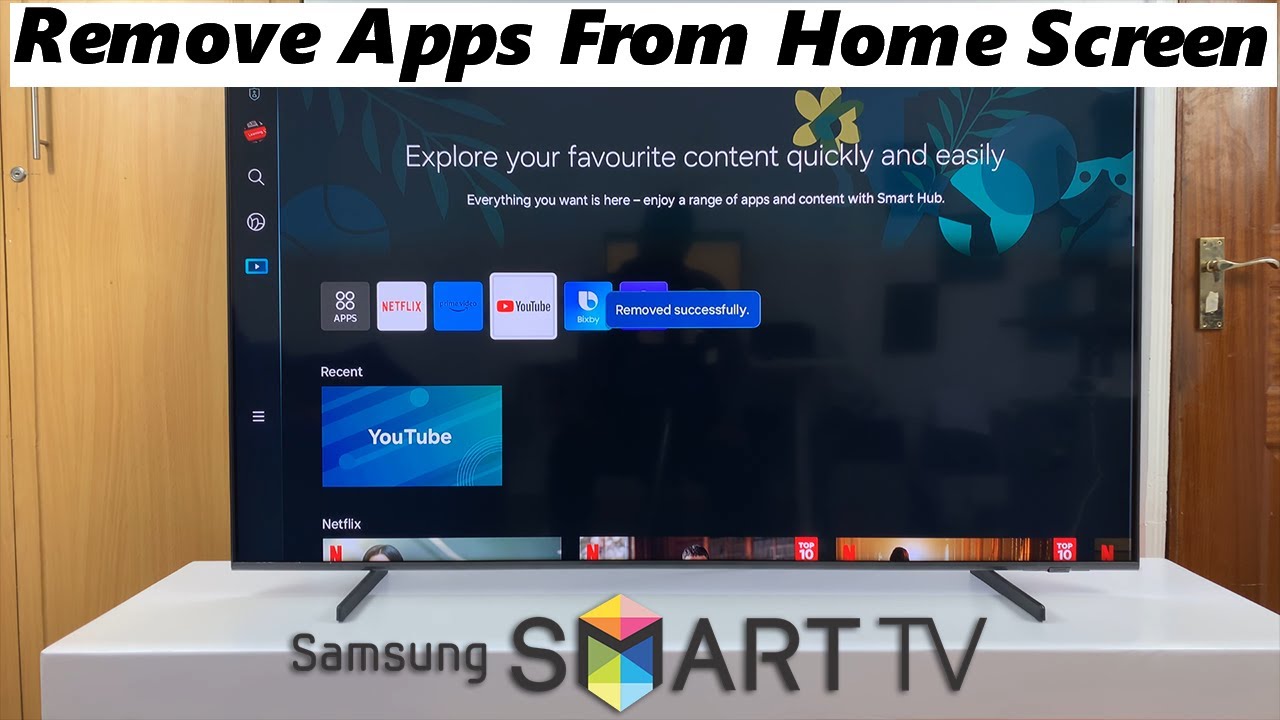
Open Smart Hub, highlight the app, press Delete (or Remove), and confirm to uninstall it.
I’ve guided dozens of users through Smart Hub cleanups. This guide explains how to delete apps from smart hub step by step. You will get clear steps for modern and older TVs, preparation tips, troubleshooting, and best practices based on hands-on experience. Read on to remove unwanted apps fast and keep your TV running smoothly.

Why remove apps from Smart Hub?
Removing unused apps clears space. It also speeds up menus and reduces background updates. Knowing how to delete apps from smart hub helps you keep your TV tidy and responsive. I’ve seen sluggish Smart Hubs recover performance after a careful app cleanup.
:max_bytes(150000):strip_icc()/011_how-to-delete-apps-on-a-samsung-smart-tv-4589138-b6260c7548214f9192c218d7deb2cdc9.jpg)
Before you delete apps: what to check
Check your sign-in and subscriptions first. Some apps lock settings when signed in. If you delete an app while logged in, you might lose saved data or active subscriptions.
Make a quick list of apps to remove. Note any app tied to accounts or purchases. Back up settings or note login info if you plan to reinstall.

How to delete apps from Smart Hub — step-by-step (modern Samsung Tizen TVs)
These steps cover most Samsung TVs made in the last few years.
- Press the Home or Smart Hub button on your remote.
- Navigate to Apps or Apps panel.
- Select the app you want to remove by highlighting it.
- Press the Tools or Options button on the remote (or hold the Enter/OK button on some models).
- Choose Delete, Remove, or Uninstall from the options menu.
- Confirm the deletion when prompted.
If Delete is not visible, try the My Apps or Settings view. On some TVs, you may first need to open the app details page, then pick Remove. Practice this process to learn the exact button layout for your remote. Knowing how to delete apps from smart hub becomes quick with a single try.

How to delete apps from Smart Hub — older models and different remotes
Older Samsung and other branded smart TVs may differ. Try these alternate steps.
- Open Smart Hub or Home by pressing the remote key.
- Go to Apps or Applications.
- Press and hold the app icon until a menu appears.
- Choose Remove or Uninstall.
- Restart the TV if the app persists.
If the remote lacks a Tools button, check the settings menu under Support or System. Learning how to delete apps from smart hub on older models requires exploring a couple of menus.
If you can’t delete an app: troubleshooting
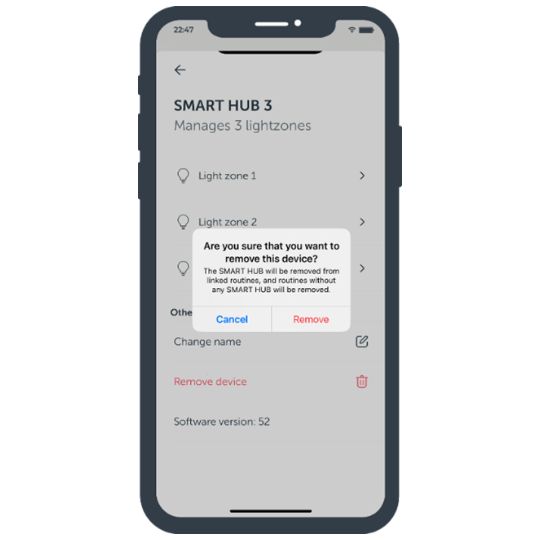
Sometimes, Delete is greyed out. This can happen because the app is built into, linked to the firmware, or controlled by parental settings.
Try these fixes:
- Sign out of the app or Smart Hub and try again.
- Check Parental Controls and disable app locks.
- Update TV firmware, then retry deleting the app.
- Reset Smart Hub as a last resort (this signs you out of all apps).
I once had a TV where a popular streaming app would not remove. A Smart Hub reset fixed it, but I lost saved logins. That taught me to save credentials before deeper resets.

Reinstalling apps and managing storage
If you change your mind, reinstalling is easy. Go back to Apps, find the app store, and install it again. Reinstallation restores the app, but rarely restores in-app data unless it syncs to an account.
To manage storage:
- Remove large, unused apps first.
- Disable auto-updates for apps you rarely use.
- Keep only the apps you use regularly to stay within the TV’s storage limits.
Understanding how to delete apps from smart hub helps prevent clutter and saves storage for updates and new apps.
Tips, mistakes to avoid, and best practices
Treat app deletion like cleaning a closet. Only remove apps you do not use or can easily reinstall. Here are practical tips I learned:
- Always sign out before deleting apps tied to accounts.
- Note purchases tied to an app so you can restore them later.
- Try deleting one app and testing TV behavior before removing many at once.
- Keep firmware updated to access the latest app management tools.
Avoid removing system apps that came with the TV. These can break features. Knowing how to delete apps from smart hub is mainly about choosing the right targets and backing up credentials.
Common quick questions (PAA-style)
What if Delete is not an option?
If Delete is not shown, the app may be preinstalled or blocked. Try signing out, checking parental controls, or updating firmware.
Will deleting an app cancel my subscription?
Deleting an app does not cancel subscriptions. You must cancel through the service provider or account settings.
Does deleting an app free up a lot of space?
It can free some storage, but TV storage is limited. Removing unused heavy apps helps most.
Can I remove apps remotely?
Most TVs require the physical remote or TV controls. Some manufacturers offer mobile apps that mirror remote functions.
Is a Smart Hub reset necessary?
Resetting Smart Hub removes all apps and accounts. Use it only if other fixes fail.

Frequently Asked Questions on how to delete apps from smart hub
How do I delete apps from Smart Hub if my TV uses a different menu?
Open Smart Hub, go to Apps, highlight the app, press Tools or Options, and choose Delete or Remove. If menus differ, check the Support or System settings for app management.
Will deleting apps remove my saved profiles or preferences?
Usually, profiles and preferences tied to accounts remain with the service. Local settings may be lost, so sign out and save any important info before deleting.
Can removing apps improve TV speed?
Yes. Removing unused apps reduces background activity and frees storage, which can make menus and apps load faster. Performance gains vary by TV model.
What if I deleted an app by mistake?
Reinstall the app from the App Store on your TV. Sign in again to restore cloud-linked data. Local data may be gone.
Is it safe to delete preinstalled apps?
Preinstalled apps may be part of the firmware and cannot be removed. Avoid trying to remove system apps; doing so via unofficial methods can void the warranty or harm the TV.
Conclusion
You now have clear, practical steps on how to delete apps from smart hub for both modern and older TVs. Start by checking accounts and settings, follow the step-by-step removal process, and use the troubleshooting tips if deletion fails. Take action today: remove a few unused apps and see the difference in speed and clarity. If this guide helped, try managing other app settings, subscribe for more tips, or leave a comment with your TV model and question.