To connect Bose headphones to a laptop, enable Bluetooth on both devices and pair them in your OS settings.
I’ve spent years troubleshooting audio gear and helping friends pair headphones across platforms. This guide covers exactly how to connect Bose headphones to laptop with clear, step-by-step instructions for Windows and macOS, wired alternatives, troubleshooting tips, and real-world advice from hands-on experience. Read on to get fast, reliable sound from your Bose headset—no jargon, just practical guidance.
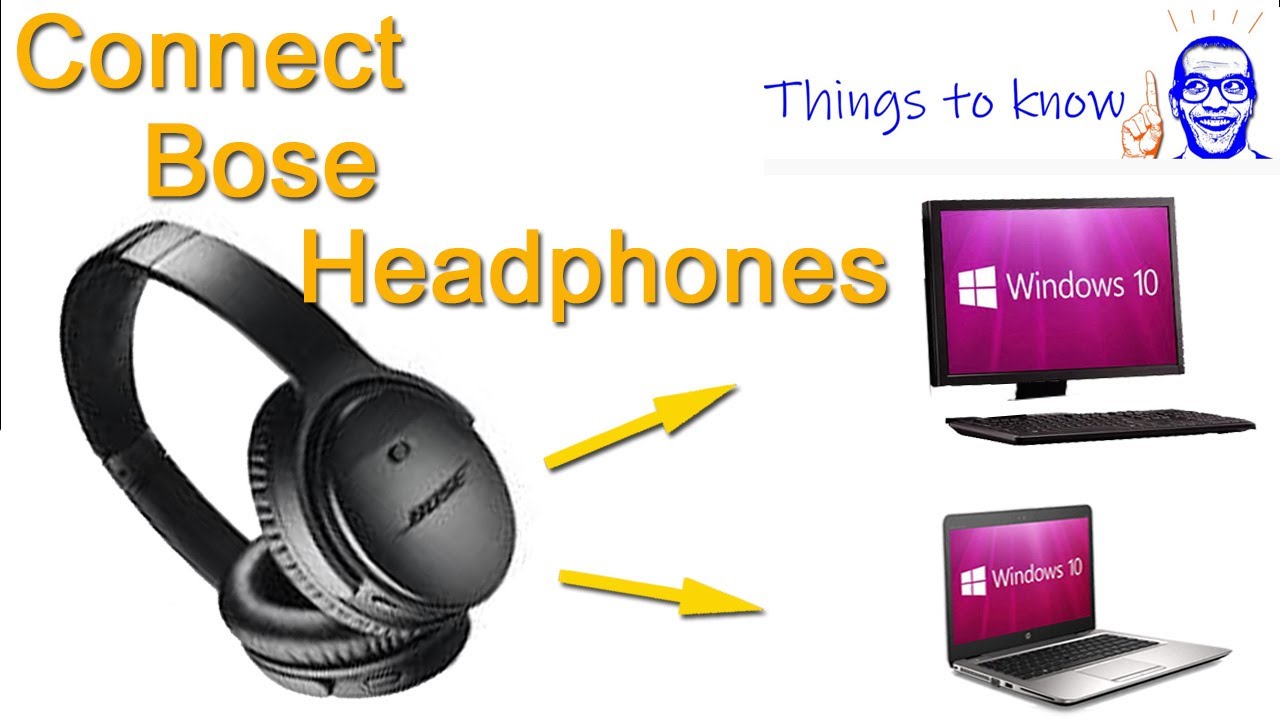
Why connect Bose headphones to laptop?
Connecting Bose headphones to a laptop gives you private listening, clearer calls, and low-latency audio for work and media. Whether you use wireless Bose models or a wired pair, pairing the device correctly ensures stable audio, optimal mic performance, and access to features like noise cancellation.
Bose headphones pair well with most modern laptops. This guide explains exact steps and fixes for common issues so you can get back to listening quickly.

Source: anniesdeli.com
Which Bose headphones and connection methods work best
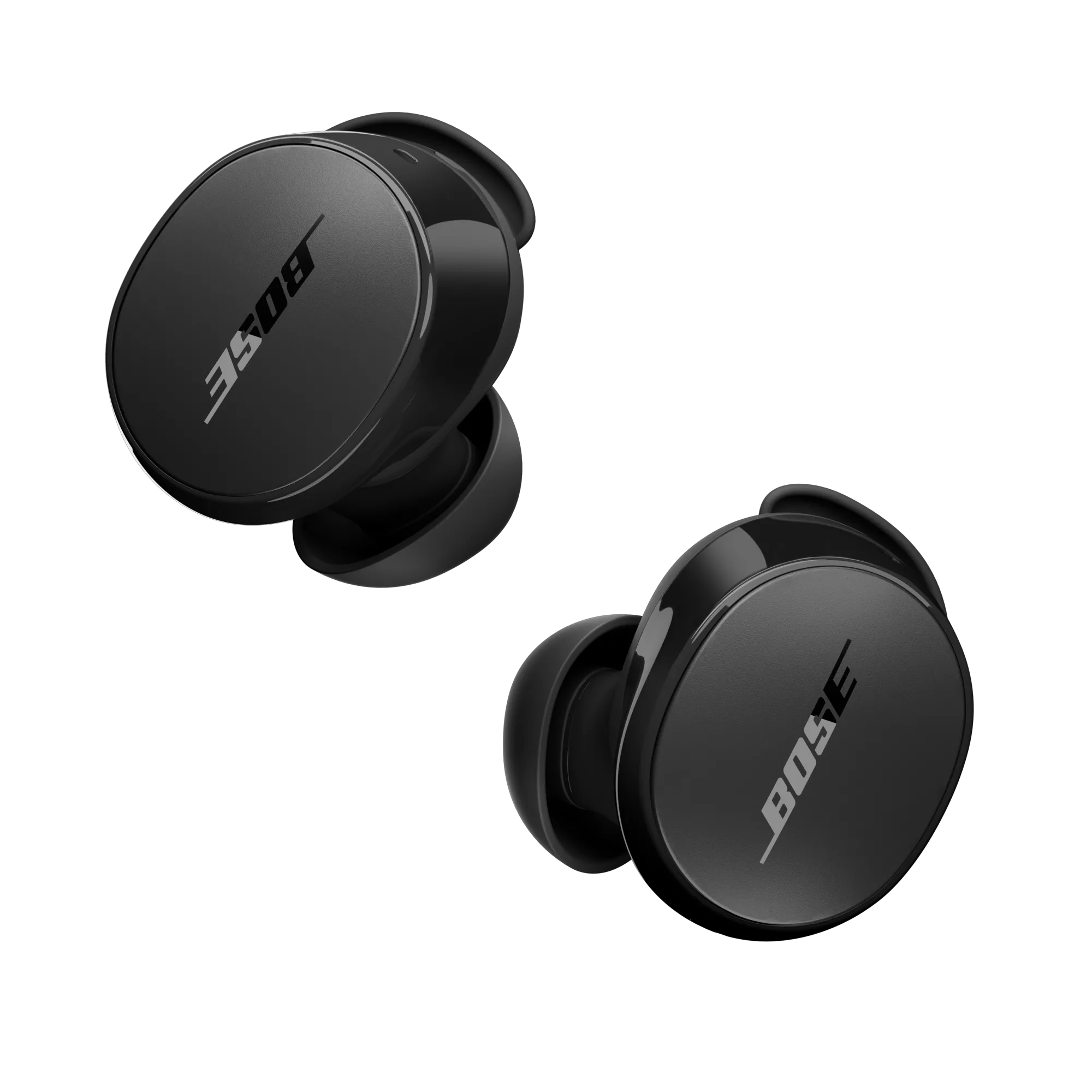
Most Bose models support Bluetooth and a wired 3.5mm connection. Common models include QuietComfort (QC) series, Noise Cancelling Headphones 700, and Bose QuietComfort Earbuds. Connection methods:
- Bluetooth wireless pairing for freedom and mic use.
- 3.5mm audio cable for zero-latency, simple audio.
- USB or USB-C audio for digital sound or when a wired cable is included.
- Bluetooth USB adapter (dongle) for laptops with poor built-in Bluetooth.
If you wonder how to connect Bose headphones to laptop, choose Bluetooth for convenience or wired if you need minimal delay (gaming or live monitoring). Newer Bose models may support higher-quality codecs, but standard Bluetooth profiles (A2DP for audio, HFP/HSP for calls) handle most use cases.

Source: youtube.com
Preparation: what to check before pairing
Quick prep makes pairing smooth. Do these steps first:
- Charge your Bose headphones fully or connect them to power.
- Turn on laptop Bluetooth and make sure airplane mode is off.
- Update laptop Bluetooth drivers (Windows) or macOS updates.
- Remove old pairings from the Bose device or laptop if you hit pairing limits.
- Put the headphones into pairing mode—usually hold the power/Bluetooth button until you hear a voice prompt or see a blinking light.
- Close other nearby Bluetooth audio devices to avoid interference.
Personal tip: I once spent 20 minutes troubleshooting a pairing issue before realizing the headphones were paired to my phone. Turning Bluetooth off on nearby devices fixed it instantly.
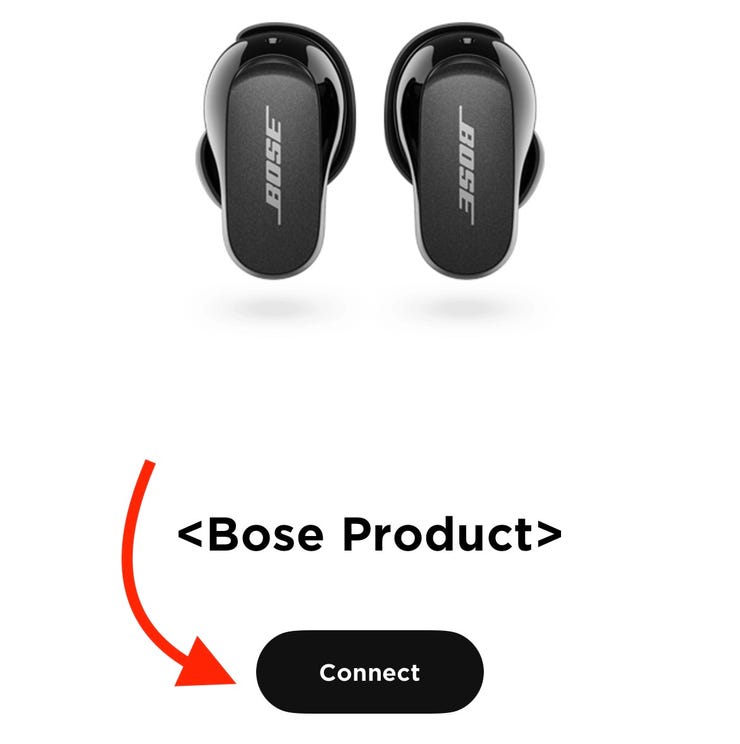
Source: anniesdeli.com
How to connect Bose headphones to laptop (Windows 10 / 11)
Follow these steps for a Windows laptop:
- Turn on Bluetooth on your Bose headphones and put them in pairing mode.
- On Windows, click Start > Settings > Bluetooth & devices.
- Toggle Bluetooth On if it’s off.
- Click Add device > Bluetooth.
- Select your Bose model from the list (for example, QuietComfort 45 or NC 700).
- Wait for “Connected” confirmation. The headphones should appear under Audio in Sound settings.
- If sound doesn’t route automatically, click the speaker icon, then choose your Bose headphones as the output device.
Troubleshooting tips:
- If the laptop can’t find the headphones, restart Bluetooth on both devices.
- Update the Bluetooth adapter driver in Device Manager if pairing repeatedly fails.
- If the mic isn’t working, set the Bose device as the default input in Sound settings.
This shows how to connect Bose headphones to laptop on Windows cleanly and reliably.
Source: anniesdeli.com
How to connect Bose headphones to laptop (macOS)
For MacBooks and other Macs, use these steps:
- Put your Bose headphones into pairing mode.
- Click the Apple menu > System Settings (or System Preferences) > Bluetooth.
- Ensure Bluetooth is On.
- Look for your Bose headphones in the device list and click Connect.
- Once connected, open System Settings > Sound to select the Bose device for Output and Input.
- For better call quality, pick the “Bose (Headphones)” for music and “Bose (Hands-Free)” only when you need the mic—note hands-free mode may reduce audio quality.
Personal note: Macs usually pair quickly. If your Bose device won’t show up, turning Bluetooth off and on or rebooting the Mac fixes most issues.
:max_bytes(150000):strip_icc()/006-how-to-connect-bose-headphones-to-a-pc-f0a2640c1de544d780eb9385f1301fdf.jpg)
Source: lifewire.com
Using a wired connection: audio cable and USB options
Wired connection is simple and reliable:
- 3.5mm audio cable: Plug the cable into the laptop headphone jack and the Bose headphones. Select the laptop’s analog output if needed. This bypasses Bluetooth and conserves battery.
- USB / USB-C: Some Bose models support USB audio. Connect via USB or USB-C and select the device in system sound settings. This can give cleaner, digital audio and power for firmware updates.
- USB Bluetooth dongle: If laptop Bluetooth is poor, a dedicated dongle can improve range and stability.
When you need minimal delay for gaming or recording, wired is the practical choice. If your laptop lacks a 3.5mm jack, a USB-C to 3.5mm adapter or a USB audio interface works well.
Source: everestkitchennc.com
Troubleshooting common problems when pairing
If you run into issues, try these fixes:
- Headphones not visible in Bluetooth list: Turn them fully off and on, then re-enter pairing mode.
- Pairing fails or disconnects: Remove the device from the laptop Bluetooth list and re-pair. Update Bluetooth drivers or OS.
- No audio after pairing: Check the laptop’s output device and volume. Restart audio apps.
- Mic not working: Set Bose as the default input device and allow microphone access to apps. Disable hands-free telephony if the audio quality drops.
- Intermittent audio or latency: Move closer to the laptop, remove interference, or use wired mode for zero latency.
From experience, resetting Bluetooth on the laptop and power-cycling the headphones clears most recurring odd issues.

Source: anniesdeli.com
Optimize audio and microphone settings
Small tweaks improve sound and voice quality:
- Windows: Right-click the speaker icon > Open Sound settings. Choose your Bose device for Output and Input, then adjust device properties and formats. Disable “Hands-Free” if you want better stereo audio during music playback.
- macOS: System Settings > Sound. Choose the Bose device for Output/Input and set the input level.
- In-app settings: Zoom, Teams, and other apps often require you to choose the correct microphone and speaker inside the app.
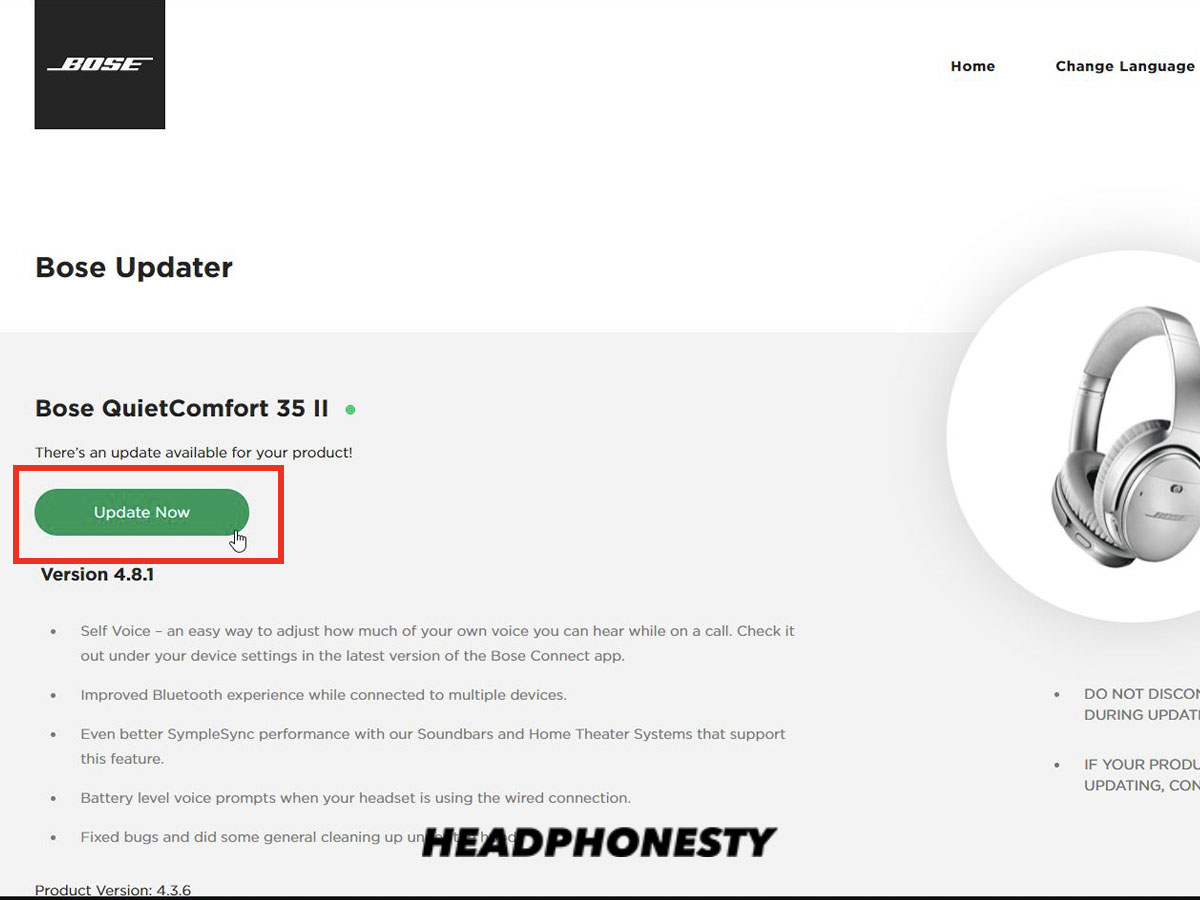
- Firmware: Keep your Bose firmware up to date via the official Bose updater app for new features and bug fixes.
- Noise cancellation: Adjust ANC levels if your model supports it to balance clarity and battery life.
Practical tip: For voice calls, I set my Bose headphones as input and output in the app I use, then test a quick microphone recording to confirm clarity.
Source: youtube.com
PAA-style quick questions (People Also Ask)
What do I do if my laptop won’t pair with Bose headphones?
- Remove old pairings, update drivers, and restart Bluetooth on both devices. Rebooting the laptop often fixes stubborn pairing errors.
Can I connect multiple devices to Bose headphones at once?
- Some Bose models support multipoint pairing with two devices. Check your model’s manual and manage active connections to avoid conflicts.
Why does audio switch to low quality during calls?
- The headset may switch to Hands-Free mode which uses a lower-quality codec for microphone support. Switch back to Stereo mode for better music quality.
Frequently Asked Questions of how to connect bose headphones to laptop
How can I put my Bose headphones into pairing mode?
Usually press and hold the power or Bluetooth button until a voice prompt or flashing LED indicates pairing mode. Check your model’s quick start guide for the exact button.
Why does Windows show multiple Bose devices in Bluetooth?
Windows may list both stereo and hands-free profiles. Choose the stereo profile for music and the hands-free profile for calls as needed.
My laptop pairs but there’s no sound—what now?
Set the Bose device as the default output in sound settings and ensure app-level audio isn’t muted. Restart the audio app or the laptop if required.
Do I need drivers to use Bose headphones with a laptop?
Most modern OSs handle Bluetooth without extra drivers. Update your Bluetooth adapter driver if pairing problems occur on Windows.
How do I improve Bluetooth range and stability?
Keep the laptop and headphones free of obstructions, avoid other wireless interference, and consider a USB Bluetooth dongle if the built-in adapter is weak.
Will wired connection bypass Bluetooth issues?
Yes. Plugging in a 3.5mm cable or using USB audio provides a stable connection and removes Bluetooth-related problems.
Conclusion
You now have a complete, practical guide on how to connect Bose headphones to laptop—covering Bluetooth pairing on Windows and macOS, wired options, common fixes, and audio optimization tips. Try the steps that match your device and setup, and start with the simple fixes (restart, re-pair, update drivers) when problems appear.
Takeaway: use Bluetooth for convenience and wired for lowest latency. If you still have trouble, update firmware and test with another device to isolate the issue. If this guide helped, leave a comment with your model and OS, or subscribe for more hands-on audio tips.