Set an alarm on your Apple Watch by opening the Alarms app, tapping Add Alarm, and choosing a time.
I’ve used Apple Watch alarms daily for work and travel, so I’ll guide you step-by-step on how to set alarm on Apple watch. This guide covers simple setup, Siri shortcuts, repeating alarms, syncing with iPhone, troubleshooting, and tips I learned the hard way. By the end, you’ll be confident setting alarms fast and reliably on your Apple Watch.

Why set alarms on Apple Watch?
Alarms on Apple Watch are quick and private. They vibrate on your wrist, so you can wake or get reminders without loud noises. Using the watch cuts the need for your phone at night or in meetings. I rely on the watch for early flights and short naps. It keeps me on schedule without disturbing others.
Source: businessinsider.com
How to set alarm on Apple watch: step-by-step (Alarms app)
This method uses the built-in Alarms app. It is the most direct and reliable way to set an alarm on Apple Watch.
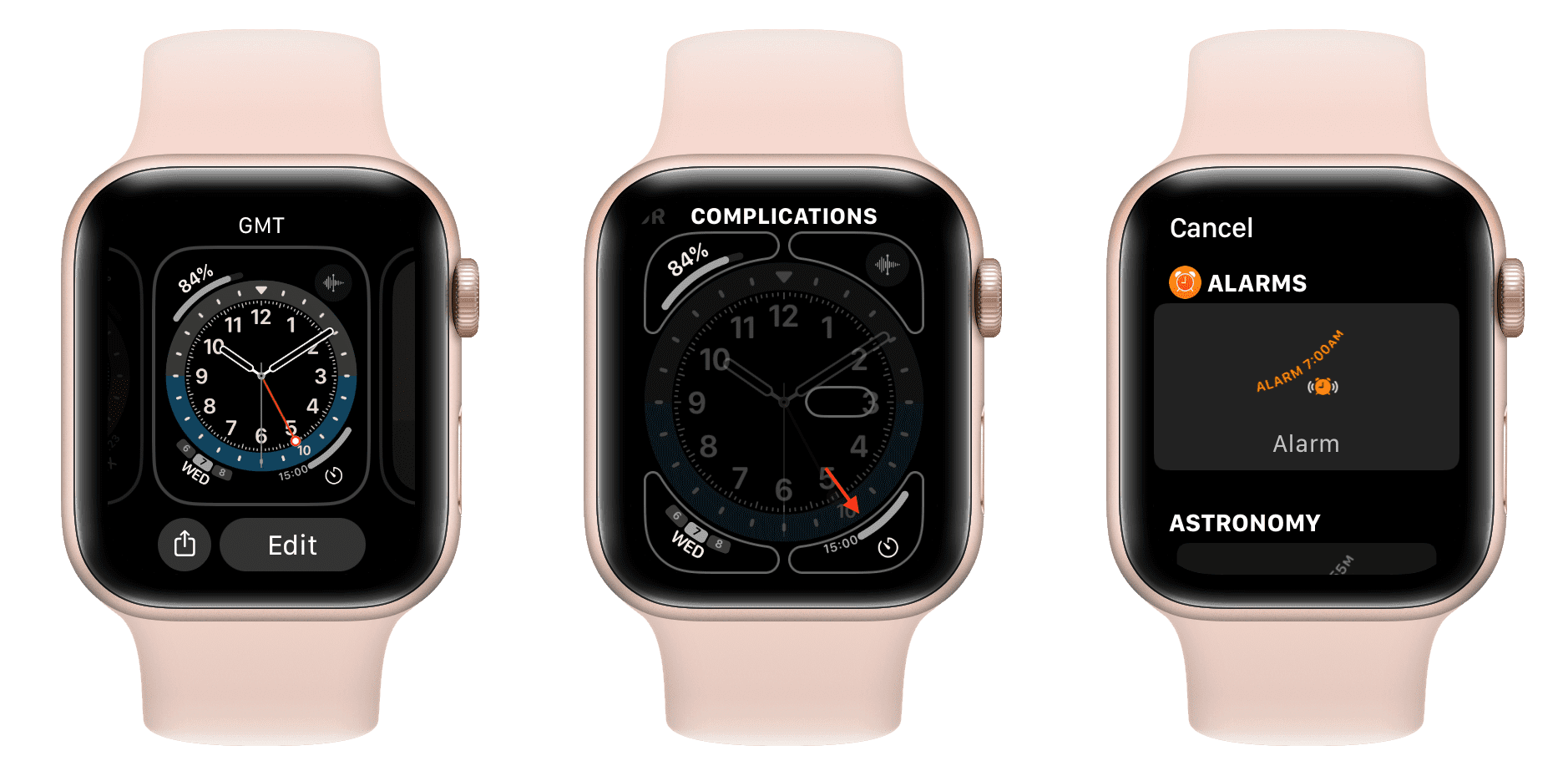
- Open the Alarms app on your Apple Watch.
- Tap Add Alarm or the plus icon.
- Rotate the Digital Crown to choose the hour and minute.
- Tap AM or PM if you use 12-hour time.
- Tap Set to save the alarm.
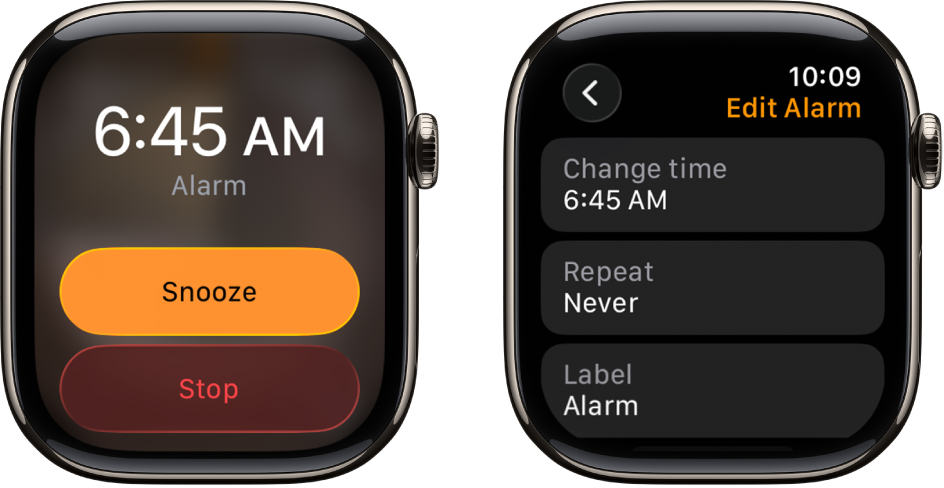
- To edit, tap an alarm, change time, toggle repeat, label, or turn it off.
Tips:
• Use the label to remind yourself why the alarm rings.
• Toggle Repeat to make the alarm recur on specific days.
• Swipe left on an alarm to delete it quickly.
I often set two alarms five minutes apart for important meetings. It helps me avoid the common mistake of dismissing a single alarm too early.

Source: youtube.com
How to set alarm on apple watch with Siri
Siri is fast when you are hands busy or on the move. Say commands clearly for the best results.
- Raise your wrist or say “Hey Siri.”
- Say “Set an alarm for 7 AM” or “Set an alarm for 20 minutes.”
- Siri confirms the alarm and saves it to the Alarms app.
Examples:
• “Hey Siri, set an alarm for 6:30 tomorrow.”
• “Hey Siri, set a nap timer for 30 minutes.”
Siri works well for quick timers and single alarms. If Siri mishears you, edit the alarm in the Alarms app.
Source: businessinsider.com
Syncing alarms between iPhone and Apple Watch
Your Apple Watch and iPhone can share alarm info, but behavior depends on settings.
• If your watch is paired and on the wrist, alarms set on the watch use the watch only.
• If you set alarms on your iPhone, they can appear on the watch depending on sync settings.
• Use the Clock app on iPhone to create or edit alarms that may sync to the watch.
Practical note: I prefer setting morning alarms on the watch and reminders on the phone. This avoids duplicated or missed alerts.
Source: idownloadblog.com
Using timers and Bedtime with Apple Watch
Aside from alarms, use Timer and Sleep features for short or sleep-related needs.
• Timer app: good for cooking or short work sprints.
• Sleep (in the Health app): schedules bedtime and wake-up routines.
• Wind Down: reduces distractions before sleep and can trigger a sleep alarm.
If you use Sleep mode, alarms may use silent haptics first. Set a louder sound if you are a deep sleeper.

Source: youtube.com
Advanced settings and customization
Customize alarms to fit routines and needs. These options add flexibility.
• Repeat: choose days for recurring alarms.
• Label: note the alarm purpose, like “Run” or “Medication.”
• Snooze: toggle on or off in the alarm edit view.
• Sound and haptics: change sounds via the iPhone Watch app for more options.
I disable snooze for important alarms. Snooze can make me oversleep if I’m groggy.
Source: apple.com
Troubleshooting common issues
If an alarm won’t sound or show, try these checks and fixes.
• Check Do Not Disturb or Focus modes. They can mute sounds and haptics.
• Ensure Wrist Detection is on, and watch is worn. Haptics rely on contact.
• Restart both devices if alarms fail repeatedly.
• Update watchOS to the latest version for bug fixes.
From experience, a restart fixes more alarm bugs than I expect. Keep watchOS current.

Source: youtube.com
Best practices and tips from real use
Small habits improve reliability and convenience.
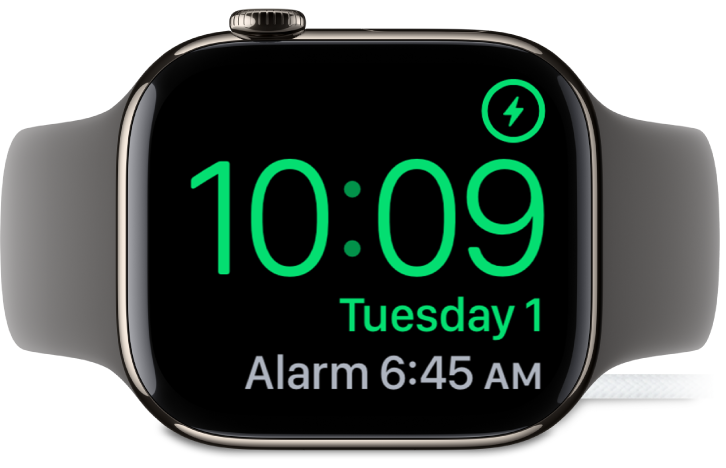
• Keep your watch charged before bed. A low battery can prevent alarms.
• Use two alarms for critical wake-ups. I set one quiet and one firm.
• Test haptics in Settings > Sounds & Haptics to confirm strength.
• Use labels and repeat options to avoid weekly setup.
A tip I learned: place the watch on a nearby table if your haptics feel weak at night. The sound may be more noticeable that way.
Source: apple.com
Limitations and things to watch for
Know what to expect to avoid surprises.
• If the watch is off or in Power Reserve, alarms won’t sound.
• Battery saver modes can limit haptics.
• Alarms set on the phone may not always mirror the watch exactly.
• Third-party alarm apps may behave differently from the built-in app.
Be transparent: the watch is reliable, but no device is perfect. Plan backups for critical alerts.
Related features and apps
Explore these related functions to expand use beyond basic alarms.
• Reminders app: for tasks and time-based prompts.
• Third-party alarm apps: offer advanced snooze or math puzzles.
• Shortcuts app: create automations to set alarms based on events.
• HomeKit scenes: combine alarms with home actions, like lights.
I use Shortcuts to set a travel alarm and switch my watch to Do Not Disturb at night automatically.
Frequently Asked Questions of how to set alarm on apple watch
How do I turn off the alarm on my Apple Watch?
Open the Alarms app, tap the alarm, and toggle it off. You can also swipe left on an alarm and tap Delete to remove it.
Can I set multiple alarms on Apple Watch?
Yes. Open Alarms and tap Add Alarm to create as many alarms as you need. Use labels and repeat to organize them.
Will my Apple Watch alarm ring if my iPhone is nearby?
Yes. The watch will ring independently when worn. If the watch is off or not worn, the iPhone alarm will act according to its settings.
How do I set a nap timer or short alarm?
Use Siri and say “Set a timer for 20 minutes” or open the Timer app and choose a preset or custom time. Timers are ideal for naps and short tasks.
Why did my alarm not go off on my Apple Watch?
Check Focus modes, Wrist Detection, battery level, and watchOS updates. Restarting the watch often fixes temporary issues.
Conclusion
You now know multiple ways to set an alarm on apple watch, from the Alarms app and Siri to timers and sync tips. Try the steps that match your routine and test haptics before relying on the watch for critical wake-ups. Start by creating one recurring alarm tonight, and tweak settings until it fits your sleep and work habits. Share your experience below or subscribe for more practical Apple Watch tips.