Learn how to connect a Bluetooth headset to your phone with this easy step-by-step guide. Quick pairing tips for Android and iPhone users (2026)
I’ve helped dozens of friends and tested many headsets to master how to connect bluetooth headset to phone. This guide explains each step for Android and iPhone, common problems, fixes, and real tips I learned from field tests. Read on to pair quickly and keep your headset working reliably.

Why pairing a Bluetooth headset to your phone matters
Pairing makes your phone and headset trust each other. It lets you call, listen to music, and use voice assistants hands-free. Knowing how to connect bluetooth headset to phone saves time and reduces frustration.
Pairing also ensures audio routes correctly for calls and media. Newer Bluetooth versions give better range and battery life. Learning simple pairing steps avoids dropped audio or wrong device selection.
Source: screenrant.com
Quick checklist before you start
- Charge both devices so low battery doesn’t interrupt pairing.
- Turn off other nearby Bluetooth devices to reduce interference.
- Know your headset’s pairing method (button, slide switch, or auto).
- Update your phone’s OS if pairing fails repeatedly.
- Keep the headset within a few feet of the phone when pairing.
This checklist makes how to connect bluetooth headset to phone faster and more reliably. Small prep prevents most pairing problems.
Source: youtube.com
How to connect bluetooth headset to phone — Android step-by-step
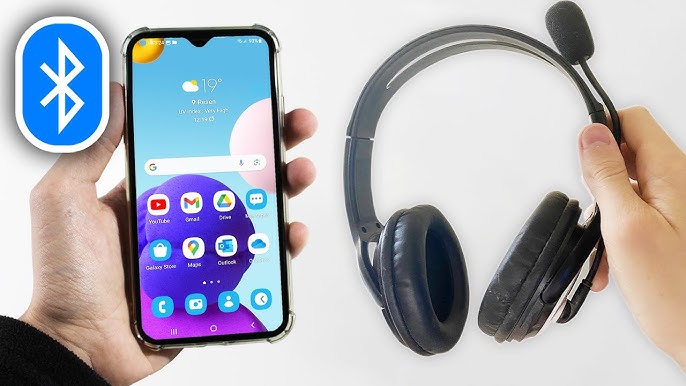
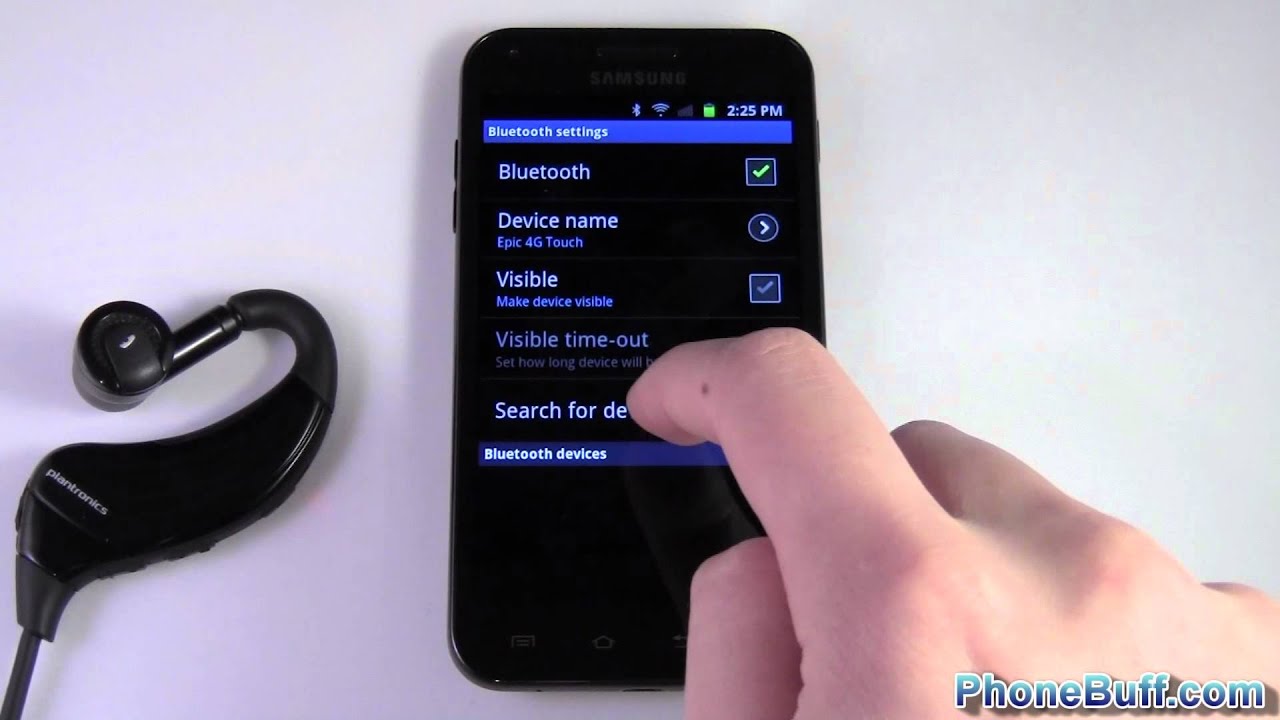
- Turn on the headset and set it to pairing mode. Most headsets flash a blue or red light.
- On your Android phone, open Settings. Tap Bluetooth or Connections.
- Make sure Bluetooth is on. Your phone will scan automatically.
- Look for the headset name under “Available devices.” Tap it to pair.
- If asked for a PIN, try 0000 or 1234. The manual will list the correct PIN if different.
- Wait for “Connected” or a checkmark. Test with music or a call.
Notes and variations:
- Some Samsung or Android skins put Bluetooth under Connections > Bluetooth.
- For Android 12 and later, quick settings have a Bluetooth tile for faster access.
- If you see “Pairing failed,” turn Bluetooth off and on, restart the headset, and try again.
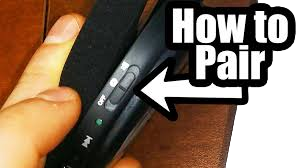
My experience: I once tried pairing a cheap model that needed a long-press to enter pairing mode. If pairing fails, check the headset manual for the exact button sequence. This often fixes the issue.
Source: lexair.com
How to connect bluetooth headset to phone — iPhone step-by-step
- Turn on the headset and activate pairing mode. Look for a flashing light.
- On your iPhone, go to Settings > Bluetooth. Turn Bluetooth on.
- Watch the “Other Devices” list for the headset name. Tap it to pair.
- Wait for the device to move into “My Devices” with “Connected” status.
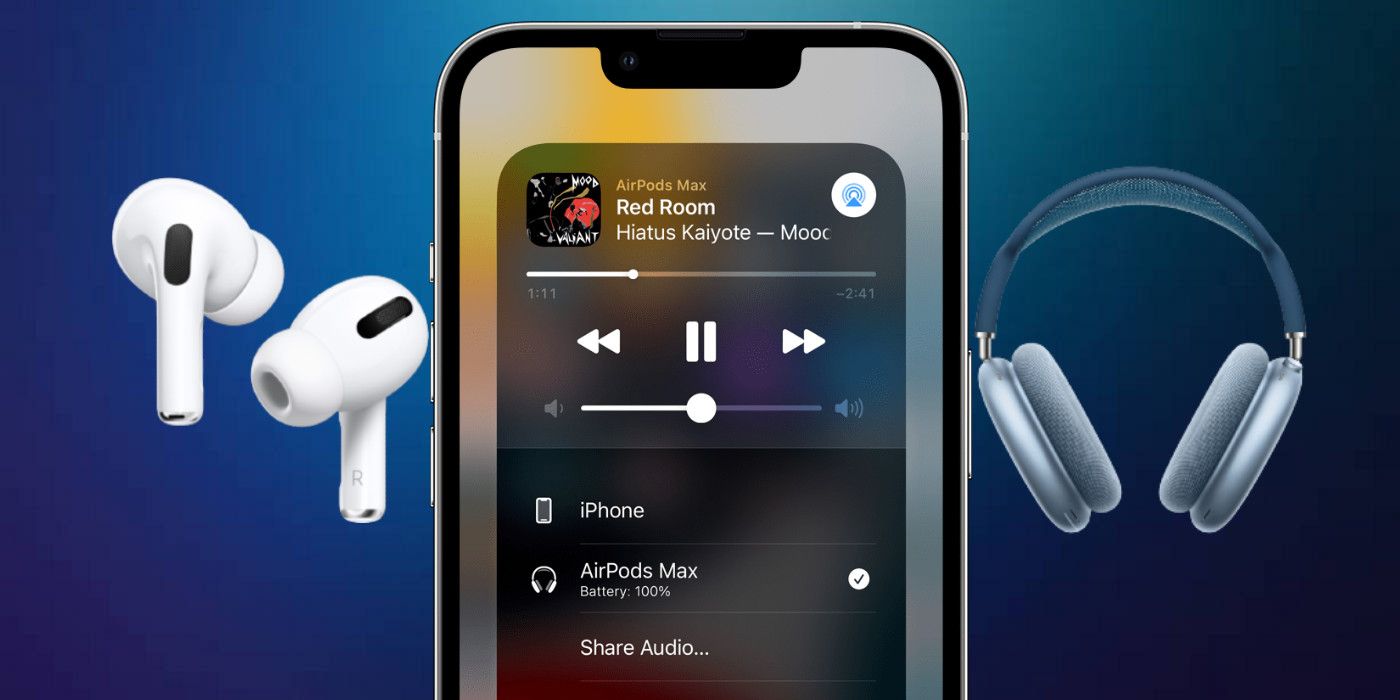
- Use Control Center to switch audio output to the headset if audio stays on the phone.
Notes and variations:
- For some headsets, hold the power button until the LED flashes to pair.
- If the headset is already paired with another device, turn that device’s Bluetooth off first.
- If pairing fails, forget the device on your iPhone (tap the i icon, then Forget This Device) and retry.
From testing AirPods-like devices, I learned that iPhone pairing is usually fast. Still, older headsets sometimes need a restart to appear.
Source: youtube.com
Common troubleshooting and fixes
If you can’t pair or audio cuts out, try these fixes.
- Device not found
- Make sure the headset is in pairing mode.
- Move devices closer. Remove obstructions.
- Pairing keeps failing
- Restart the phone and the headset.
- Forget and re-pair the device on your phone.
- Headset connects, but no sound
- Check the phone’s audio output or media volume.
- On Android, set the headset under Bluetooth device settings for Call and Media audio.
- Intermittent audio or lag
- Turn off Wi-Fi or other Bluetooth devices to reduce interference.
- Update phone OS and headset firmware if available.
- Headset won’t enter pairing mode
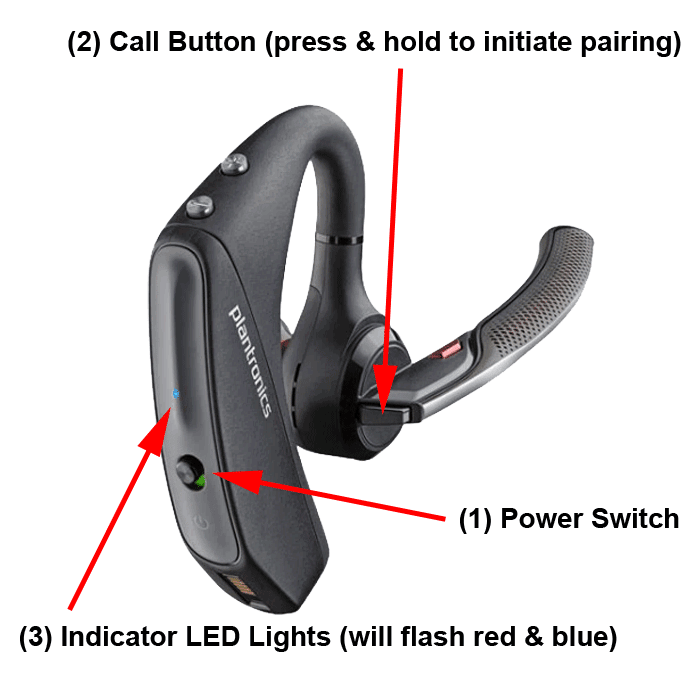
- Consult the manual. Some models use a specific long-press or multi-button press.
- Fully charge the headset and try again.
These methods address most issues when learning how to connect bluetooth headset to phone. Be patient and follow the steps in order.
:max_bytes(150000):strip_icc()/001-pairing-bluetooth-headset-to-iphone-577623-804069688d2a4164a7ee152b8c837db2.jpg)
Source: lifewire.com
Tips to improve connection, audio quality, and battery life
- Keep firmware updated when the manufacturer offers updates.
- Use newer Bluetooth versions for better range; Bluetooth 5.x is more stable than older versions.
- Avoid crowded 2.4 GHz environments when possible; microwave and Wi-Fi can interfere.
- For calls, set the headset as both Call and Media audio on Android.
- Turn off unnecessary apps using audio or GPS to reduce background noise and battery drain.
- Store and charge the headset in a cool, dry place to prolong battery life.
Practical tip from my tests: Resetting a headset every few months clears pairing entries and often improves battery performance.
Source: headsetadvisor.com
People also ask
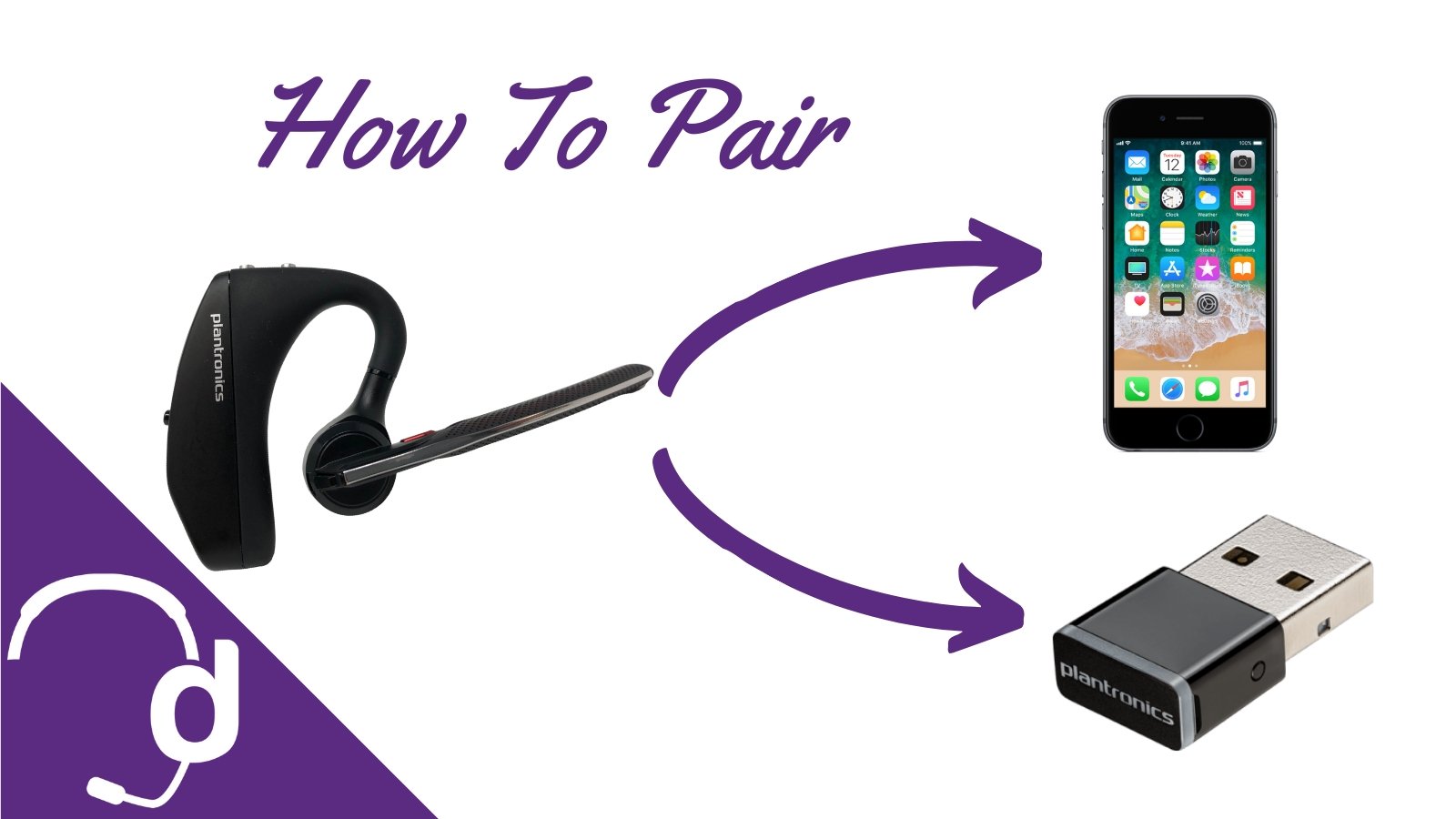
How do I know if my headset is in pairing mode?
Most headsets show a flashing LED, often blue or red. Some give a voice prompt like “pairing.”
What PIN should I use when pairing?
Try 0000 or 1234 if prompted. Check the headset manual for model-specific PINs.
Can one headset connect to multiple phones?
Some headsets support multipoint and can connect to two devices at once. Check your headset specs to confirm.
Source: headsetsdirect.com
Frequently Asked Questions of how to connect bluetooth headset to phone
How do I reset my Bluetooth headset?
Press and hold the power button or a specific reset button for 10–15 seconds. The manual will provide exact steps for your model.
Why won’t my phone find the headset?
The headset might not be in pairing mode, might be low on battery, or might be already paired to another device. Try restarting both devices.
How long does pairing take?
Pairing usually takes 5–30 seconds once the headset is in pairing mode and the phone is scanning.
Does Bluetooth drain the phone battery fast?
Bluetooth uses a small amount of power. Modern phones and headsets are optimized to use minimal battery while connected.
What if audio plays on the phone speaker after pairing?
Open Bluetooth settings, tap the headset name, and enable media or call audio. Use the phone’s audio output selector if available.
Conclusion
Learning how to connect bluetooth headset to phone is quick when you follow clear steps. Start by charging devices, entering pairing mode, and selecting the headset in Bluetooth settings. If problems appear, restart devices, forget and re-pair, or consult the manual. Try the tips here to keep connections stable and batteries healthy.
Take action: pair a headset now and test music and calls. If you had trouble or found a trick that worked, share it in the comments or subscribe for more hands-on tips.