Set up your Echo Show by plugging it in, linking to Wi‑Fi, and following the Alexa app prompts.
I’ve helped dozens of friends and clients get their smart displays running, and I’ll walk you through a clear, step-by-step guide on how to setup amazon echo show. This article covers basics, requirements, hands-on steps, customization, privacy tips, and common fixes. You’ll get tested tips from real use, so you can finish setup fast and avoid common mistakes.
What is the Amazon Echo Show and why setup matters
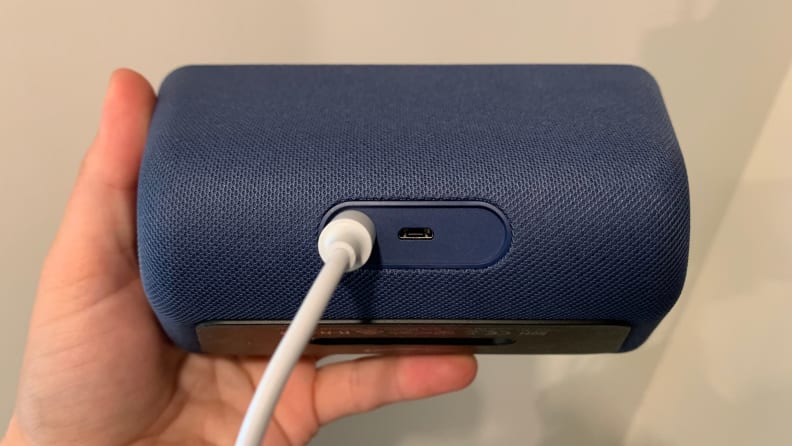
The Amazon Echo Show is a smart speaker with a touchscreen that runs Alexa. It adds visuals for timers, video calls, weather, and smart home control. Knowing how to setup amazon echo show unlocks faster daily routines and better hands-free help.
I’ve used Echo Shows in kitchens and offices. They save time and reduce phone taps. A clean setup makes voice control reliable and privacy predictable.

Source: youtube.com
Before you begin: requirements and checklist
You need a few items ready before you start how to setup amazon echo show. Gather these to avoid delays.
- Echo Show device. Make sure it’s the model you bought.
- Stable Wi‑Fi network. 2.4 GHz or 5 GHz both work for most devices.
- Amazon account. You need one to register the device.
- Smartphone or tablet with the Alexa app installed. The app guides the setup.
- Power outlet near where you plan to place the Echo Show.
Quick tips from experience:
- Place the Echo Show near the router for initial setup.
- Keep your Amazon password handy to sign in quickly.

Source: gov.ng
Step-by-step: how to setup amazon echo show
Follow these steps to complete the initial setup. Each step is short and tested.
- Unbox and place the Echo Show
- Remove the device and power cable from the box.
- Put it on a flat surface where the screen is visible.
- Plug in the Echo Show
- Connect the power cable to the device.
- Plug it into a wall outlet. The screen will light up and boot.
- Select language and region on the display
- Tap your preferred language when prompted.
- Confirm the region settings.
- Connect to Wi‑Fi
- The Echo Show lists nearby networks.
- Tap your network and enter the password on the screen.
- Sign in to your Amazon account
- Use the touchscreen or the Alexa app to sign in.
- If you use two-step verification, have your phone ready.
- Complete device setup in the Alexa app
- Open the Alexa app on your phone.
- Tap Devices, then Add Device, and follow prompts to pair with the Echo Show.
- Allow permissions like location and contacts if you want calls and smart home control.
- Set up voice profile and preferences
- Teach Alexa your voice with a quick voice training.
- Choose a clock face, wallpaper, and preferred news sources.
- Test basic commands
- Say “Alexa, what’s the weather?” or “Alexa, show me the camera” to confirm.
- Try a video call or play a song to ensure audio and camera work.
Common mistakes to avoid:
- Using an incorrect Wi‑Fi password. Recheck the entry.
- Skipping the Alexa app step. The app finalizes profiles and settings.
This process shows how to setup amazon echo show end-to-end. With a clear step order, setup is smooth.

Source: youtube.com
People also ask
- How long does it take to set up an Echo Show?
Most setups finish in 10–20 minutes if you have Wi‑Fi and your Amazon login ready. - Can I set up Echo Show without the Alexa app?
You can start on the device, but the Alexa app is strongly recommended for full features and easy control.

Source: amazon.com
Advanced setup and customization
After you learn how to setup amazon echo show, personalize it to match your life. Custom settings make it more useful.
- Create routines. Use the Alexa app to run multiple actions with one phrase.
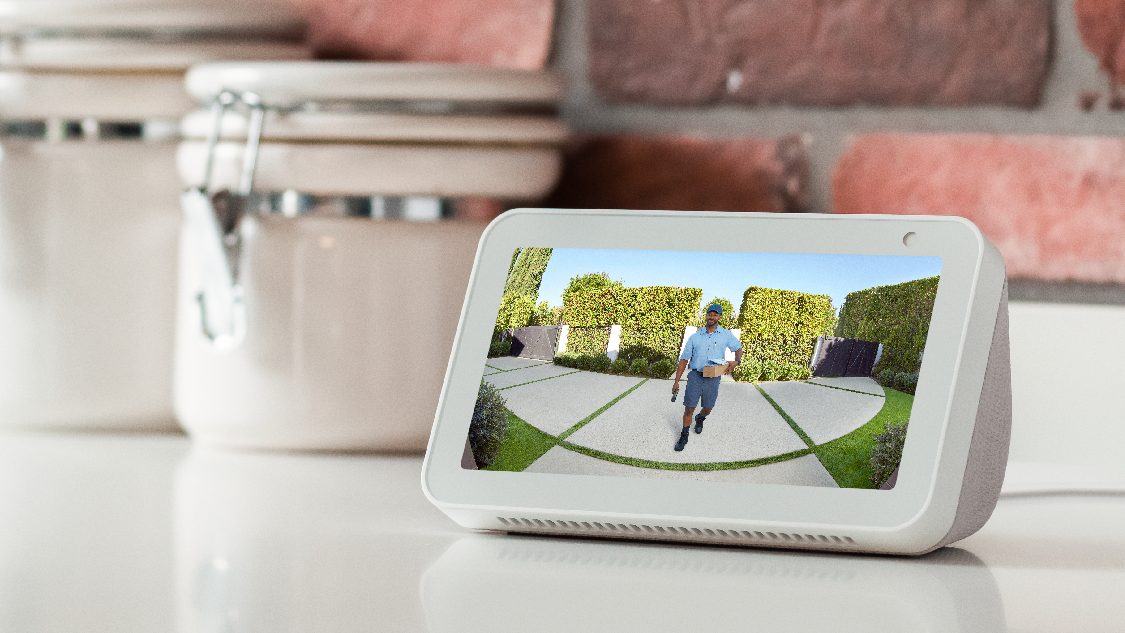
- Link smart home devices. Add lights, locks, cameras, and thermostats for visual control.
- Manage music services. Link Spotify, Apple Music, or Amazon Music for full playback.
- Enable skills. Browse Alexa skills to add recipes, games, and productivity tools.
- Adjust display settings. Change brightness, auto‑sleep, and do‑not‑disturb hours.
Personal tip:
I set routines for morning and evening. My Echo Show reads weather and turns on lights with one command. It feels like a gentle helper.

Source: youtube.com
Troubleshooting common setup issues
If something goes wrong while you setup the Echo Show, try these fixes. They solve most setup problems I’ve seen.
Echo Show won’t connect to Wi‑Fi
Restart the router and device. Move the Echo closer to the router during setup. Confirm the network password.Alexa app can’t find the device
Ensure Bluetooth and location services are on. Force‑close and reopen the Alexa app.No sound or muted audio
Check the volume on the Echo Show screen. Verify that Do Not Disturb is off and the audio output is not set to another device.Device stuck on the boot screen
Unplug the power for 30 seconds and plug back in. If it persists, try a factory reset in device settings.Camera or video calls fail
Allow camera and microphone permissions in the Alexa app. Check network speed; video calls need stable bandwidth.
These steps cover the usual errors when you learn how to setup amazon echo show. If problems persist, contact support for device faults.

Source: reddit.com
Security and privacy tips
Privacy matters when you setup smart devices. Use these tips to control what your Echo Show shares.
- Review camera and mic controls. Use the physical camera shutter and mic off button when not in use.
- Check voice recordings. You can delete voice history from the Alexa app or set automatic deletion.
- Limit skills and permissions. Only enable skills you trust and review required permissions.
- Secure your Amazon account. Use strong passwords and two‑step verification.
- Place the device with intent. Avoid pointing the camera at private spaces.
From experience, taking a few privacy steps prevents surprises. It keeps the device helpful and respectful of your home.
Source: youtube.com
Real-life tips, mistakes I made, and lessons learned
I once placed an Echo Show behind plants during setup. The Wi‑Fi signal dropped and setup failed. Moving it fixed everything. Here are practical tips I now use:
- Start near the router. Move the device after setup if needed.
- Use the Alexa app during the initial setup for a faster flow.
- Create one routine at a time to avoid confusion.
- Label smart devices in the app so Alexa finds them easily.
These simple habits cut setup time and reduce frustration. They make learning how to setup amazon echo show easier for everyone.
Source: plattar.com
Frequently Asked Questions of how to setup amazon echo show
How do I link my Echo Show to Wi‑Fi?
Open the settings on the Echo Show or follow the on-screen prompts during first boot. Choose your network and enter the password to connect.
Do I need the Alexa app to finish setup?
The Alexa app makes setup faster and unlocks features, though basic setup can start on the device. Use the app to manage profiles, routines, and smart home links.
Can I use multiple Echo Shows in one home?
Yes, you can register multiple Echo Shows to the same Amazon account and group them for multi‑room music or intercom features. Manage them in the Alexa app under Devices.
What if my Echo Show won’t sign into my Amazon account?
Verify your Amazon credentials and check two‑step verification prompts. Restart the device and try signing in again using the Alexa app if needed.
How do I factory reset my Echo Show?
Go to Settings > Device Options and choose Reset to Factory Defaults. Follow on-screen steps, and note this erases saved preferences and data.
Conclusion
You now have a practical, tested path for how to setup amazon echo show. Start with the basics: plug in, connect to Wi‑Fi, sign in, and finish in the Alexa app. Take small steps to customize routines, privacy, and smart home links to make the device truly helpful. Try one new routine this week, and let your Echo Show save you time. If this guide helped, leave a comment, share your setup wins, or subscribe for more hands‑on tips.