Connect via USB-C, HDMI, or DisplayPort—plug in, set display mode, and power the monitor.
I’ve spent years setting up laptops with portable screens for travel, remote work, and presentations. This guide explains exactly how to connect portable monitor to laptop, step by step, with clear checks, real tips, and fixes I learned the hard way. Read on to get the connection right the first time and avoid common pitfalls.

Why add a portable monitor?
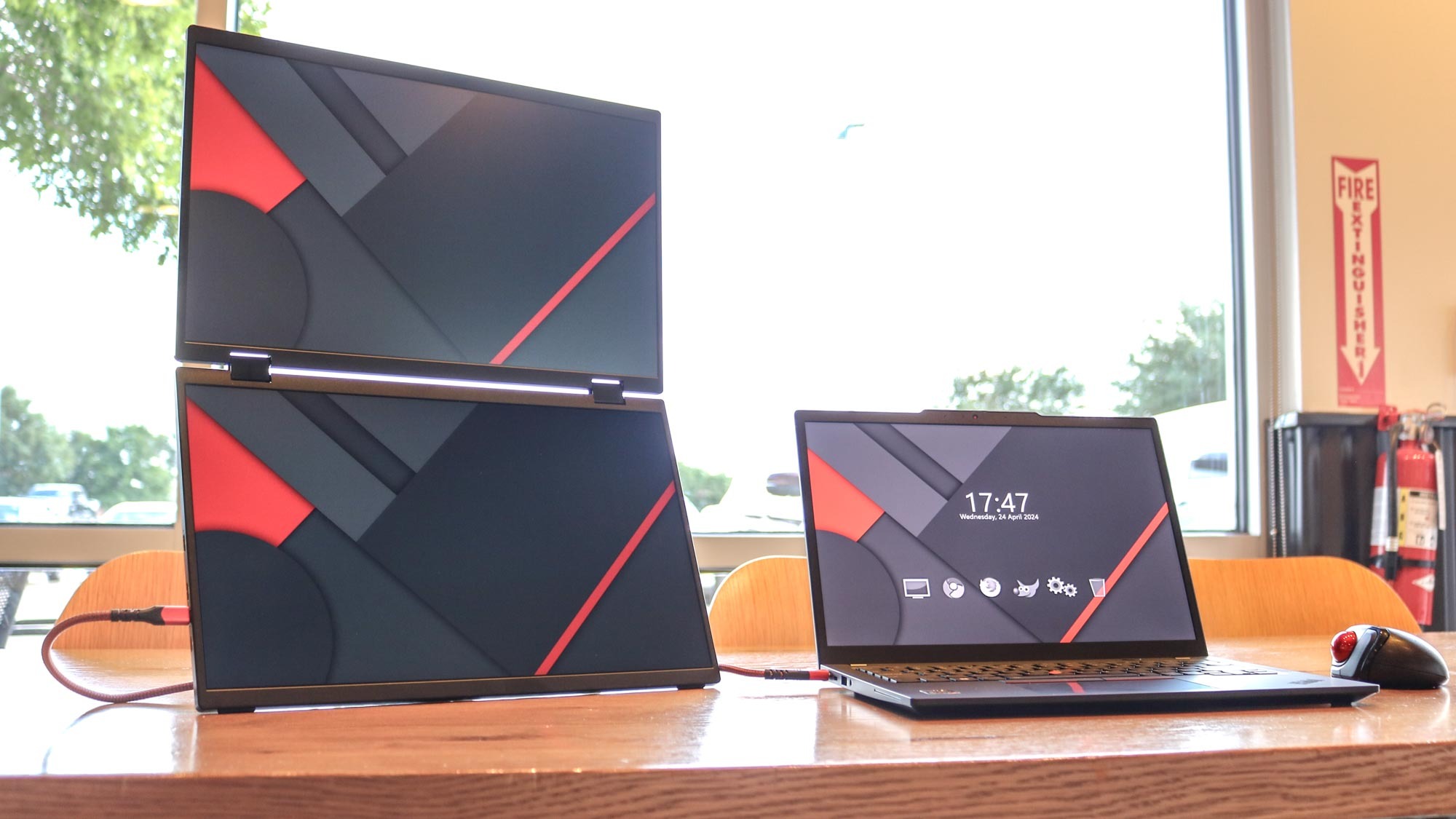
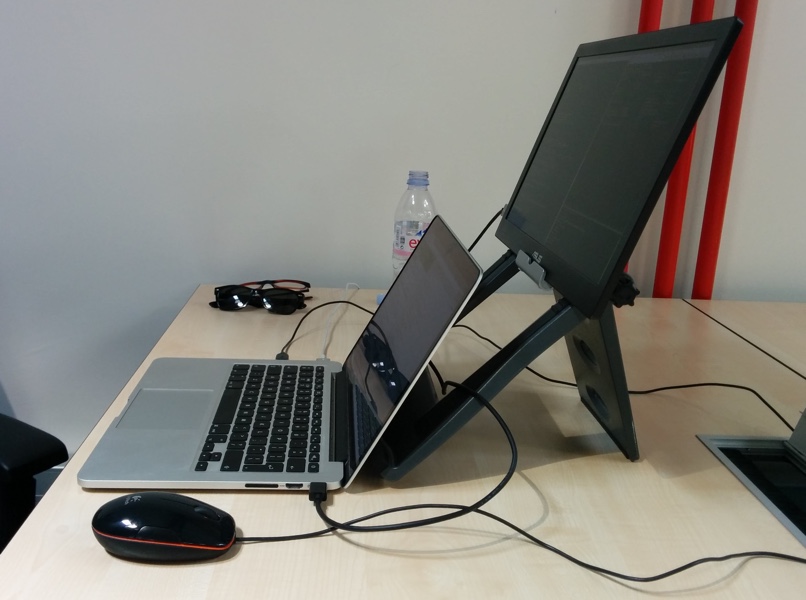
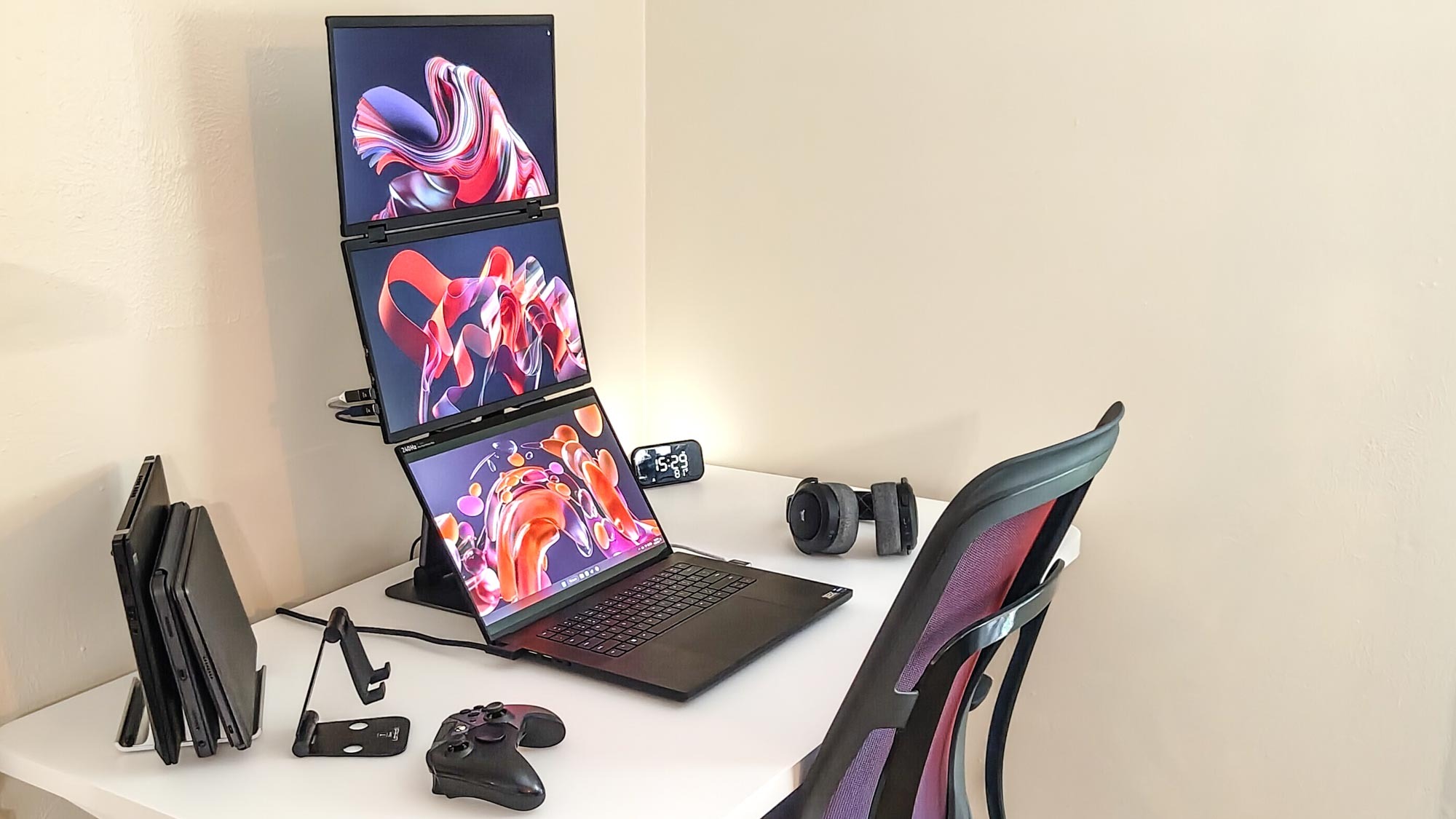
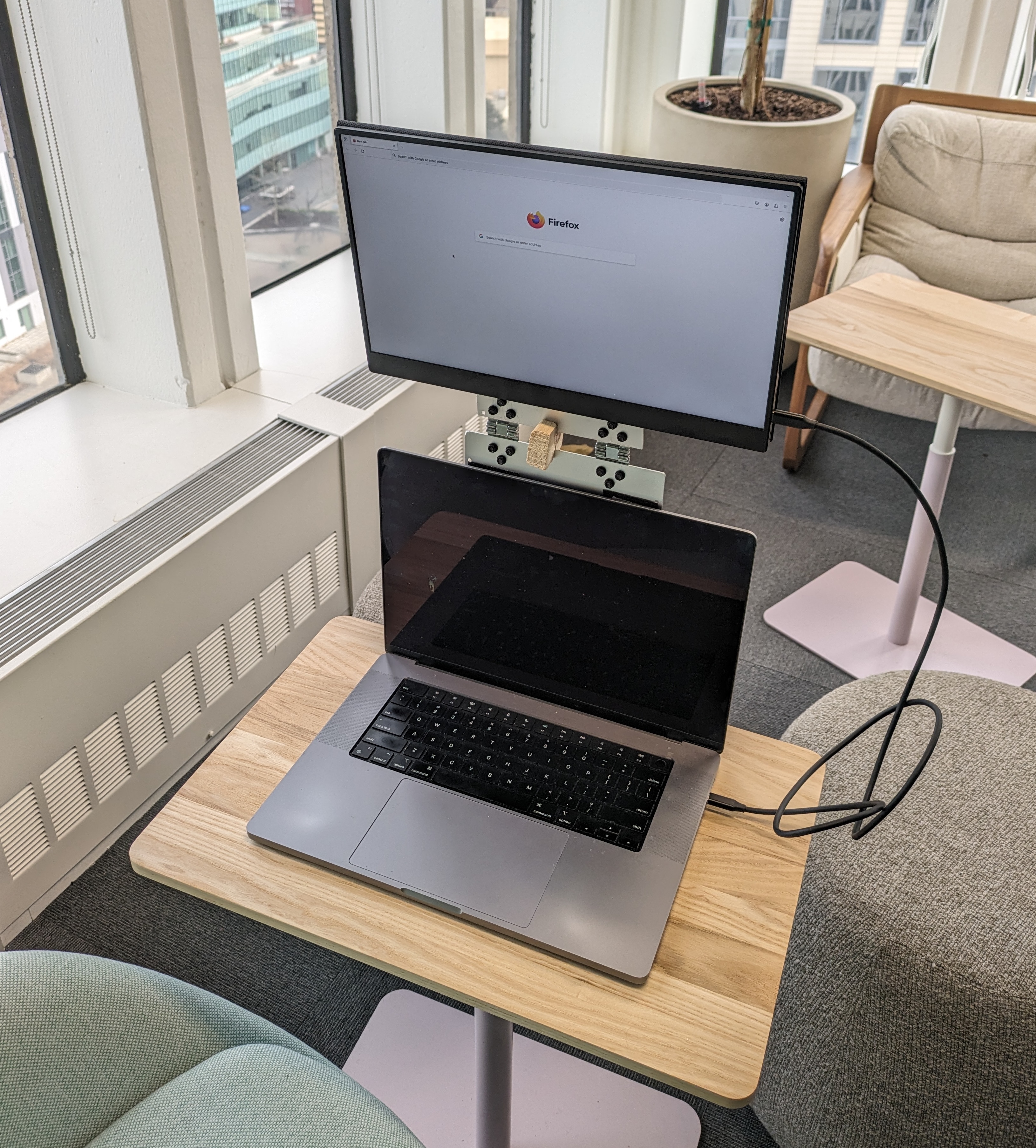
A portable monitor gives extra screen space for work, video, and gaming without a bulky desktop setup. Many people ask how to connect portable monitor to laptop so they can extend or mirror their display easily. The right connection improves productivity and keeps your setup compact and flexible.
Source: tomsguide.com
Check ports and compatibility before you start
Check the ports on both devices to avoid guesswork. Look for USB-C with DisplayPort Alt Mode, HDMI, mini-HDMI, or mini DisplayPort. Some portable monitors use DisplayLink drivers over USB-A or USB-C; others need power via a separate USB cable. Confirm your laptop supports video output on the chosen port before buying cables or adapters.
Source: steveridout.com
Step-by-step: how to connect portable monitor to laptop
Below are the main ways to connect. Choose the method that matches your monitor and laptop ports.
USB-C (recommended when available)
- Verify your laptop’s USB-C supports DisplayPort Alt Mode or Thunderbolt.
- Use a quality USB-C to USB-C cable that supports video and power.
- Plug the cable into the monitor and laptop. The screen often powers on automatically.
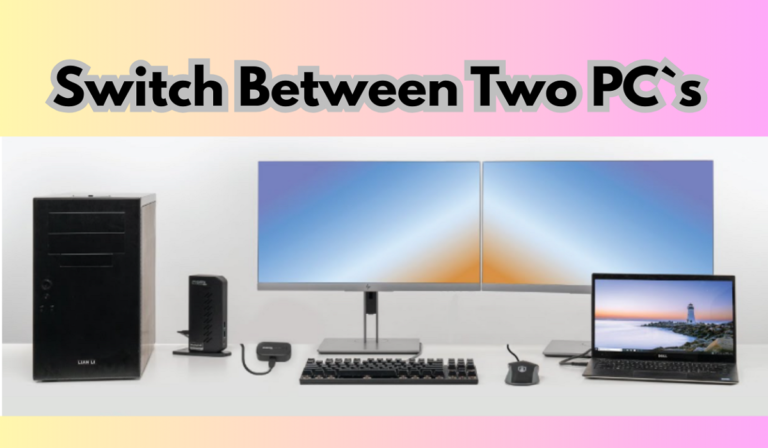
- Open display settings on your laptop and choose extend or duplicate.
This method is simple and often carries power and video on one cable. If the monitor still won’t display, try a different cable or confirm power delivery settings.
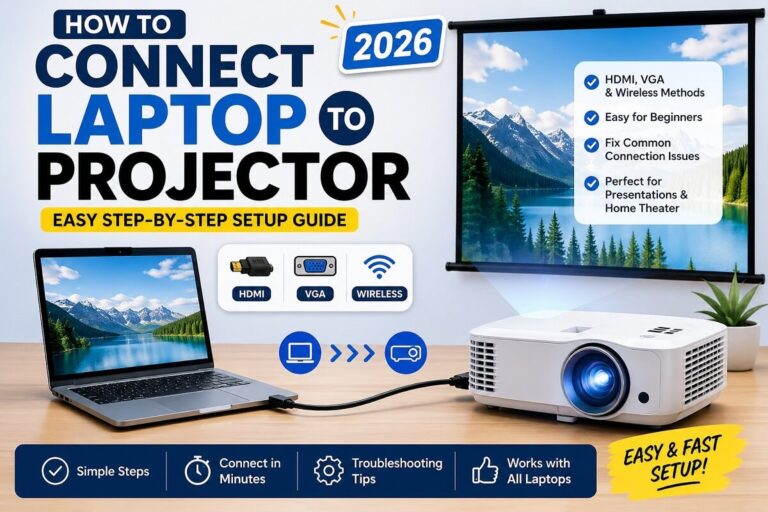
HDMI or mini-HDMI
- Use an HDMI-to-HDMI or HDMI-to-mini-HDMI cable depending on the monitor port.
- Connect the cable to the monitor and the laptop’s HDMI output.
- If the monitor needs external power, plug in its USB or AC adapter.
- Change the laptop display mode to extend or duplicate in display settings.
HDMI is common and reliable. If you get a black screen, check the input selection on the monitor.
DisplayPort and mini DisplayPort
- Connect a DP or mini-DP cable from the laptop to the monitor.
- Power the monitor if required.
- Set display options on your laptop.
DisplayPort supports high resolutions and refresh rates. Use it when you need crisp visuals for photo or video tasks.
USB-A with DisplayLink (driver-based)
- Install the monitor maker’s DisplayLink driver on your laptop first.
- Connect the USB-A cable to the laptop and monitor.
- Wait for the driver to initialize the external display.
- Use display settings to arrange screens.
This is useful for older laptops without USB-C video. Keep drivers updated for stability.
Wireless connections (Miracast, AirPlay, or dongles)
- Confirm that both devices support the same wireless display standard.
- Enable screen sharing on the monitor or connect a wireless dongle.
- From your laptop, choose Connect or Cast to the wireless display.
- Expect slight lag—wireless works best for browsing, not fast gaming.
Wireless is convenient but less reliable for motion-heavy content.
Source: tomsguide.com
Power, cables, and brightness management
Portable monitors often need separate power. Many accept USB-C PD, while compact models use a USB-A or USB-C power cable. Check wattage requirements to avoid dim displays. Use the monitor’s OSD (on-screen display) to fine-tune brightness and color. If the screen is dim on battery, plug into a power source or use a cable with power delivery.

Source: scoringnotes.com
Troubleshooting common issues when connecting a portable monitor to a laptop
Use these quick fixes before calling support.
No signal
- Ensure the correct input is selected on the monitor.
- Try a different cable or port.
- Confirm the laptop’s video output is enabled.
Wrong resolution or blurry image
- Adjust resolution and scaling in display settings.
- Use the native resolution recommended by the monitor.
Flicker or unstable image
- Replace the cable with a high-quality, shielded version.
- Update graphics drivers and monitor firmware.
Monitor not powering on
- Verify the power cable and adapter.
- Test the monitor on another device to isolate the issue.
DisplayLink or driver problems
- Reinstall the driver and restart.
- Check for OS compatibility notes from the monitor maker.

Source: ternsetups.com
Tips, best practices, and lessons from my experience
Small habits save time and headaches when you learn how to connect portable monitor to laptop.
- Always carry a spare cable that supports video and power.
- Buy a USB-C cable rated for 60W or 100W if you need power delivery.
- Update your laptop’s graphics driver before troubleshooting display issues.
- Use “extend” mode for more workspace and “duplicate” when showing slides.
- When traveling, pack a slim dongle kit with HDMI, USB-C, and USB-A adapters.
From my experience, the top mistake is assuming all USB-C ports carry video. I once spent a day troubleshooting only to learn the port was data-only. Test connections at home before an important trip.
Source: jefftk.com
Frequently Asked Questions of how to connect portable monitor to laptop
How do I know if my laptop supports video over USB-C?
Check laptop specs for DisplayPort Alt Mode or Thunderbolt. If listed, USB-C can carry video; otherwise, it might be data-only.
Can I use a portable monitor without external power?
Some USB-C monitors use power delivery from the laptop. Many require a separate power source or USB power. Check wattage needs before relying on laptop power alone.
Why is my portable monitor showing the wrong resolution?
Set the monitor to its native resolution in display settings and adjust scaling. Update your graphics driver if options are limited.
Do I need special drivers for a USB-A connected monitor?
Yes, some USB-A monitors use DisplayLink drivers. Install the manufacturer’s driver for proper detection and performance.
Can I run games on a portable monitor connected wirelessly?
Wireless connections add latency and may not be suitable for fast-paced games. For gaming, prefer wired USB-C, HDMI, or DisplayPort.
Is a dock or hub useful for connecting a portable monitor?
A quality dock can provide additional ports, power delivery, and stable video output. Use one if your laptop lacks direct video ports.
Conclusion
Connecting a portable monitor to a laptop is usually quick when you match ports, use the right cable, and set display preferences. Use USB-C when possible for a one-cable solution, HDMI or DisplayPort for broad compatibility, and DisplayLink only when needed. Try the steps above, keep a spare cable, and update drivers to avoid common issues. If you’re ready, plug in and expand your workspace—then share what worked or ask questions below.