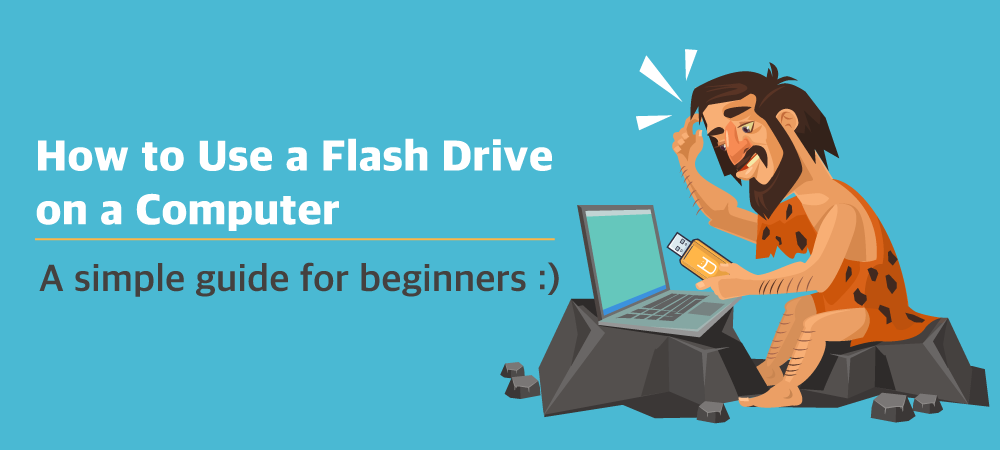
Plug the flash drive into a USB port, open File Explorer or Finder, then copy or move files as needed.
I’ve worked with laptops and flash drives for years, helping people move files, fix recognition issues, and keep data safe. This guide explains how to use a flash drive on a laptop step by step, covering Windows, macOS, and Linux. You’ll learn setup, common tasks, security tips, and troubleshooting that I’ve tested in real workflows.

What is a flash drive, and why use one
A flash drive is a small, portable storage device that plugs into a laptop via USB. It stores files on flash memory and is handy for quick transfers, backups, and sharing. Flash drives come in many sizes and speeds. Newer models use USB 3.0 or USB-C for faster transfer.
Benefits include quick file moves, easy backups, and portable media playback. Limitations include a limited lifespan for heavy write cycles and the risk of loss or damage. Knowing how to use a flash drive on a laptop helps you avoid data loss and speed up tasks.

Source: norton.com
Preparing your laptop and flash drive
Check laptop ports. Older laptops have USB-A. Newer ones may have USB-C or a mix. Use an adapter if needed.
Check format and compatibility. Windows prefers NTFS or exFAT. macOS works well with exFAT or APFS for internal drives. exFAT is best for cross-platform use.
Scan for viruses. Run a quick antivirus scan when you first plug the drive in. This avoids carrying malware between machines.
Back up important data before formatting. If the flash drive has files, copy them first. Formatting erases everything.

Source: youtube.com
Step-by-step: How to use a flash drive on a laptop (Windows)
- Locate a free USB port on your laptop.
- Insert the flash drive gently until it clicks or seats fully.
- Wait for Windows to recognize the device. A notification appears, and File Explorer may open.
- Open File Explorer and select the flash drive under This PC.
- Copy files by dragging them from your folder to the flash drive window, or right-click and choose Copy and Paste.
- To move files, cut and paste instead of copy, or drag while holding the Shift key.
- When done, right-click the drive icon in the taskbar and choose Eject. Wait for the “Safe to remove” message before unplugging.
Tips for Windows:
- Use exFAT for drives shared with macOS.
- Use the “Format” option if the drive is new or corrupted.
- For large backups, use backup software to automate the process.
Source: usbmemorydirect.com
Step-by-step: How to use a flash drive on a laptop (Mac and Linux)
macOS:
- Plug the flash drive into the USB or USB-C port.
- The drive appears on the Desktop or in Finder.
- Open Finder and click the drive to view files.
- Drag files to copy or hold Option to move.
- Eject by right-clicking the drive and choosing Eject, or drag to Trash. Wait until it disappears.
Linux (Ubuntu and similar):
- Insert the flash drive. It usually auto-mounts and shows on the desktop or in Files.
- Click the drive to open it.
- Copy or move files using drag and drop or terminal commands like cp and mv.
- Unmount with the eject icon or use the command sudo umount /dev/sdX1 before removal.
Cross-platform tips:
- Use exFAT for easy read/write across systems.
- If your laptop lacks a compatible port, choose a small USB-C or USB-A adapter.

Source: youtube.com
Common tasks you’ll do with a flash drive
Copy and paste files
- Use simple drag and drop or copy and paste options.
- For many files, compress to a zip to speed up transfers.
Make a bootable drive
- Use tools to create bootable installation media for OS installs.
- Verify checksums to avoid corrupted installs.
Run portable apps
- Place portable apps on the drive to run on multiple laptops without installation.
- Keep apps updated and scan them for malware.
Backup and restore
- Use the drive for quick backups of key folders.
- Rotate drives periodically for redundancy.
Share media
- Store photos, videos, or presentations for meetings.
- Use larger capacity drives for high-resolution video files.

Source: wikihow.com
Troubleshooting: when the flash drive is not working
Drive not recognized
- Try a different port or laptop to rule out the port.
- Check Device Manager (Windows) or Disk Utility (macOS) to see if the drive appears.
The drive is slow
- Confirm the drive’s rated speed and the port’s version. USB 2.0 is much slower than USB 3.0.
- Defragmenting is not helpful for flash drives; instead, avoid filling the drive to capacity.
Drive is write-protected
- Some drives have a mechanical switch. Toggle it off.
- Use diskpart (Windows) to clear read-only flags, or format the drive if needed.
Corrupted files or filesystem
- Run chkdsk on Windows or First Aid in Disk Utility on macOS.
- If repair fails, format the drive and restore from backup.

Source: youtube.com
Security and best practices
Encrypt sensitive files. Use built-in tools like BitLocker on Windows or FileVault-aware containers on macOS. For cross-platform needs, use encrypted archives or third-party tools.
Avoid auto-run. Disable autorun to stop malware from launching when a drive connects. Keep antivirus updated and scan drives regularly.
Label and organize. Name drives clearly and keeps a file structure. This helps prevent accidental overwrites.
Keep multiple backups. Don’t rely on a single flash drive for important data. Use cloud storage or a second physical drive as a backup.
Tips from my experience
Carry a small adapter. I often move between laptops with different ports. A compact USB-A to USB-C adapter saved time.
Use trusted brands. Cheap drives may fail sooner. Spend a bit more for reliability.
Test new drives immediately. I always format and test transfer speed before relying on a drive for important work.
Avoid leaving a drive plugged in. I once corrupted a drive by bumping my laptop during a write. Eject and remove when not in use.
Frequently Asked Questions on How to use a flash drive on a laptop
How do I safely remove a flash drive from my laptop?
Eject the drive using the system’s eject or safely remove option. Wait for the confirmation message before unplugging.
Can I use a flash drive to install an operating system?
Yes. Create a bootable drive with the OS image and set the laptop to boot from USB in BIOS or UEFI. Verify the image and tool before writing.
Why does my laptop not read the flash drive?
Try another port or computer, update drivers, and check Disk Management or Disk Utility. The drive may be corrupted or have an unsupported format.
What format should I use for cross-platform use?
Use exFAT for read and write support on Windows and macOS without size limits for large files. It works well on most modern systems.
How do I protect files on my flash drive?
Encrypt the drive or individual files and use strong passwords. Keep backups and avoid using public computers without scanning for malware.
Conclusion
Knowing how to use a flash drive on a laptop makes file transfer, backup, and system tasks quick and simple. Follow the steps for your OS, keep files backed up, and use security best practices. Try these tips on your next file move, test a new drive, or create a bootable installer today. Share your questions or experiences in the comments, or subscribe for more practical guides.