Install a light Linux distro from a USB drive to replace Windows and revive the laptop.
I have helped many people bring old PCs back to life. This guide on how to install linux on an older laptop not booting Windows is clear, tested, and friendly. I explain each step. You will learn what to check, which distro to pick, how to make a bootable USB, and how to install safely. I write from real experience fixing slow and non-booting laptops. Read on and follow the steps to get your laptop working again.
Why Linux works well for old machines and for systems that won’t boot Windows
Old laptops often fail to boot Windows. The drive, Windows boot files, or corrupt updates can stop startup. Linux can boot from a USB. It can run fast on low RAM and old CPUs. Installing Linux often fixes boot issues and gives the laptop new life.
Benefits of installing Linux on an old laptop
- Small distros use little RAM. They run faster than modern Windows.
- You get security updates and modern apps.
- You can reuse the laptop for web, notes, code, or media.
- You often recover files from the old Windows install.
Common reasons a laptop is not booting Windows
- Corrupted bootloader or system files.
- Failed Windows update or driver conflict.
- Failing hard drive or SSD.
- Malware or partition table errors.
How to decide if you should install Linux now
- If Windows repair tools fail, Linux is a good next step.
- If the laptop is slow with low RAM, choose a lightweight distro.
- If you need to recover data first, boot a live Linux session to copy files.
how to install linux on older laptop not booting winddows is a practical fix. It is often faster and safer than repeated Windows repairs.

Before you begin — checklist
Prepare well. A short checklist lowers risk and speeds the install.
What you need
- A working PC to create the USB installer.
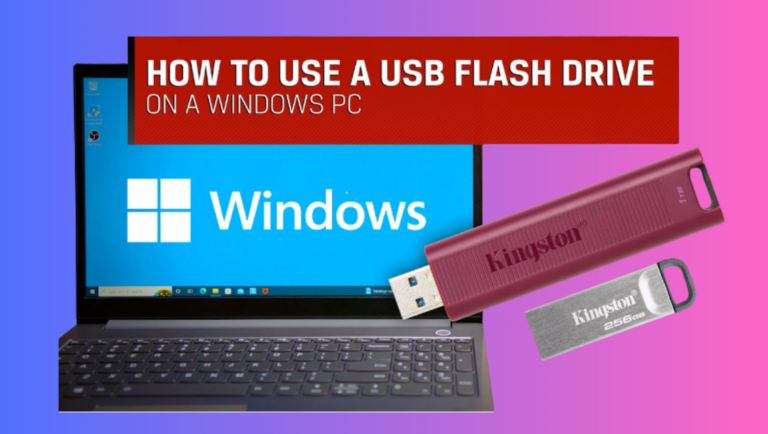
- A USB drive, 4 GB minimum but 8 GB+ recommended.
- A recent Linux ISO for a light distro.
- A backup plan for any files you want to save.
- Basic patience and 30–90 minutes of time.
Key checks
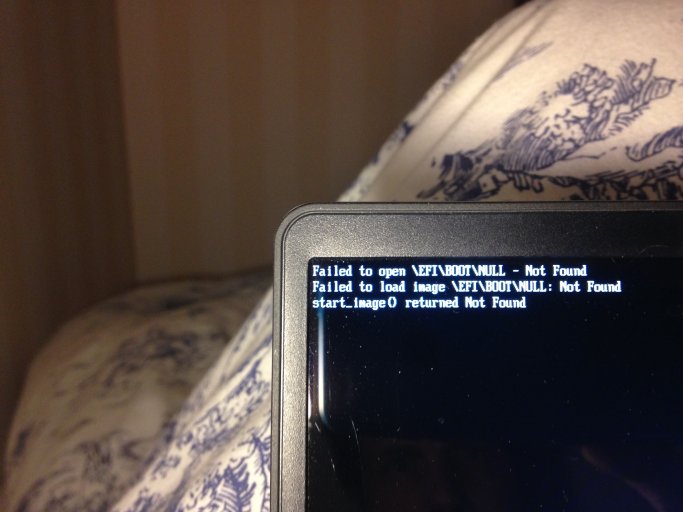
- Verify the laptop can boot from USB via its boot menu.
- Check how much RAM and storage you have.
- Note if the laptop uses BIOS (legacy) or UEFI.
- If Windows won’t boot, try a live USB first to recover files.
Quick safety steps
- Always try to copy precious files before wiping the disk.
- If the drive is failing, use a second drive or an external SSD for install.
- Make a note of the laptop model and any special hardware like Broadcom Wi‑Fi.
This checklist makes how to install linux on older laptop not booting winddows safer and smoother.

Pick a lightweight Linux distro
Choosing the right distro matters for old hardware. Pick one that targets low RAM and old CPUs.
Good distro options for older laptops
- Lubuntu — Ubuntu base with LXQt desktop. Low RAM use and good hardware support.
- Linux Mint Xfce — Friendly and polished. Slightly heavier but very usable.
- Linux Lite — Built for Windows users and old hardware.
- antiX or MX Linux — Very light, fast, and stable.
- Puppy Linux — Extremely small and runs from RAM. Great for very old machines.
Why distro choice matters
- Lighter desktops use less RAM and CPU. They feel faster.
- Ubuntu-based distros often have broader driver support.
- Some distros run entirely in RAM. That helps on slow drives.
How to test distros without installing
- Use a live USB. Boot the laptop and choose “Try” mode.
- Test Wi‑Fi, video, and keyboard. Plug in a USB mouse if the touchpad is odd.
- If driver support is poor, try a different distro or kernel version.
Choosing well is central to how to install linux on older laptop not booting winddows successfully.

Create a bootable USB and prepare the laptop firmware
A correct bootable USB and firmware settings make install simple.
How to get the ISO
- Download the ISO from the distro site. Verify checksums if you can.
- Choose a stable LTS release for reliability.
Create the bootable USB
- Use balenaEtcher, Rufus, or the distro’s recommended tool.
- For UEFI systems, write the USB as a standard image (default Etcher settings work).
- For older BIOS systems, make sure the tool creates a MBR-bootable USB.
Set firmware options (BIOS/UEFI)
- Enter BIOS/UEFI setup (usually F2, F10, Del at boot).
- Disable Secure Boot if the distro does not support it.
- Enable USB boot or set the boot order to prioritize USB.
- If the laptop is very old, enable Legacy/CSM boot.
Boot from the USB
- Insert the USB and restart.
- Use the boot menu (F12, Esc, or similar) and pick the USB device.
- If nothing boots, try a different USB port or recreate the USB.
Follow these steps to prepare everything before you actually install. This makes how to install linux on older laptop not booting winddows smooth.

Step-by-step install process
This is a concise install flow you can follow. I keep each step short and clear.
- Boot the live USB
- Choose “Try” or “Live” mode first.
- Confirm you can reach the desktop and internet.
- Back up files
- If Windows files remain, copy them to an external drive now.
- Use the file manager in the live session to mount the internal drive.
- Start the installer
- Click the Install icon on the desktop.
- Choose language, keyboard, and time zone.
- Disk setup
- Choose “Erase disk and install” to replace Windows entirely.
- Or choose “Something else” to create custom partitions.
- Recommended simple layout for old laptops:
- Root partition “/” ext4, 20–50 GB
- Swap file or small swap partition 1–2 GB for low-RAM systems
- Home partition if you want to separate files
- Create user and password
- Pick a user name you remember.
- Use a strong password. You can log in without it if you set autologin, but avoid for security.
- Install and reboot
- Let the installer copy files. This takes 10–40 minutes.
- Remove the USB when prompted and reboot.
- First boot and updates
- Log in and update the system immediately.
- Install any additional drivers from the driver manager.
For many readers, this clear flow solves how to install linux on older laptop not booting winddows in under an hour.

Post-install performance and tweaks
After install, tweak the system to feel snappy.
Essential tweaks
- Install updates and reboot.
- Turn off visual effects and animations.
- Use a lighter browser like Firefox with few extensions.
- Use swap wisely: create a swap file rather than a large swap partition on slow drives.
Improve boot and disk speed
- If you have an HDD, consider upgrading to an SSD. This gives the biggest speed boost.
- Enable TRIM for SSDs.
- Reduce services that run at boot.
Battery and power tips
- Install TLP for better battery life.
- Lower screen brightness and disable Bluetooth if not used.
Software recommendations for old hardware
* Use lightweight apps: AbiWord, Gnumeric, FeatherPad.
- Use mpv for media playback.
- Use PCManFM or Thunar for a fast file manager.
These tweaks make the laptop feel fresh. They show a simple path for how to install linux on older laptop not booting winddows and get good speed.

Troubleshooting common problems
If something goes wrong, these quick fixes help.
Laptop doesn’t boot the USB
- Try another USB port or recreate the USB drive.
- Check if Secure Boot is blocking boot. Disable Secure Boot temporarily.
Wi‑Fi or Broadcom not working
- Install broadcom-wl or use the driver manager.
- Use a USB Wi‑Fi dongle as a temporary workaround.
Graphics issues or black screen
- Boot with nomodeset from the GRUB boot menu.
- Install proprietary drivers for NVIDIA if needed.
Slow performance after install
- Check CPU and RAM usage. Close heavy apps.
- Add swap file if RAM is low, or upgrade RAM if possible.
Can I recover files before installing?
- Yes. Boot a live USB. Mount the Windows partition and copy files to an external drive.
These tips are practical answers to likely issues when you search how to install linux on older laptop not booting winddows.
PAA-style quick questions
Q: Can I install Linux without a USB?
A: Yes. You can use a DVD or network installer, but USB is the easiest. Some tools can boot from SD cards too.
Q: Will I lose my Windows license if I install Linux?
A: The Windows license stays tied to the device, but replacing Windows means you no longer use the license. You can restore Windows later if needed.
Q: Is Linux harder than Windows for everyday tasks?
A: No. Modern distros are user-friendly and come with familiar apps. Some tasks differ but are easy to learn.
how to install linux on older laptop not booting Windows often raises these quick questions.

My personal experience and lessons learned
I once fixed a 2010 laptop that refused to start Windows. Windows repair failed. I booted a live USB with a lightweight distro. I copied the files, installed Linux, and the laptop ran like new. The swap file saved me when RAM was low. Upgrading the HDD to an SSD later gave a huge speed boost.
Key lessons from hands-on repairs
- Always try a live session first to recover data.
- Lightweight distros often work better than trying to slim down Windows.
- Upgrading the drive or RAM pays off more than minor tweaks.
- Be patient with firmware settings; small changes fix most boot problems.
These real results reflect practical steps for how to install linux on older laptop not booting winddows.
Security and maintenance
Keep the system safe and healthy.
Simple security steps
- Install security updates regularly.
- Use strong passwords and a firewall.
- Enable automatic updates if you want low maintenance.
Backup plan
- Set up simple backups to an external drive or cloud.
- Use Timeshift or similar tools for system snapshots.
When to reinstall
- If the system gets cluttered or acts unstable, a fresh install is quick.
- Consider reinstalling after a major release upgrade if you see problems.
Good maintenance reduces surprises and extends the laptop life.
Frequently Asked Questions of how to install linux on older laptop not booting Windows
What if my laptop disk is failing?
Boot a live USB and copy important files to an external drive right away. If the disk is failing, install Linux to a new drive or external SSD.
Can I dual boot Linux with my broken Windows?
Dual boot is possible only if Windows can be repaired enough to keep its partitions. If Windows is unstable, a single Linux install is safer.
Which distro is best for 2 GB RAM?
Choose very light distros like Puppy Linux, antiX, or Lubuntu. They use less memory and run smoother on 2 GB.
Do I need to disable Secure Boot?
Some distros work with Secure Boot. If the USB won’t boot, try disabling Secure Boot in firmware settings. Re-enable it later if needed.
How do I update drivers for Wi‑Fi or graphics?
Use the distro’s driver manager or install the correct proprietary driver package. In many cases, community guides show exact commands.
Conclusion
Installing Linux on an older laptop that is not booting Windows is a practical way to extend the device’s life. Follow the checklist, pick a lightweight distro, create a good USB installer, and test with a live session first. Back up files, handle firmware settings with care, and perform a simple install. Take small performance steps like using a swap file and disabling effects. You can revive the laptop in one afternoon.
Try the steps now. If you get stuck, share the laptop model and error messages in the comments or forums. Subscribe for more guides and leave a note about your success.