Set your watch time via phone sync or manually in settings in under five minutes.
I’ve spent years fixing and testing smartwatches for friends and clients, so I know what works and what trips people up. This guide explains how to change the time on a smartwatch step by step, covers common models, and shows easy fixes when time won’t sync. Read on to get precise, practical steps you can follow right now.

How smartwatch time works and why it matters
Smartwatches get time from two main sources. They either sync with a paired phone or use their own network/GPS connection to set time automatically. Knowing which method your device uses helps when you need to change the time on a smartwatch.
Why correct time matter
- Accurate notifications: Missed alarms happen with wrong time.
- Health data: Sleep and workout logs need correct timestamps.
- Time zone travel: Watches need proper handling when you cross zones.
Common causes of wrong time
- Phone and watch are not synced.
- Incorrect time zone on the phone or watch.
- Software bugs or outdated firmware.
- Airplane mode or disconnected Bluetooth.

Source: hardreset.info
Four main ways to change the time on a smartwatch
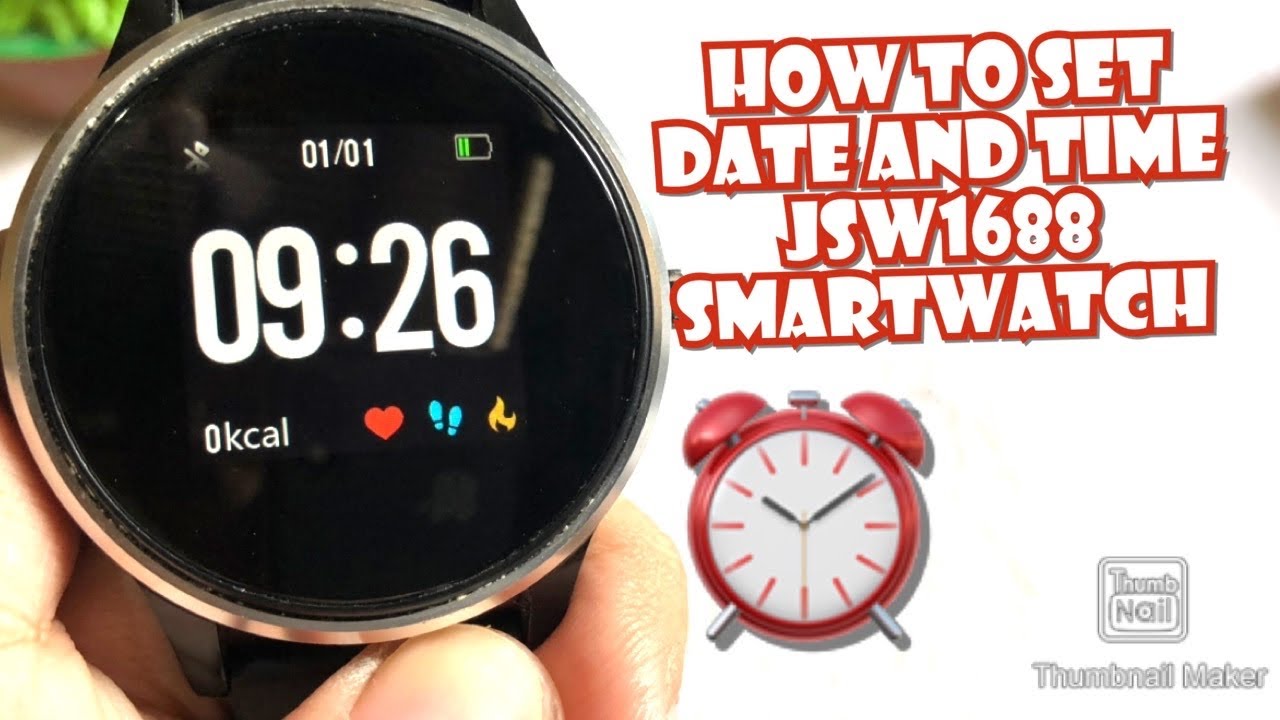
You can change the time on a smartwatch using these methods. Pick the one that matches your device and situation.
- Sync with phone
- Open the companion app and ensure Bluetooth is on.
- Allow the app to set system time automatically.
- Restart the watch if needed.
- Change the time on the watch manually
- Go to Settings > System or General > Date & Time.
- Turn off automatic time and set the hour and minute manually.
- Save and exit.
- Use the companion app
- Open the app on your phone (watch brand app).
- Look for Device Settings > Time or General Settings.
- Toggle automatic time or set a manual offset.
- Use GPS or network time
- Ensure the watch has GPS or mobile data access.
- Enable “Automatic date & time” in settings.
- Wait a minute for network/GPS time to update.
Source: youtube.com
Step-by-step: how to change the time on a smartwatch (Apple Watch)
Apple Watch usually mirrors the iPhone’s time. If it’s wrong, follow these steps.
- Check iPhone time
- Open Settings on iPhone > General > Date & Time.
- Enable Set Automatically or set time manually.
- Force resync
- Open the Watch app on iPhone.
- Go to My Watch > General > Reset > Reset Sync Data.
- Wait for a few minutes.
- Manual offset (rare)
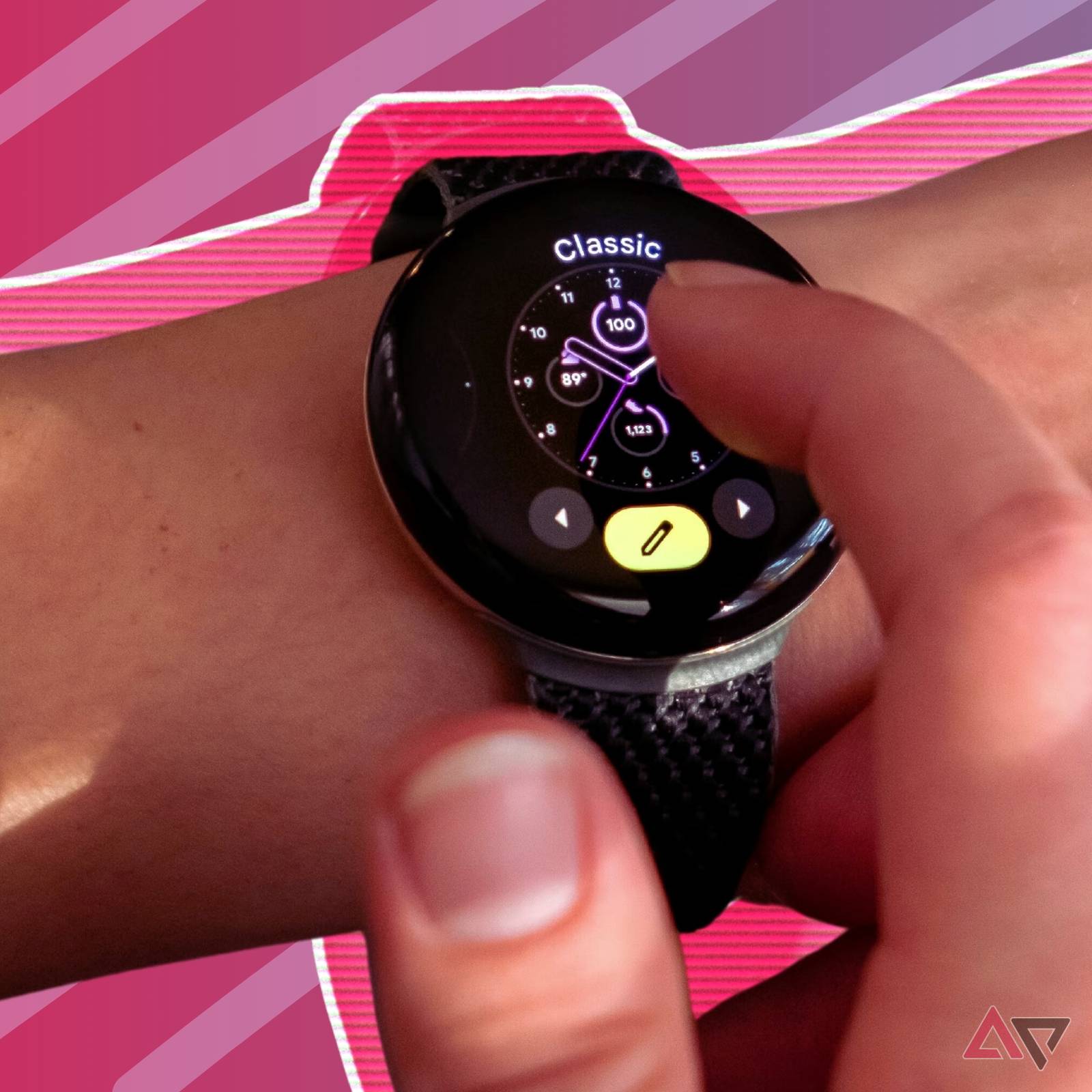
- Apple Watch does not allow a full manual time change, only a watch face offset.
- On Apple Watch, go to Settings > Clock > +/- to add minutes.
Source: androidpolice.com
Step-by-step: how to change the time on a smartwatch (Wear OS)
Wear OS watches often sync with Android or iPhone.
- Use your phone
- Open Settings on phone > System > Date & time.
- Toggle Set time automatically.
- On the watch
- Swipe down > Settings > System > Date & time.
- Turn off automatic and set the time manually if needed.
- App method
- Open Google’s Wear OS app > Settings > Sync now.

Source: youtube.com
Step-by-step: how to change the time on a smartwatch (Samsung Galaxy Watch)
Samsung watches use the Galaxy Wearable app and watch settings.
- Sync with phone
- Open Galaxy Wearable app > Watch settings.
- Ensure Auto update time is on.
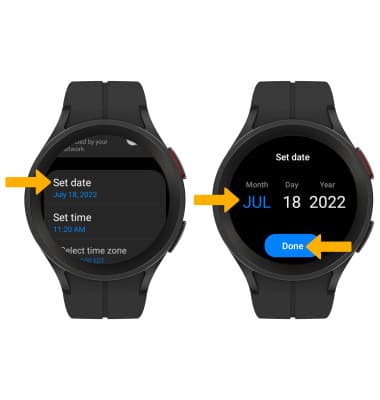
- Manual change on the watch
- Settings > General > Date and time.
- Turn off Automatic and set the time manually.
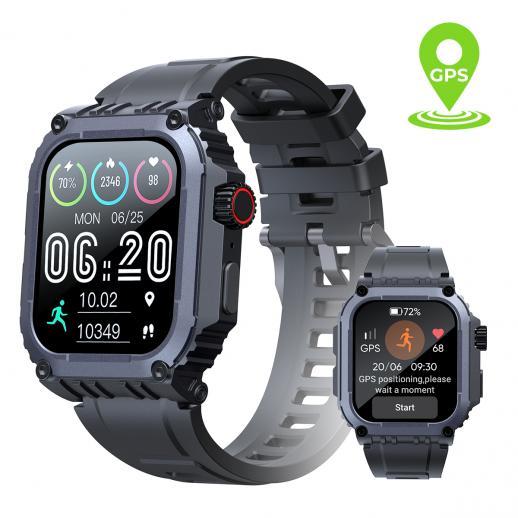
- If the watch uses LTE
- It can update the time via the network if the SIM is active.
Source: kentfaith.com
Step-by-step: how to change the time on a smartwatch (Fitbit and Garmin)
Fitbit
- Fitbit watches usually sync time from the Fitbit mobile app.
- Open the Fitbit app > Today tab > Profile > Device > Sync now.
- If wrong, check phone time zone settings.
Garmin
- On watch, go to Settings > System > Time.
- Set Time > Auto (GPS) or Set Manually.
- For auto, enable GPS and set the time zone properly.

Source: youtube.com
Troubleshooting common problems when changing the time on a smartwatch
If time won’t change, try these fixes.
- Check Bluetooth and Wi-Fi
- Ensure both devices are connected.
- Restart both devices
- A simple restart can force a resync.
- Update firmware and apps
- Install the latest OS and companion app updates.
- Reset network settings or re-pair
- Remove the watch from the phone and pair it again.
- Verify time zone settings
– Time zone mismatch often causes the wrong time.
Source: att.com
Tips, best practices, and things to avoid
Use these tips to keep time accurate.
- Enable automatic time for most use cases. It’s the easiest path.
- When traveling, let the phone set the time. Then allow the watch to sync.
- Avoid manual time changes unless necessary. Manual clocks can drift.
- Keep firmware updated. Many fixes come from updates.
- Turn off battery saver if it blocks sync functions.
Personal experience tip
- I once spent an hour chasing a wrong alarm. The fix was simple: re-pair the watch. Re-pairing resolved a hidden sync conflict that a restart did not. Save time and try re-pair first.
Related concepts: time zones, DST, and GPS sync
Understanding these helps when changing the time on a smartwatch.
- Time zone
- Time zone settings tell the watch which local time to use.
- Daylight Saving Time (DST)
- Automatic time handles DST changes if enabled.
- GPS and network time
- GPS can set a precise time even without a phone.
- Network time depends on the carrier or Wi-Fi accuracy.
When to contact support or seek service
Contact support if:
- Time stays wrong after updates and resets.
- Hardware issues: the watch won’t connect or the GPS fails.
- Re-pairing and a full reset do not help.
Be ready to provide:
- Watch the model and firmware version.
- Companion app version and phone OS.
- Steps you already tried.
PAA-style questions (quick answers)
Q: Will my watch change time automatically when I travel?
- If automatic time and time zone are enabled, most watches will update when your phone or GPS reports the new zone. Some models ask for confirmation.
Q: Can I set a different time on the watch than phone?
- Yes, some watches allow a manual time offset. Apple Watch only allows minute offsets, not independent time zones. Check your watch settings.
Q: Why is my watch an hour off after DST?
- That usually means automatic date and time or time zone detection is off. Turn those on and resync.
Frequently Asked Questions of how to change the time on a smartwatch
How do I change the time on my Apple Watch?
Apple Watch syncs with your iPhone time. Adjust the iPhone time or use the Clock settings on the watch for minute offsets, then resync if needed.
How do I change the time on a Wear OS watch?
Open Settings on the watch or use the Wear OS app. Enable automatic time via phone, or turn it off and set time manually in system settings.
My Fitbit shows the wrong time. What should I do?
Open the Fitbit mobile app and sync the device. Check the phone’s time and time zone, then force a sync or restart both devices.
Why won’t my smartwatch update time after changing the phone time?
Check Bluetooth, app permissions, and whether automatic time is enabled. Re-pairing the watch or rebooting both devices usually fixes sync issues.
Can I set a different time zone on my smartwatch?
Some smartwatches let you set a manual time zone. Many simply mirror your phone’s timezone settings or use GPS to set local time automatically.
Conclusion
Changing the time on a smartwatch is usually quick when you know the right steps. Start by checking automatic sync with your phone, try a manual change if needed, and use re-pairing or firmware updates for stubborn issues. Use the tips here to prevent future problems and keep your watch accurate.
Take action now: check your watch settings, enable automatic time, and run a sync. If you found this useful, leave a comment or subscribe for more practical tech guides.