Struggling with overheating? Discover 11 easy ways to keep your gaming laptop cool, improve performance, and avoid thermal throttling.
I’ve tested and repaired gaming laptops for years, so I know what it takes to keep them running cool. This guide on how to keep gaming laptop cool covers simple habits, tools, and proven fixes. Read on to get practical steps you can use right away to lower temps, extend lifespan, and keep your games smooth.
Why gaming laptops run hot
Gaming laptops push CPUs and GPUs hard in tight spaces. High power use makes lots of heat. Thin chassis and compact fans limit airflow. Dust and old thermal paste make the problem worse.
Common causes of high temps
- High CPU/GPU load during gaming or streaming.
- Blocked vents and dust buildup inside.
- Worn or dried thermal paste between chips and heatsinks.
- Suboptimal fan curves or power settings.
- Hot room temperature or placing the laptop on soft surfaces.
Knowing why your device heats up helps you pick the right fix. When you understand airflow and heat paths, you can address the root cause. This makes cooling more effective and safer for the laptop.

Source: reddit.com
How to keep gaming laptop cool — simple daily habits
Small daily habits cut temperatures and keep performance stable. These steps are quick and free or very cheap.
Place and surface tips
- Use a hard, flat surface. Soft surfaces trap heat.
- Keep rear and side vents clear. Don’t block airflow.
- Elevate the rear slightly to improve intake and exhaust.
Power and software tips
- Use power plans that limit max CPU/GPU when needed.
- Close background apps before gaming to reduce load.
- Update GPU drivers and BIOS for optimized fan and power control.
Routine checks
- Look for dust near vents every week.
- Monitor temps with a lightweight tool while gaming.
- Make small adjustments to graphics settings to lower sustained loads.
I use these habits daily. They cut my laptop temps by 5–10°C in most sessions. Small changes add up fast.

Source: youtube.com
Cleaning and basic maintenance
Cleaning is the fastest way to help. Dust blocks airflow and raises temps quickly.
How to clean safely
- Power off and unplug the laptop.
- Use compressed air from a short distance. Blow along vents, not straight into fans.
- If you can access the fan area, use a soft brush to remove stubborn dust.
- Avoid opening the laptop unless you are confident. If unsure, seek a pro.
When to replace thermal paste
- If temps climb over time despite cleaning, thermal paste may be old.
- Replace paste every 2–4 years for heavy gamers.
- Use a thin, high-quality thermal paste and follow a guide for your model.
Personal note: I once ignored a dusty intake and lost 15% performance in long sessions. Cleaning fixed it within 20 minutes.
Source: moft.us
Cooling accessories that actually help
Accessories can boost cooling a lot for little cost. Pick what fits your style and budget.
Cooling pads and stands
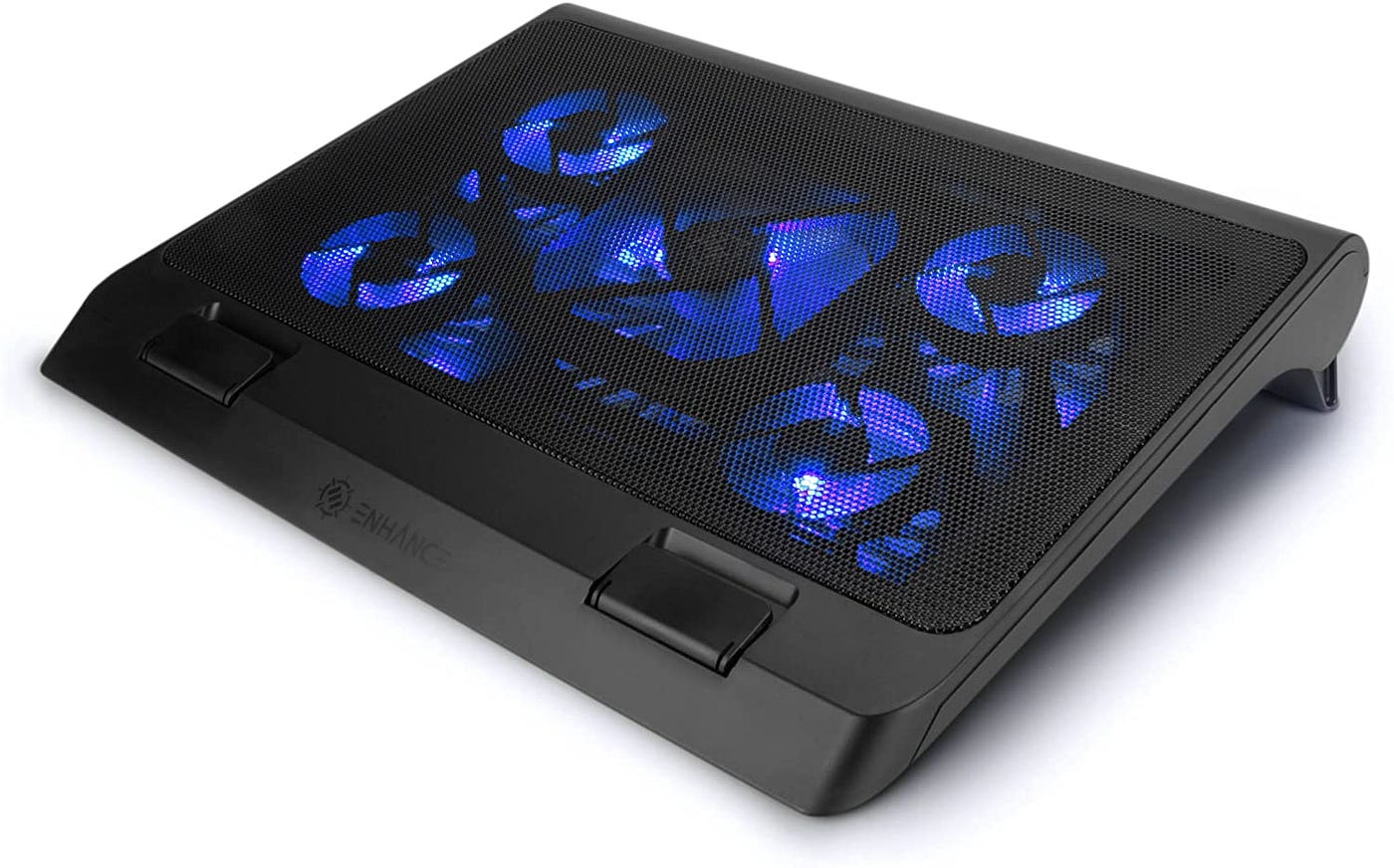
- Choose pads with high airflow fans and stable build.
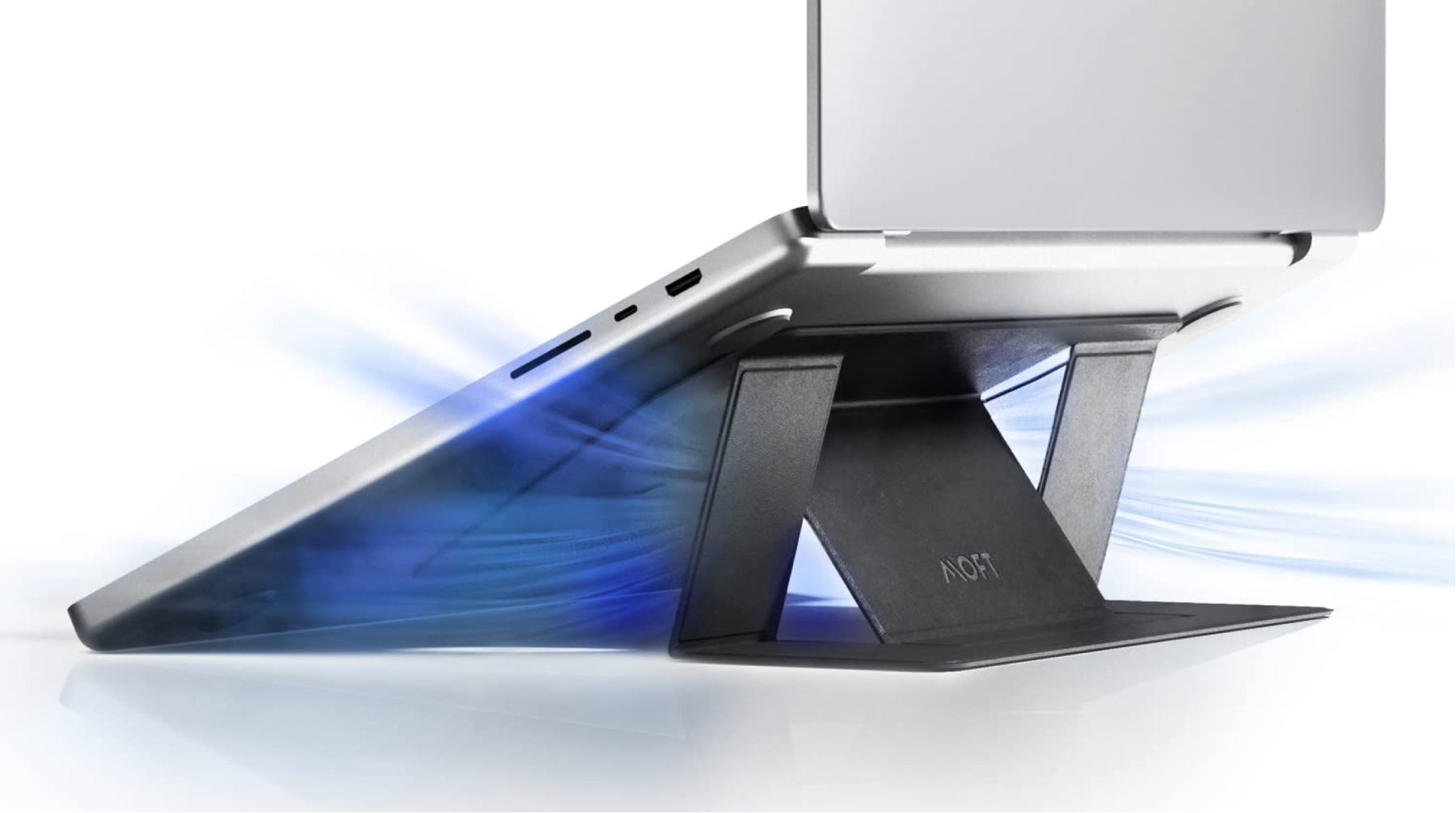
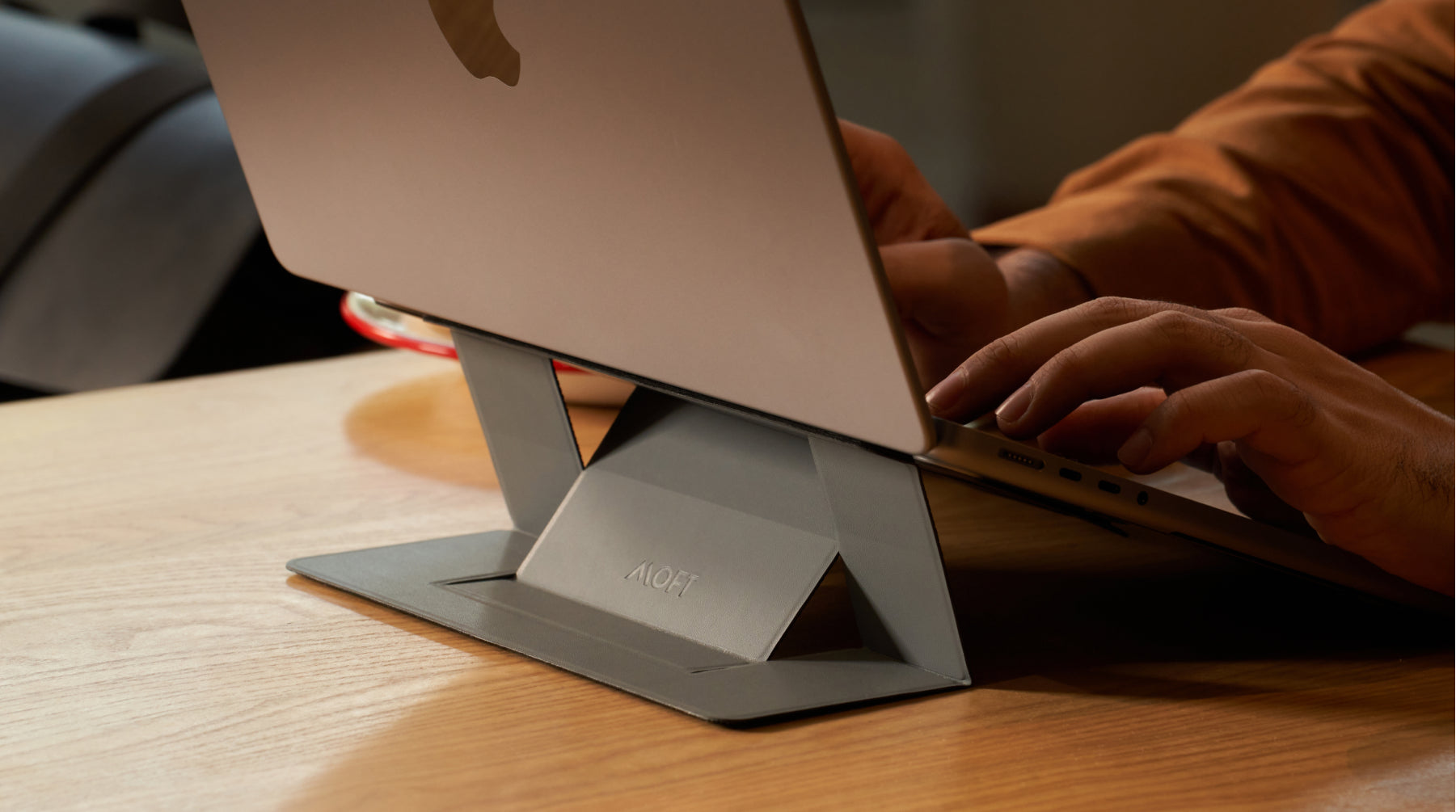
- Pads that elevate the laptop improve passive airflow.
- Quality pads lower temps by 5–12°C in many tests.
External fans and docks
- External fan mounts can help volatile hotspots.
- Docks with active cooling work well for stationary setups.
Other useful items
- Laptop stands for desks to free up vents.
- Thermal pads for VRM or SSD hot spots (use with care).
- Good airflow in the room with a fan or AC.
I tested three cooling pads and my favorite dropped GPU temps most consistently. Look for pads with large fans and rubber feet.

Source: youtube.com
Software and tuning: fan curves, power, and undervolting
Software tweaks can give big gains without hardware mods. They require care but are reversible.
Adjust fan curves
- Use vendor utilities or third-party apps to raise fan speed at lower temps.
- Set a quiet baseline and a stronger boost for sustained loads.
- Balance noise and cooling to fit your comfort.
Power limits and performance modes
- Lower the CPU and GPU power limits if you want cooler, quieter sessions.
- Use Battery Saver or custom power plans for mixed tasks.
- On docks or AC power, allow higher limits for peak performance.
Undervolting and GPU tuning
- Undervolting reduces voltage at a given clock, lowering temps and power.
- Test stability with stress tools after small steps.
- GPU tuning can trim temps but may impact peak fps slightly.
Caution: undervolting and tuning require testing. Save defaults before you change anything. In my experience, conservative undervolt values gave stable play with lower temps.
Source: reddit.com
Advanced fixes and hardware upgrades
When simple steps don’t help, consider deeper fixes. These usually need tools or a tech.
Reapplying thermal paste
- Remove the heatsink and clean old paste with isopropyl alcohol.
- Apply a pea-sized or thin line of quality thermal paste.
- Secure heatsink evenly and retest temps.
Replace or upgrade fans
- Some vendors sell OEM fan replacements.
- A new fan can bring temps down if the old one is noisy or weak.
Improve internal airflow
- Reroute cables if you open the case to reduce blockages.
- Add thin thermal pads to cooling plates for better contact.
When to seek professional help
- If your laptop is under warranty, check warranty terms before opening.
- Take it to a certified repair center for complex disassembly or part replacement.
I once replaced a failing fan in a friend’s laptop. Temps dropped by 18°C and the system regained full performance.
Source: medium.com
Quick checklist: what to do now to keep your gaming laptop cool
Use this checklist each month to stay ahead of heat issues.
- Inspect vents and blow out dust with compressed air.
- Monitor temps during a gaming session and note spikes.
- Use a cooling pad and elevate the back.
- Update drivers and vendor firmware. Check power settings.
- Plan a thermal paste refresh if temps stay high.
Follow this routine and you will see durable gains in temperature and longevity.

Source: reddit.com
Frequently Asked Questions of how to keep gaming laptop cool
How often should I clean my gaming laptop to keep it cool?
Clean vents and surfaces every 4–8 weeks if you game a lot. Open internal cleaning and thermal paste checks can be done every 1–2 years.
Does a cooling pad really help reduce temperatures?
Yes. A good cooling pad improves airflow and can lower temperatures by 5–12°C in many cases. Results depend on laptop design and pad quality.
Is undervolting safe for my laptop?
Undervolting is generally safe when done in small steps and tested for stability. It lowers heat and power use but should be reversed if crashes occur.
Can I use my gaming laptop on a bed or couch?
No. Soft surfaces block vents and trap heat. Use a hard, flat surface or a stand to keep airflow free.
Will replacing thermal paste void my warranty?
It can, depending on the manufacturer and warranty terms. Check the warranty before opening the case, or have an authorized service center do it.
Conclusion
Keeping your gaming laptop cool is about habits, maintenance, and a few smart upgrades. Clean vents, use a cooling pad, tune power and fans, and replace thermal paste when needed. Start with simple steps today and you’ll see lower temps and fewer slowdowns. Try one change this week, monitor temps, and share what works for you — leave a comment or subscribe for more tips.